> ## Documentation Index
> Fetch the complete documentation index at: https://docs.flexoworks.com/llms.txt
> Use this file to discover all available pages before exploring further.
# CDI workspace
> Arrange LEN plates on a stock sheet and send the gang to production.
The **CDI** tab belongs to the CDI operator in the full Flexoworks application.
Use it to arrange individual plates on a physical sheet. Recreate that layout
in **Esko Digital Flexo Suite (DFS)**, submit it to Esko, then select **Send to
queue** in Flexoworks. The terminal team records imaging completion and washout.
**Send to queue** records your manual handoff. Flexoworks does not currently
transfer files to DFS, create a master LEN, or submit to an Esko device.
After handoff, follow the [production terminal guide](/guides/floor-terminal-overview)
for the team's imaging completion and washout steps.
## Individual plates and gangs
A production line describes the required work and quantity. After manager
approval of Prepress, Flexoworks creates one tracked plate for each required
unit. Each plate has its own LEN file or separation identity and production
status. A quantity of four therefore creates four individual plates.
A **plate gang** is the arrangement on **one physical inventory sheet**.
Compatible plates from different jobs or customers can share a gang. Plates
from the same production line can use different gangs, orientations, equipment,
and completion times without splitting the production line.
## Terminology
| English | Ukrainian | Meaning in Flexoworks |
| ------------------------------------- | --------------------------------------- | ------------------------------------------------------------------------------------------------------------------ |
| **Plate gang** (short: **gang**) | **Розкладка** | Individual printing plates arranged on one physical inventory sheet, tracked together through production. |
| **Printing plate** (short: **plate**) | **Друкарська форма** (short: **форма**) | One required production unit with its own LEN file or separation identity, status, and replacement attempts. |
| **Sheet** | **Лист** | The physical stock reserved for one gang. The **Plate** material category in Inventory describes the raw material. |
| **Artwork** | **Зображення** | The image area before the plate buffer is added. |
| **Buffer** | **Запас** | Extra material on each side of the artwork; it can differ by production line or customer. |
| **Physical footprint** | **Фізичний розмір** | Artwork plus buffer on all sides: the space an individual plate occupies on the sheet. |
| **Imaging** | **Експонування** | The CDI process before washout. |
| **Washout** | **Вимивання** | The process after imaging, recorded by the terminal team. |
| **Production line** | **Виробнича позиція** | One job item specifying the work, dimensions, and required quantity. |
In English, **layout** or **arrangement** describes the positions and rotations
within a **plate gang**. Ukrainian **розкладка** also names this arrangement,
as in **Запропонувати розкладку** and **Розкладка на листі**. The phrase
**розміщення форм** describes the placement of the individual plates.
## Open the ready queue
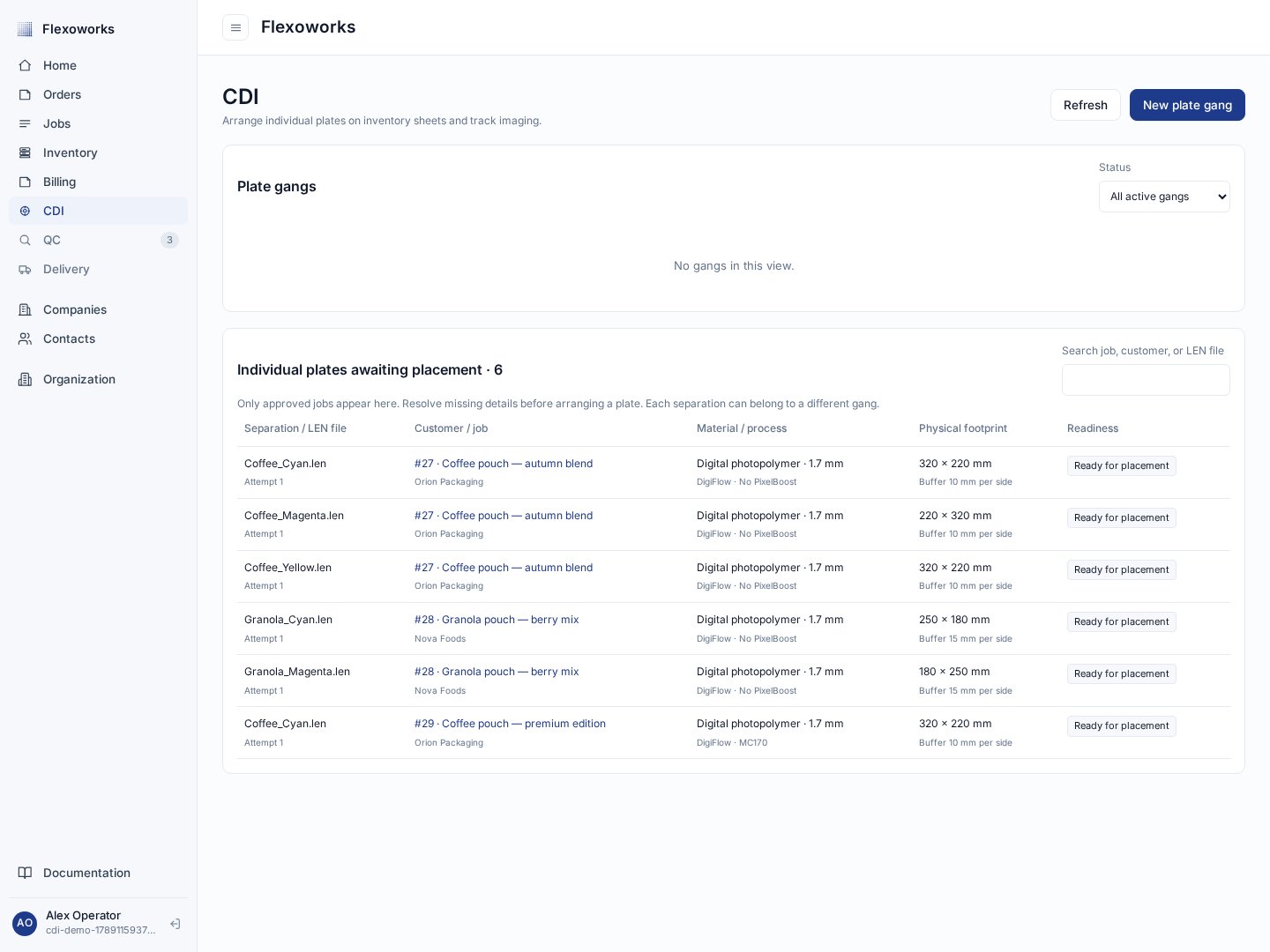
Open **CDI** from the full application's sidebar. The upper list shows gangs;
the lower list shows individual plates awaiting placement. Search by job,
customer, or LEN file. Use the gang status filter to inspect active work or
completed history. Load additional pages when needed: suggestions use the queue
currently loaded in the editor.
 CDI operators and organization administrators can edit layouts. Other signed-in
organization users can inspect them. Floor PIN access is separate and does not
grant full-application CDI editing rights.
If a plate has missing source or production details, open its job. **Assign LEN
file** can resolve a missing or incorrect separation mapping. **Complete specifications** can fill missing material, thickness, or technology on an
unassigned released line; approved values stay locked. Resolve the displayed
blocker before adding the plate to a sheet.
## Create a gang from inventory
1. Select **New plate gang**.
2. Choose an actual **Physical sheet** already available in inventory.
3. Select **Reserve sheet and create gang**.
The sheet's dimensions and location become the layout's bounds. The draft
reserves that exact piece; another gang cannot take it, and Inventory cannot
split, move, or use it separately. Receive or move suitable stock first if the
sheet you need is unavailable.
## Suggest and adjust an arrangement
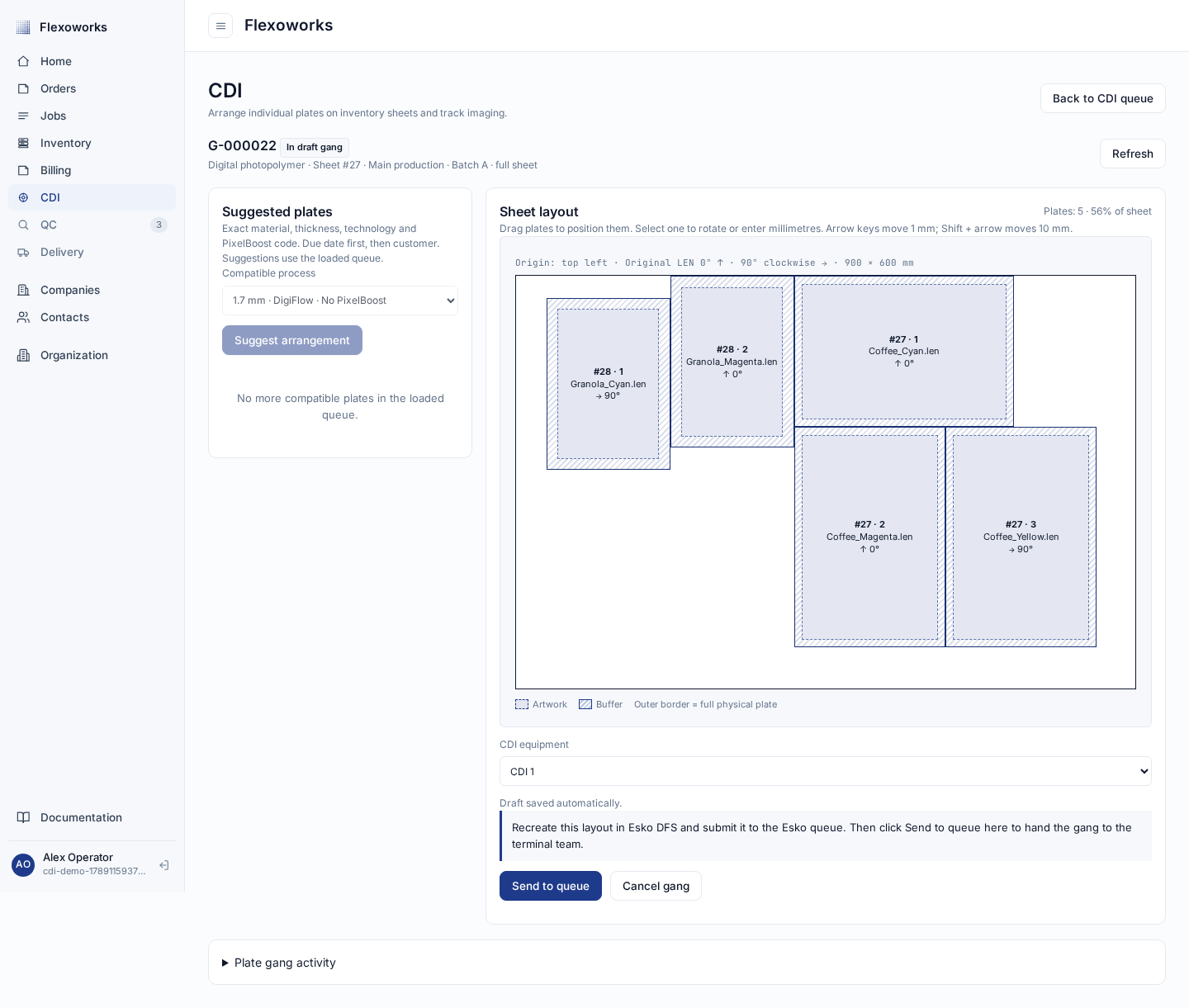
The editor shows compatible plates on the left and the proportional sheet on
the right. A gang requires an exact match of:
* material;
* thickness;
* technology;
* PixelBoost code, with no PixelBoost treated as a distinct setting; and
* production location.
For example, **MC170** and no PixelBoost cannot share a gang. Within a compatible
group, suggestions prioritize due date and then customer. Customer grouping is
a preference; it does not override process compatibility or available space.
Select the primary **Suggest arrangement** button to fill free space. Existing
placements stay where you put them. The result reports how many plates were
added and how many remain. It is a practical rectangle arrangement, not a
guarantee of maximum sheet utilization.
CDI operators and organization administrators can edit layouts. Other signed-in
organization users can inspect them. Floor PIN access is separate and does not
grant full-application CDI editing rights.
If a plate has missing source or production details, open its job. **Assign LEN
file** can resolve a missing or incorrect separation mapping. **Complete specifications** can fill missing material, thickness, or technology on an
unassigned released line; approved values stay locked. Resolve the displayed
blocker before adding the plate to a sheet.
## Create a gang from inventory
1. Select **New plate gang**.
2. Choose an actual **Physical sheet** already available in inventory.
3. Select **Reserve sheet and create gang**.
The sheet's dimensions and location become the layout's bounds. The draft
reserves that exact piece; another gang cannot take it, and Inventory cannot
split, move, or use it separately. Receive or move suitable stock first if the
sheet you need is unavailable.
## Suggest and adjust an arrangement
The editor shows compatible plates on the left and the proportional sheet on
the right. A gang requires an exact match of:
* material;
* thickness;
* technology;
* PixelBoost code, with no PixelBoost treated as a distinct setting; and
* production location.
For example, **MC170** and no PixelBoost cannot share a gang. Within a compatible
group, suggestions prioritize due date and then customer. Customer grouping is
a preference; it does not override process compatibility or available space.
Select the primary **Suggest arrangement** button to fill free space. Existing
placements stay where you put them. The result reports how many plates were
added and how many remain. It is a practical rectangle arrangement, not a
guarantee of maximum sheet utilization.
 You can then:
* drag a plate from the left list onto the sheet, or select **Add**;
* drag a placed plate to another position;
* select a plate and enter **Left (mm)** and **Top (mm)** coordinates;
* use arrow keys to move 1 mm, or Shift + arrow to move 10 mm;
* select **Rotate clockwise** to switch between 0° and 90° clockwise; or
* select **Remove** to return a draft placement to the available candidates.
Zero degrees means the original LEN orientation relative to the fixed sheet
direction. Rotation is saved per individual plate. The editor and server reject
overlap or placements outside the sheet. There is no compulsory gap or unusable
edge: the operator decides the spacing.
### Read artwork and buffer correctly
The inner area is **Artwork**. The hatched border is **Buffer**. The outer border
is the full **Physical footprint** that must fit on the sheet.
For 300 × 200 mm artwork with a 10 mm buffer on each side, the footprint is
320 × 220 mm. With a 15 mm buffer, it is 330 × 230 mm. Rotation swaps the full
footprint's axes. The buffer is applied once, not added again when placing.
Each plate keeps the effective line, customer/payer, or organization buffer
captured at release. Different customers' plates can therefore have different
buffers on the same sheet. See [Production lines](/guides/production-lines).
## Save automatically and send to queue
Draft positions, orientations, and **CDI equipment** save automatically after a
short pause. Wait for **Draft saved automatically.** before leaving the page.
If saving fails, the editor keeps the local layout, shows the error, and offers
**Retry**. Queue submission remains disabled until that error is resolved.
Retry first resolves the earlier save, then saves any newer local edits. If
another operator has changed the saved layout, review it with **Refresh** before
continuing; retry does not overwrite their changes.
Choose the equipment at the sheet's location. When the arrangement is ready:
1. Recreate the same positions and orientations in Esko DFS.
2. Submit the arrangement to the Esko queue from DFS.
3. Select **Send to queue** in Flexoworks.
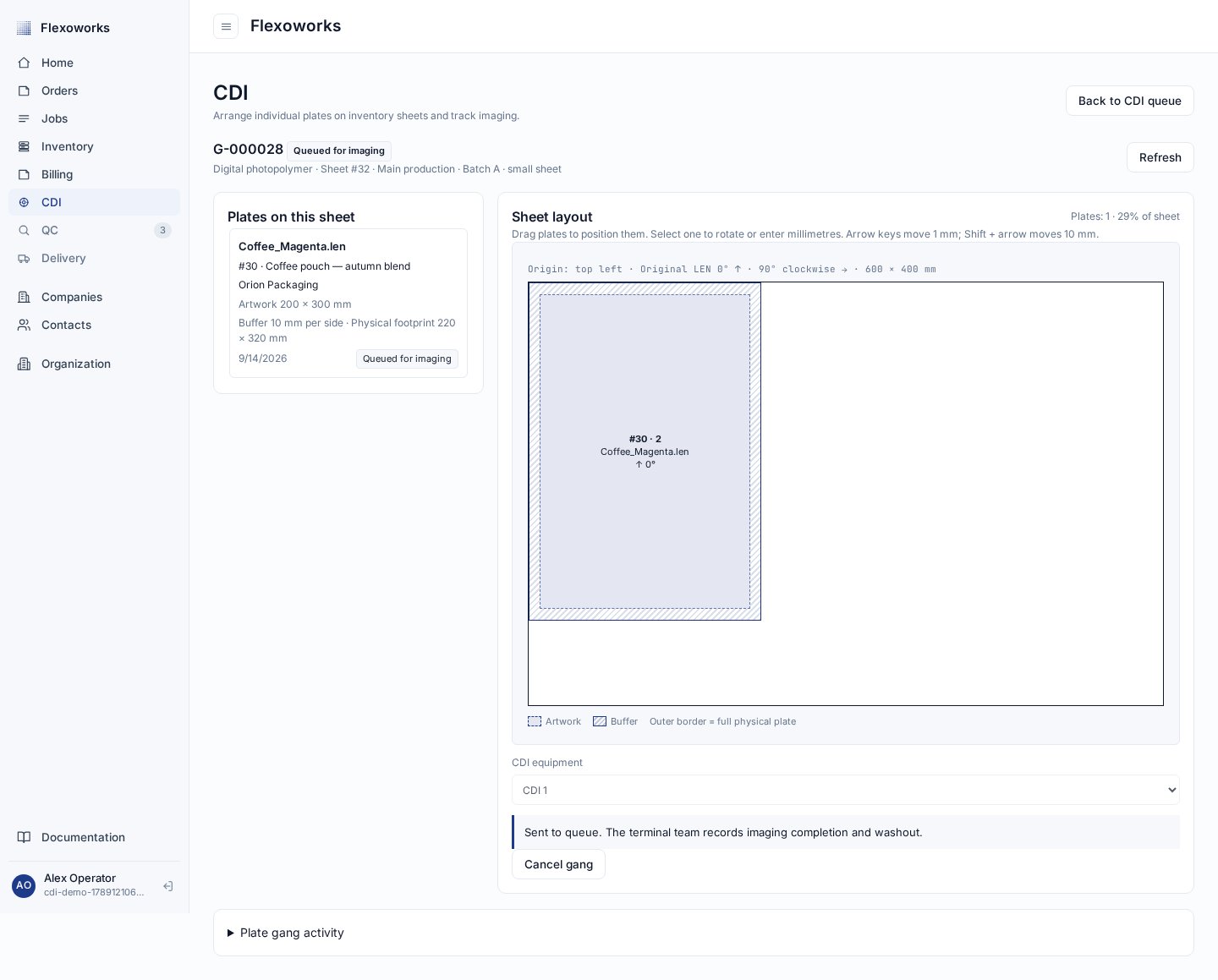
This records the final layout and changes the gang to **Queued for imaging**.
The layout is locked and appears in the production terminal queue. The CDI
operator has no separate Save layout, Confirm layout, Start imaging, or Finish
imaging steps.
You can then:
* drag a plate from the left list onto the sheet, or select **Add**;
* drag a placed plate to another position;
* select a plate and enter **Left (mm)** and **Top (mm)** coordinates;
* use arrow keys to move 1 mm, or Shift + arrow to move 10 mm;
* select **Rotate clockwise** to switch between 0° and 90° clockwise; or
* select **Remove** to return a draft placement to the available candidates.
Zero degrees means the original LEN orientation relative to the fixed sheet
direction. Rotation is saved per individual plate. The editor and server reject
overlap or placements outside the sheet. There is no compulsory gap or unusable
edge: the operator decides the spacing.
### Read artwork and buffer correctly
The inner area is **Artwork**. The hatched border is **Buffer**. The outer border
is the full **Physical footprint** that must fit on the sheet.
For 300 × 200 mm artwork with a 10 mm buffer on each side, the footprint is
320 × 220 mm. With a 15 mm buffer, it is 330 × 230 mm. Rotation swaps the full
footprint's axes. The buffer is applied once, not added again when placing.
Each plate keeps the effective line, customer/payer, or organization buffer
captured at release. Different customers' plates can therefore have different
buffers on the same sheet. See [Production lines](/guides/production-lines).
## Save automatically and send to queue
Draft positions, orientations, and **CDI equipment** save automatically after a
short pause. Wait for **Draft saved automatically.** before leaving the page.
If saving fails, the editor keeps the local layout, shows the error, and offers
**Retry**. Queue submission remains disabled until that error is resolved.
Retry first resolves the earlier save, then saves any newer local edits. If
another operator has changed the saved layout, review it with **Refresh** before
continuing; retry does not overwrite their changes.
Choose the equipment at the sheet's location. When the arrangement is ready:
1. Recreate the same positions and orientations in Esko DFS.
2. Submit the arrangement to the Esko queue from DFS.
3. Select **Send to queue** in Flexoworks.
This records the final layout and changes the gang to **Queued for imaging**.
The layout is locked and appears in the production terminal queue. The CDI
operator has no separate Save layout, Confirm layout, Start imaging, or Finish
imaging steps.
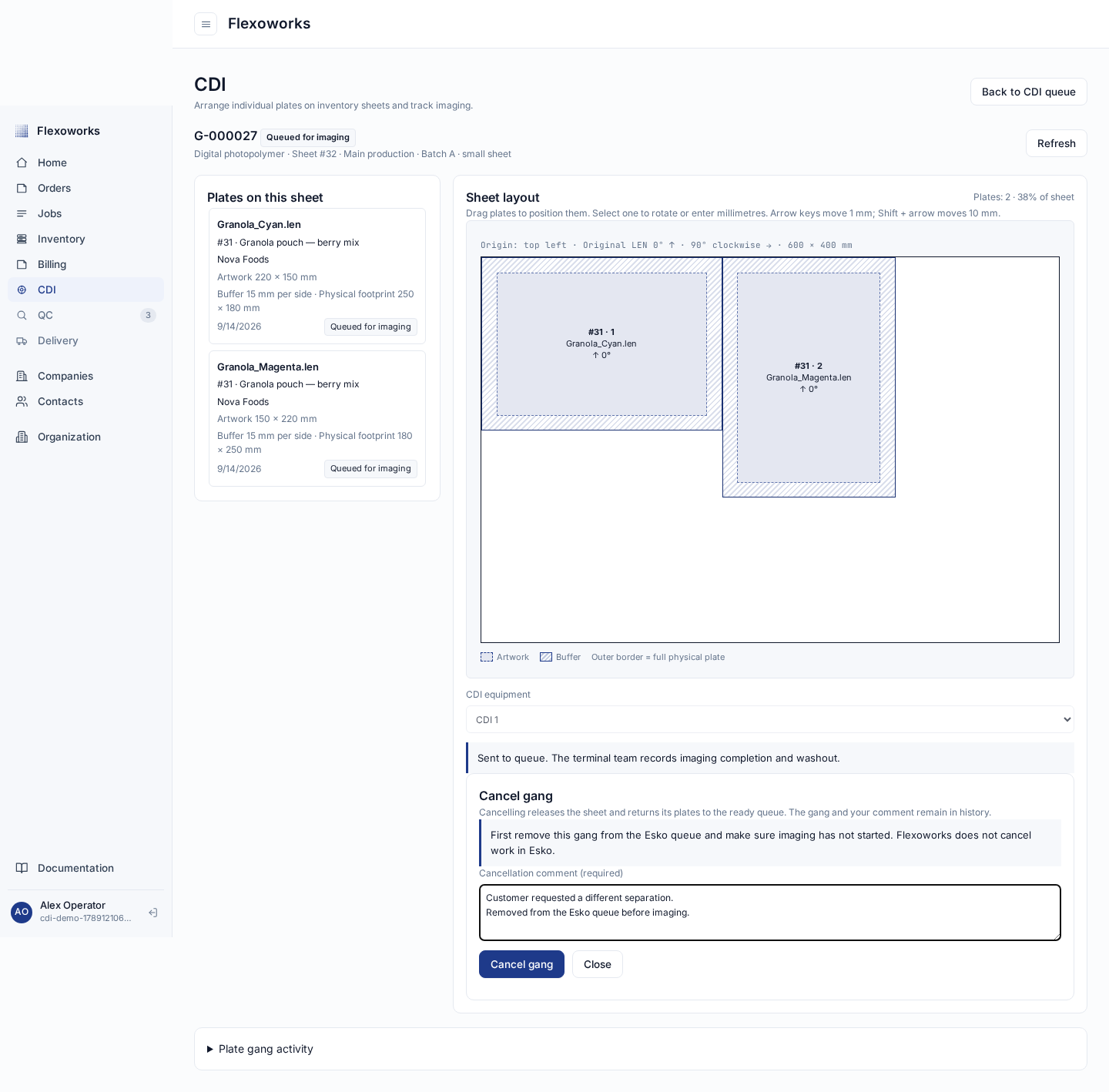
 ## Cancel a draft or queued gang
Select **Cancel gang**, enter a **Cancellation comment (required)**, then
select **Cancel gang** in the form. A blank or whitespace-only comment cannot
be submitted. Comments can contain up to 1,000 characters.
For queued work, first remove the gang from the Esko queue and make sure
imaging has not started. Flexoworks does not cancel work in Esko. Cancellation
is unavailable once the terminal has recorded **Finish imaging**.
Cancelling releases the reserved sheet and returns the plates to the ready
queue. The gang leaves the active CDI and terminal queues, while its saved
arrangement and the operator's comment remain in **Plate gang activity**.
Use the **Cancelled** status filter to find it later. To arrange those plates
again, create a new gang using an available sheet.
## Cancel a draft or queued gang
Select **Cancel gang**, enter a **Cancellation comment (required)**, then
select **Cancel gang** in the form. A blank or whitespace-only comment cannot
be submitted. Comments can contain up to 1,000 characters.
For queued work, first remove the gang from the Esko queue and make sure
imaging has not started. Flexoworks does not cancel work in Esko. Cancellation
is unavailable once the terminal has recorded **Finish imaging**.
Cancelling releases the reserved sheet and returns the plates to the ready
queue. The gang leaves the active CDI and terminal queues, while its saved
arrangement and the operator's comment remain in **Plate gang activity**.
Use the **Cancelled** status filter to find it later. To arrange those plates
again, create a new gang using an available sheet.
 If another operator changed the gang, use **Refresh** to load its latest
version. Flexoworks asks before discarding unsaved local edits.
## Follow progress and individual replacements
| Status | Meaning |
| ----------------------- | --------------------------------------------------------------- |
| **Ready for placement** | The plate is waiting for a gang. |
| **In draft gang** | It is arranged on a reserved sheet that has not been queued. |
| **Queued for imaging** | The CDI operator recorded the Esko handoff. |
| **Awaiting washout** | The terminal team finished imaging. |
| **Washing** | The terminal team started washout. |
| **Washed** | Washout is complete. |
| **Failed · replaced** | This attempt is retained as history; a replacement is required. |
Older records can also show **Imaging** or a legacy completion. Their original
history is retained.
Open a job's **Individual plates** card to see every separation, attempt,
physical footprint, status, gang link, and orientation. A job remains in Imaging
while any required current plate is not imaged. It moves to Washout when all are
imaged, then to QC when all are washed. Different gangs can progress independently.
If another operator changed the gang, use **Refresh** to load its latest
version. Flexoworks asks before discarding unsaved local edits.
## Follow progress and individual replacements
| Status | Meaning |
| ----------------------- | --------------------------------------------------------------- |
| **Ready for placement** | The plate is waiting for a gang. |
| **In draft gang** | It is arranged on a reserved sheet that has not been queued. |
| **Queued for imaging** | The CDI operator recorded the Esko handoff. |
| **Awaiting washout** | The terminal team finished imaging. |
| **Washing** | The terminal team started washout. |
| **Washed** | Washout is complete. |
| **Failed · replaced** | This attempt is retained as history; a replacement is required. |
Older records can also show **Imaging** or a legacy completion. Their original
history is retained.
Open a job's **Individual plates** card to see every separation, attempt,
physical footprint, status, gang link, and orientation. A job remains in Imaging
while any required current plate is not imaged. It moves to Washout when all are
imaged, then to QC when all are washed. Different gangs can progress independently.
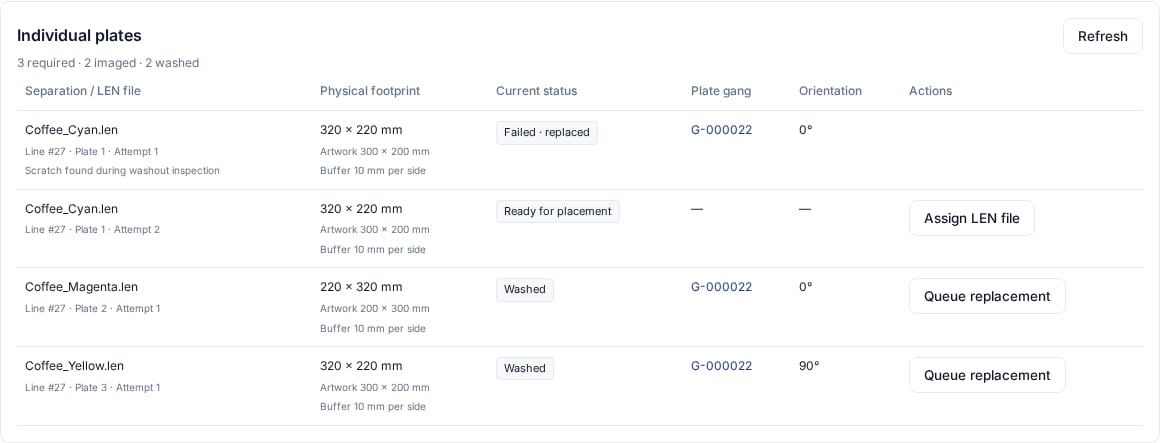 To replace a failed plate, select **Queue replacement** and record a reason.
Only that separation receives a new attempt in the ready queue. Its failed
attempt keeps its gang and orientation; successful siblings and the required
and billed quantity stay unchanged. The replacement can use another gang.
Shipped or archived jobs cannot receive replacements.
## Watch the workflow
This recording uses the English interface and sample jobs. It follows arrangement,
the manual handoff recorded in Flexoworks, terminal imaging and washout, and a
single-plate replacement.
## Related guides
* [Production terminal: imaging completion and washout](/guides/floor-terminal-overview)
* [Plate inventory](/guides/inventory)
* [Job stages and transitions](/guides/job-stages-and-transitions)
* [Prepress review and manager handoff](/guides/prepress-review)
To replace a failed plate, select **Queue replacement** and record a reason.
Only that separation receives a new attempt in the ready queue. Its failed
attempt keeps its gang and orientation; successful siblings and the required
and billed quantity stay unchanged. The replacement can use another gang.
Shipped or archived jobs cannot receive replacements.
## Watch the workflow
This recording uses the English interface and sample jobs. It follows arrangement,
the manual handoff recorded in Flexoworks, terminal imaging and washout, and a
single-plate replacement.
## Related guides
* [Production terminal: imaging completion and washout](/guides/floor-terminal-overview)
* [Plate inventory](/guides/inventory)
* [Job stages and transitions](/guides/job-stages-and-transitions)
* [Prepress review and manager handoff](/guides/prepress-review)