> ## Documentation Index
> Fetch the complete documentation index at: https://docs.flexoworks.com/llms.txt
> Use this file to discover all available pages before exploring further.
# Delivery and Nova Poshta
> Pack jobs, print Nova Poshta documents, and record dispatch.
Use **Delivery** in the full Flexoworks application to send completed jobs to a
customer. Plates ship flat. Logistics employees, managers, and organization
admins can prepare parcels, print labels, and record handover. An organization
admin configures the integration.
The terminal team completes [imaging and washout](/guides/floor-terminal-overview).
Delivery then takes place in the full application. There is no additional QC
approval or QC navigation step.
## Connect Nova Poshta
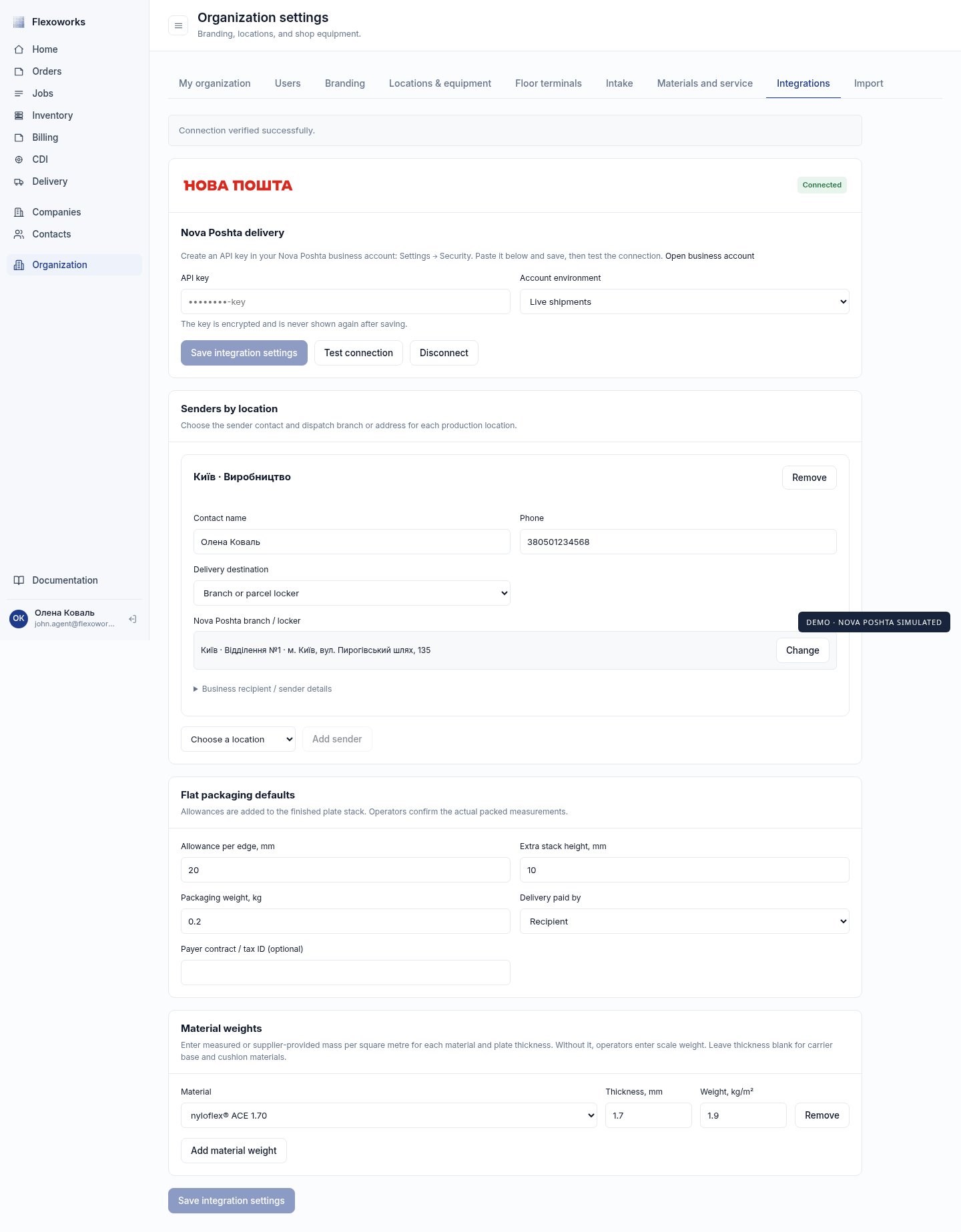
1. Open **Organization → Integrations** in Flexoworks.
2. Select **Open business account** and sign in to the Ukrainian Nova Poshta
business account. Create an API key under **Settings → Security**, following
the [carrier's instructions for Ukraine](https://api-portal.novapost.com/novaposhta-docs/integration-guide/api-key-generation#how-to-create-a-key-for-a-client-from-ukraine).
3. Paste the key into **API key** and choose **Live shipments** for the live
account. Select **Save integration settings**, then **Test connection**.
4. Under **Senders by location**, add a sender for each production location:
contact name, phone, and dispatch branch or street address. Add legal company
details when applicable.
5. Set the delivery payer and any contract details, then configure the packaging
and material weights described below. Save the settings again.
The key is stored encrypted; only its final four characters remain visible.
Flexoworks handles the carrier's temporary access token automatically. Operators
do not need to generate tokens or sign in to Nova Poshta for each parcel.
 ### Set packaging and material weights
Set the allowance on each edge, the extra stack height, and the weight of the
packaging itself. These values are added to the finished forms for a new parcel.
Under **Material weights**, enter measured or supplier-provided kg/m² for each
plate material and thickness. For mounting-carrier base and backing materials,
leave thickness blank. If a required material factor is missing, the operator
must weigh the packed parcel and enter its weight.
### Change or disconnect the account
To replace a key, enter the replacement, save, and test the connection. Choose
**Disconnect** to remove the connection. Shipment history and labels already
downloaded into Flexoworks remain available. Carrier actions require a connected
account.
**Sandbox / testing** uses a separate test key. Ukrainian sandbox access may require help
from Nova Poshta; the carrier's self-service test-key endpoint currently excludes
Ukraine. A sandbox waybill cannot mark production jobs as shipped.
[Carrier test-key guidance](https://api-portal.novapost.com/novaposhta-docs/integration-guide/api-key-generation).
## Find completed jobs
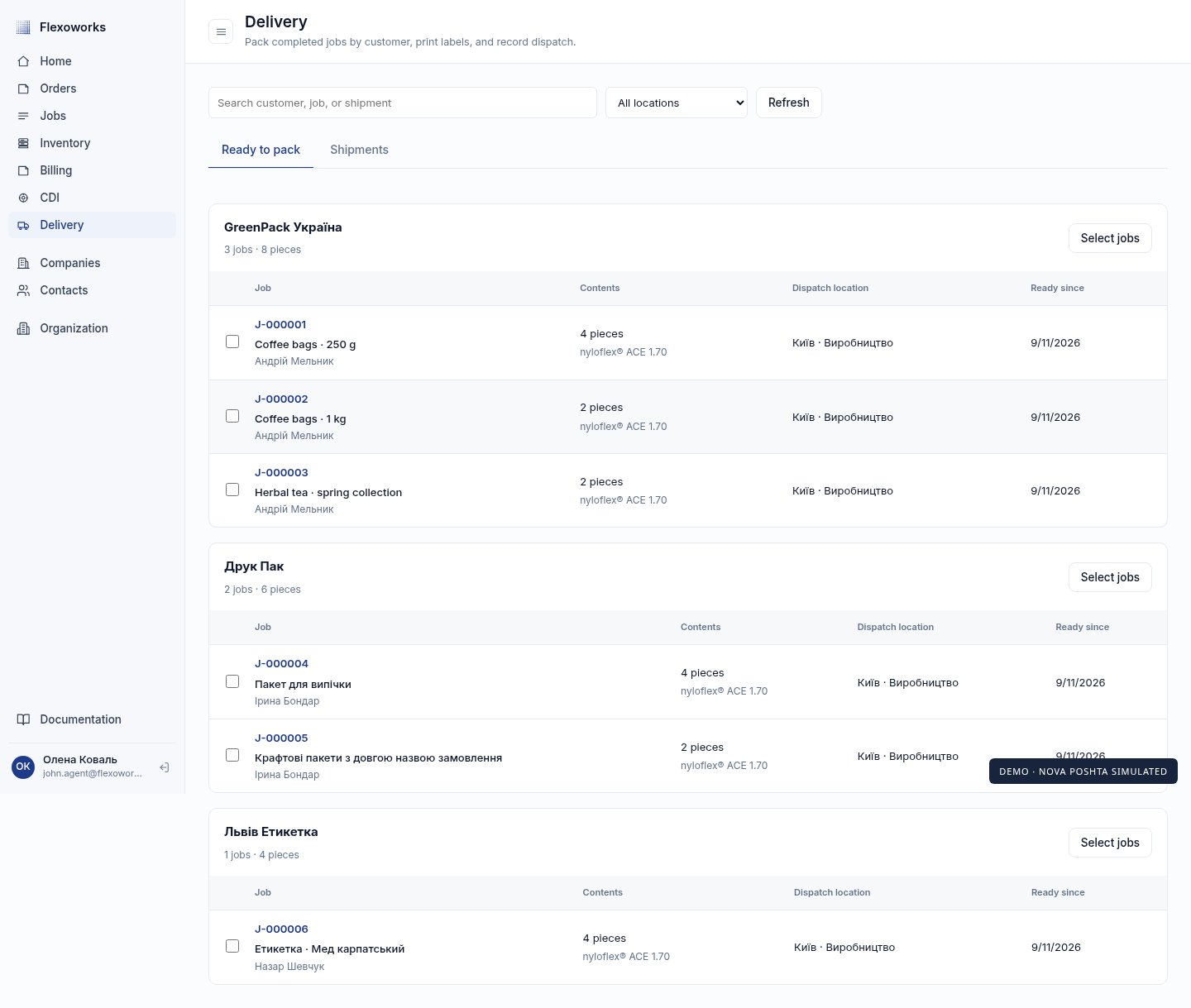
Open **Delivery → Ready to pack**. Jobs appear when all their current required
plates have completed washout and the job is ready for delivery. Design-only
work does not need a parcel. Jobs already reserved in a parcel are found under
**Shipments**.
Jobs are grouped by the receiving customer on the job; this can differ from the
invoice payer. Search by customer or job, and use **Dispatch location** to narrow
the list. Assign a receiving customer in the job before preparing its parcel.
### Set packaging and material weights
Set the allowance on each edge, the extra stack height, and the weight of the
packaging itself. These values are added to the finished forms for a new parcel.
Under **Material weights**, enter measured or supplier-provided kg/m² for each
plate material and thickness. For mounting-carrier base and backing materials,
leave thickness blank. If a required material factor is missing, the operator
must weigh the packed parcel and enter its weight.
### Change or disconnect the account
To replace a key, enter the replacement, save, and test the connection. Choose
**Disconnect** to remove the connection. Shipment history and labels already
downloaded into Flexoworks remain available. Carrier actions require a connected
account.
**Sandbox / testing** uses a separate test key. Ukrainian sandbox access may require help
from Nova Poshta; the carrier's self-service test-key endpoint currently excludes
Ukraine. A sandbox waybill cannot mark production jobs as shipped.
[Carrier test-key guidance](https://api-portal.novapost.com/novaposhta-docs/integration-guide/api-key-generation).
## Find completed jobs
Open **Delivery → Ready to pack**. Jobs appear when all their current required
plates have completed washout and the job is ready for delivery. Design-only
work does not need a parcel. Jobs already reserved in a parcel are found under
**Shipments**.
Jobs are grouped by the receiving customer on the job; this can differ from the
invoice payer. Search by customer or job, and use **Dispatch location** to narrow
the list. Assign a receiving customer in the job before preparing its parcel.
 ## Prepare one parcel
1. Select one or more whole jobs for the same customer and dispatch location.
A parcel can contain up to 50 jobs. Other customers and locations become
unavailable while the selection is active; **Clear selection** starts over.
2. Select **Prepare parcel**. The jobs are reserved to this draft, so another
operator cannot pack them into a second parcel.
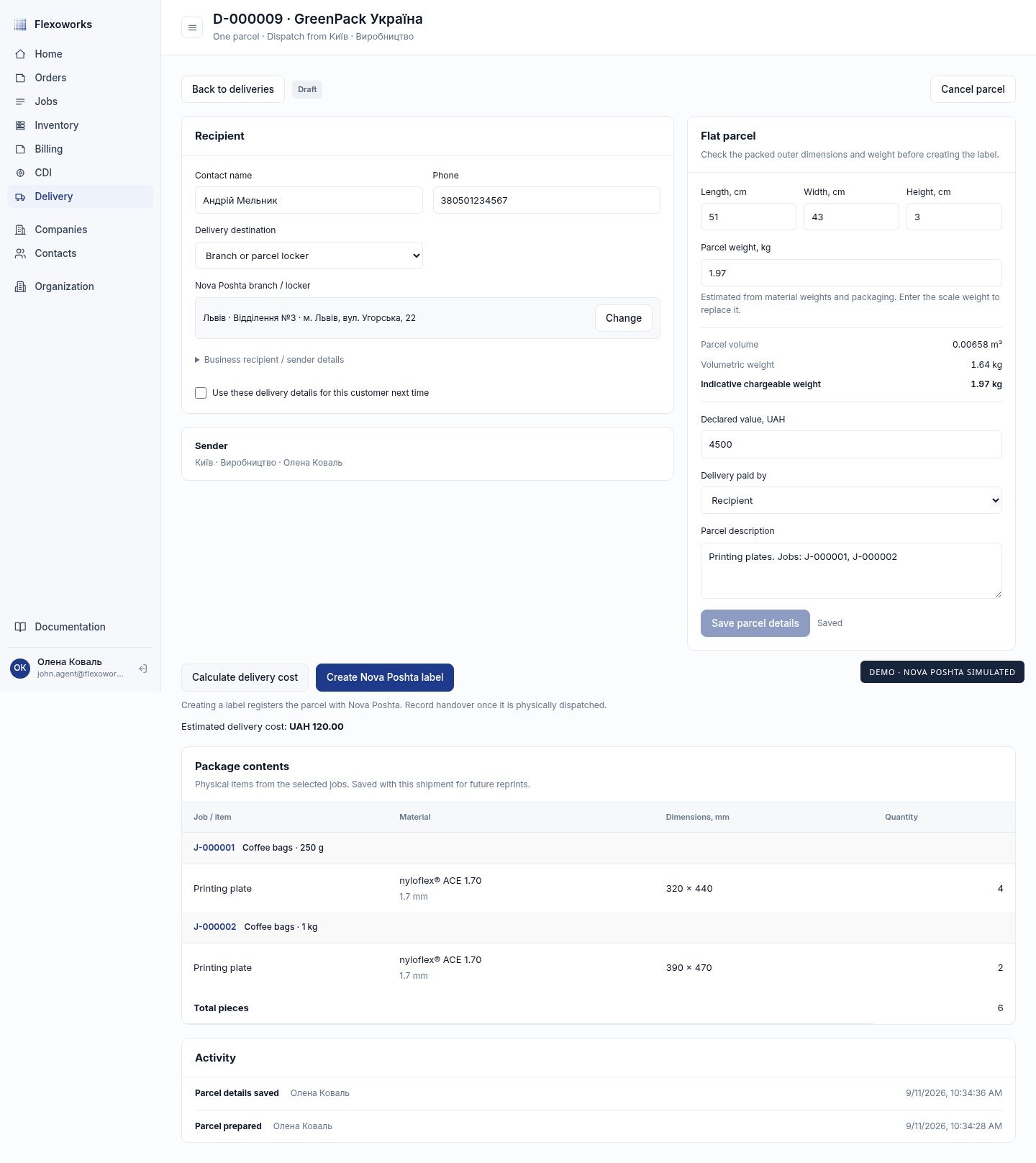
3. Confirm the recipient's contact name, phone, and branch/locker or street
address. Search branches by city, street, or branch number. Select the option
to remember these delivery details for the customer's next parcel if useful.
4. Review the sender, external parcel dimensions, weight, declared value in UAH,
delivery payer, and contents description. Enter actual packed measurements
when they differ from the estimate.
5. Select **Save parcel details**, then **Calculate delivery cost** to request
the carrier's estimate.
6. Select **Create Nova Poshta label** and confirm with **Continue**. This
registers the parcel with the carrier and saves its waybill number.
You can prepare a draft before the integration is connected. An admin must
connect Nova Poshta before branch lookup, cost calculation, or label creation.
## Prepare one parcel
1. Select one or more whole jobs for the same customer and dispatch location.
A parcel can contain up to 50 jobs. Other customers and locations become
unavailable while the selection is active; **Clear selection** starts over.
2. Select **Prepare parcel**. The jobs are reserved to this draft, so another
operator cannot pack them into a second parcel.
3. Confirm the recipient's contact name, phone, and branch/locker or street
address. Search branches by city, street, or branch number. Select the option
to remember these delivery details for the customer's next parcel if useful.
4. Review the sender, external parcel dimensions, weight, declared value in UAH,
delivery payer, and contents description. Enter actual packed measurements
when they differ from the estimate.
5. Select **Save parcel details**, then **Calculate delivery cost** to request
the carrier's estimate.
6. Select **Create Nova Poshta label** and confirm with **Continue**. This
registers the parcel with the carrier and saves its waybill number.
You can prepare a draft before the integration is connected. An admin must
connect Nova Poshta before branch lookup, cost calculation, or label creation.
 ### Understand the estimates
The estimate uses each finished plate's physical footprint, including its
production buffer, and stacks all pieces flat. It does not use the size of the
entire inventory sheet from which the forms were made.
| Measurement | Calculation |
| --------------------------- | ------------------------------------------------------------------------------------- |
| Length and width | Largest long edge and largest short edge, plus the packaging allowance on both sides. |
| Height | Total thickness of all pieces, plus extra packaging height. |
| Physical weight | Material area × kg/m² × quantity for each material, plus packaging weight. |
| Volume, m³ | External length × width × height in cm, divided by 1,000,000. |
| Volumetric weight, kg | External length × width × height in cm, divided by 4,000. |
| Estimated chargeable weight | The greater of physical and volumetric weight. |
For example, a 51 × 43 × 3 cm parcel occupies 0.006579 m³ and has a volumetric
weight of about 1.64 kg. If its physical weight is 1.97 kg, the displayed
chargeable estimate is 1.97 kg. The carrier's returned price and acceptance rules
determine the actual service. Confirm that the selected branch accepts the
packed dimensions and weight.
## Print the label and packing list
When the parcel shows **Label ready**, use these two documents:
* **Print label · 100 × 100 mm** opens the carrier-issued PDF. Print it on the
matching label size and attach it to the parcel.
* **Print packing list** opens an A4 overview. Select **Print / save as PDF** to
print it or save a PDF through the browser's print dialog.
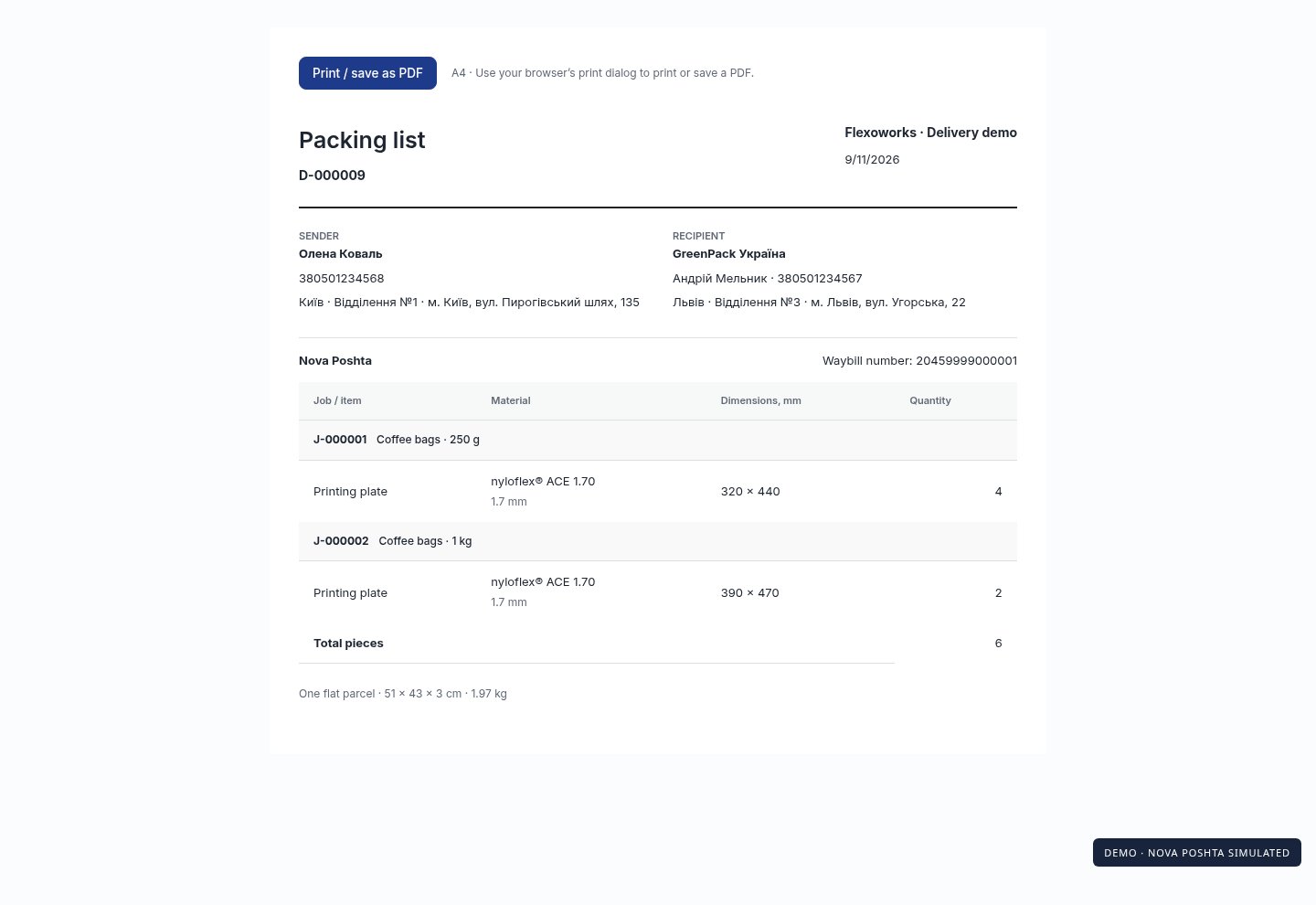
The packing list includes the customer, sender, recipient, waybill, job numbers
and names, materials, dimensions, and quantities. It contains no invoice prices.
Its saved contents remain the same for future reprints even if customer or job
details later change.
### Understand the estimates
The estimate uses each finished plate's physical footprint, including its
production buffer, and stacks all pieces flat. It does not use the size of the
entire inventory sheet from which the forms were made.
| Measurement | Calculation |
| --------------------------- | ------------------------------------------------------------------------------------- |
| Length and width | Largest long edge and largest short edge, plus the packaging allowance on both sides. |
| Height | Total thickness of all pieces, plus extra packaging height. |
| Physical weight | Material area × kg/m² × quantity for each material, plus packaging weight. |
| Volume, m³ | External length × width × height in cm, divided by 1,000,000. |
| Volumetric weight, kg | External length × width × height in cm, divided by 4,000. |
| Estimated chargeable weight | The greater of physical and volumetric weight. |
For example, a 51 × 43 × 3 cm parcel occupies 0.006579 m³ and has a volumetric
weight of about 1.64 kg. If its physical weight is 1.97 kg, the displayed
chargeable estimate is 1.97 kg. The carrier's returned price and acceptance rules
determine the actual service. Confirm that the selected branch accepts the
packed dimensions and weight.
## Print the label and packing list
When the parcel shows **Label ready**, use these two documents:
* **Print label · 100 × 100 mm** opens the carrier-issued PDF. Print it on the
matching label size and attach it to the parcel.
* **Print packing list** opens an A4 overview. Select **Print / save as PDF** to
print it or save a PDF through the browser's print dialog.
The packing list includes the customer, sender, recipient, waybill, job numbers
and names, materials, dimensions, and quantities. It contains no invoice prices.
Its saved contents remain the same for future reprints even if customer or job
details later change.
 ## Record handover and follow delivery
After physically handing the parcel to Nova Poshta, select **Handed to Nova
Poshta** and confirm with **Continue**. All included jobs move to **Shipped** and
become available under **Billing → Ready for invoice**. Printing documents alone
does not dispatch jobs.
Open **Delivery → Shipments** to find saved parcels and reprint their documents.
Open a parcel and select **Refresh tracking** to retrieve the carrier's latest
status. A dispatched parcel becomes **Delivered** when the carrier reports
delivery. Tracking refresh does not replace the operator's handover confirmation.
| Parcel status | What to do |
| ----------------------------- | ----------------------------------------------------------------- |
| Draft | Complete and save parcel details, then create the label. |
| Creating waybill / Cancelling | Wait for the carrier operation, then refresh. |
| Label ready | Print the documents and record physical handover. |
| Shipped | The jobs are available for invoicing; refresh tracking as needed. |
| Delivered | The carrier has confirmed delivery. |
| Needs attention | Check the carrier outcome before creating another waybill. |
| Cancelled | The jobs have been released for another parcel. |
## Correct a parcel or recover an uncertain result
Select **Cancel parcel** to discard a draft and release its jobs. If a waybill
already exists, Nova Poshta must confirm cancellation before those jobs can be
packed again. Cancellation in Flexoworks is available before handover. To change
the job selection or physical production details, cancel the active parcel and
prepare a new one.
If creation or cancellation loses its response, select **Retry** when offered.
Flexoworks checks the recorded operation instead of issuing a duplicate carrier
write. If the parcel shows **Needs attention**:
1. Open the Nova Poshta business account and check the parcel's outcome.
2. In the recovery panel, describe the check under **What you checked**.
3. If a waybill was created, enter its number and select **Verify and recover
waybill**. Flexoworks verifies that it belongs to this parcel in the account.
4. Only if you have confirmed that no waybill exists, select **I checked: no
waybill was created** to allow a new creation attempt.
For an uncertain cancellation, use recovery to verify the existing waybill.
Jobs remain reserved until the carrier confirms deletion. If the waybill still
exists, recover that outcome before trying cancellation again.
If another operator has updated the parcel, refresh and review their saved
details before continuing. If a job is missing from **Ready to pack**, check
that all current required plates are washed and that the job is not archived,
already shipped, or reserved under **Shipments**.
## Walkthrough
This workflow supports domestic Ukrainian delivery with one flat parcel per
selection. The English-language video and screenshots use synthetic customer
data and a local carrier simulator; no live shipment was created.
See the [example A4 packing list](/images/delivery/packing-list.pdf) and
[demonstration label](/images/delivery/demo-label.pdf). The demonstration label is
not valid for shipping; live parcels use Nova Poshta's own label PDF.
## Record handover and follow delivery
After physically handing the parcel to Nova Poshta, select **Handed to Nova
Poshta** and confirm with **Continue**. All included jobs move to **Shipped** and
become available under **Billing → Ready for invoice**. Printing documents alone
does not dispatch jobs.
Open **Delivery → Shipments** to find saved parcels and reprint their documents.
Open a parcel and select **Refresh tracking** to retrieve the carrier's latest
status. A dispatched parcel becomes **Delivered** when the carrier reports
delivery. Tracking refresh does not replace the operator's handover confirmation.
| Parcel status | What to do |
| ----------------------------- | ----------------------------------------------------------------- |
| Draft | Complete and save parcel details, then create the label. |
| Creating waybill / Cancelling | Wait for the carrier operation, then refresh. |
| Label ready | Print the documents and record physical handover. |
| Shipped | The jobs are available for invoicing; refresh tracking as needed. |
| Delivered | The carrier has confirmed delivery. |
| Needs attention | Check the carrier outcome before creating another waybill. |
| Cancelled | The jobs have been released for another parcel. |
## Correct a parcel or recover an uncertain result
Select **Cancel parcel** to discard a draft and release its jobs. If a waybill
already exists, Nova Poshta must confirm cancellation before those jobs can be
packed again. Cancellation in Flexoworks is available before handover. To change
the job selection or physical production details, cancel the active parcel and
prepare a new one.
If creation or cancellation loses its response, select **Retry** when offered.
Flexoworks checks the recorded operation instead of issuing a duplicate carrier
write. If the parcel shows **Needs attention**:
1. Open the Nova Poshta business account and check the parcel's outcome.
2. In the recovery panel, describe the check under **What you checked**.
3. If a waybill was created, enter its number and select **Verify and recover
waybill**. Flexoworks verifies that it belongs to this parcel in the account.
4. Only if you have confirmed that no waybill exists, select **I checked: no
waybill was created** to allow a new creation attempt.
For an uncertain cancellation, use recovery to verify the existing waybill.
Jobs remain reserved until the carrier confirms deletion. If the waybill still
exists, recover that outcome before trying cancellation again.
If another operator has updated the parcel, refresh and review their saved
details before continuing. If a job is missing from **Ready to pack**, check
that all current required plates are washed and that the job is not archived,
already shipped, or reserved under **Shipments**.
## Walkthrough
This workflow supports domestic Ukrainian delivery with one flat parcel per
selection. The English-language video and screenshots use synthetic customer
data and a local carrier simulator; no live shipment was created.
See the [example A4 packing list](/images/delivery/packing-list.pdf) and
[demonstration label](/images/delivery/demo-label.pdf). The demonstration label is
not valid for shipping; live parcels use Nova Poshta's own label PDF.