> ## Documentation Index
> Fetch the complete documentation index at: https://docs.flexoworks.com/llms.txt
> Use this file to discover all available pages before exploring further.
# Manage floor terminals and employee PIN access
> Monitor terminal health, edit assignments, control access, review history, and recover employee PIN access.
Organization administrators manage paired production devices and personal
floor PINs from the full Flexoworks application. Terminal controls affect the
device connection or its current worker; employee floor-access controls affect
one person's PIN. These are separate from normal full-application login.
The controls in this guide require the **Org admin** role. Open
**Organization → Floor terminals** to manage devices and **Organization →
Users** to manage employee PINs.
If no device has been paired yet, start with
[Set up a new floor terminal](/guides/floor-terminal-setup).
## Understand the terminal list
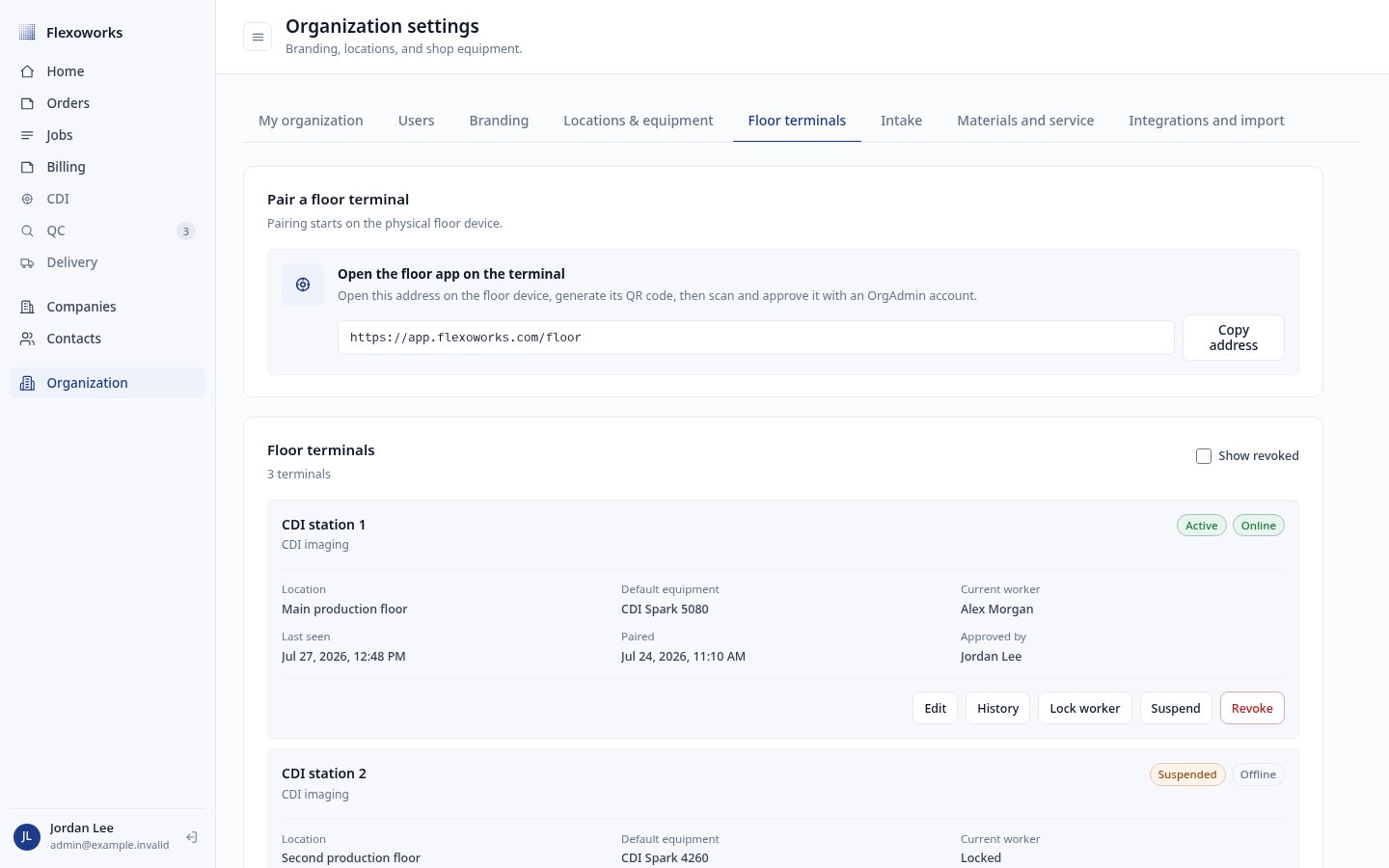
Each terminal card shows:
* its name and CDI imaging work area;
* lifecycle status and current connectivity;
* location and optional default equipment;
* current worker, or **Locked** when no worker is signed in;
* last-seen and paired times;
* the administrator who approved it.
 The lifecycle statuses mean:
| Status | Meaning |
| ---------------------- | ------------------------------------------------------------------------------------------- |
| **Pending activation** | An administrator approved pairing, but the production browser has not completed activation. |
| **Active** | The terminal is paired and may accept a worker PIN. |
| **Suspended** | An administrator temporarily paused the terminal. Its pairing is retained. |
| **Revoked** | The enrollment is permanently invalid and the device must be paired again. |
**Online** and **Offline** are separate from lifecycle status. Online means the
recorded last check-in was during approximately the previous two minutes.
Offline does not by itself mean that pairing was lost. The list refreshes in
the background about every 30 seconds.
Revoked terminals are hidden initially. Select **Show revoked** when you need
to review them or open their history.
## Edit terminal configuration
Select **Edit** to change:
* the terminal name;
* its location;
* its optional default equipment.
The current work area is **CDI imaging** and is read-only. Names can contain up
to 80 characters and must be unique among non-revoked terminals.
The lifecycle statuses mean:
| Status | Meaning |
| ---------------------- | ------------------------------------------------------------------------------------------- |
| **Pending activation** | An administrator approved pairing, but the production browser has not completed activation. |
| **Active** | The terminal is paired and may accept a worker PIN. |
| **Suspended** | An administrator temporarily paused the terminal. Its pairing is retained. |
| **Revoked** | The enrollment is permanently invalid and the device must be paired again. |
**Online** and **Offline** are separate from lifecycle status. Online means the
recorded last check-in was during approximately the previous two minutes.
Offline does not by itself mean that pairing was lost. The list refreshes in
the background about every 30 seconds.
Revoked terminals are hidden initially. Select **Show revoked** when you need
to review them or open their history.
## Edit terminal configuration
Select **Edit** to change:
* the terminal name;
* its location;
* its optional default equipment.
The current work area is **CDI imaging** and is read-only. Names can contain up
to 80 characters and must be unique among non-revoked terminals.
 Changing only the name or default equipment keeps the current worker. Changing
the location locks the current worker and clears default equipment that is not
available at the new location. The terminal reconnects using the new
assignment. Operators can always choose any equipment configured at that
location, even when a default is selected.
## Review terminal history
Select **History** to open the terminal's append-only activity history. Events
are shown newest first, 20 at a time. Select **Load more** for older entries.
Changing only the name or default equipment keeps the current worker. Changing
the location locks the current worker and clears default equipment that is not
available at the new location. The terminal reconnects using the new
assignment. Operators can always choose any equipment configured at that
location, even when a default is selected.
## Review terminal history
Select **History** to open the terminal's append-only activity history. Events
are shown newest first, 20 at a time. Select **Load more** for older entries.
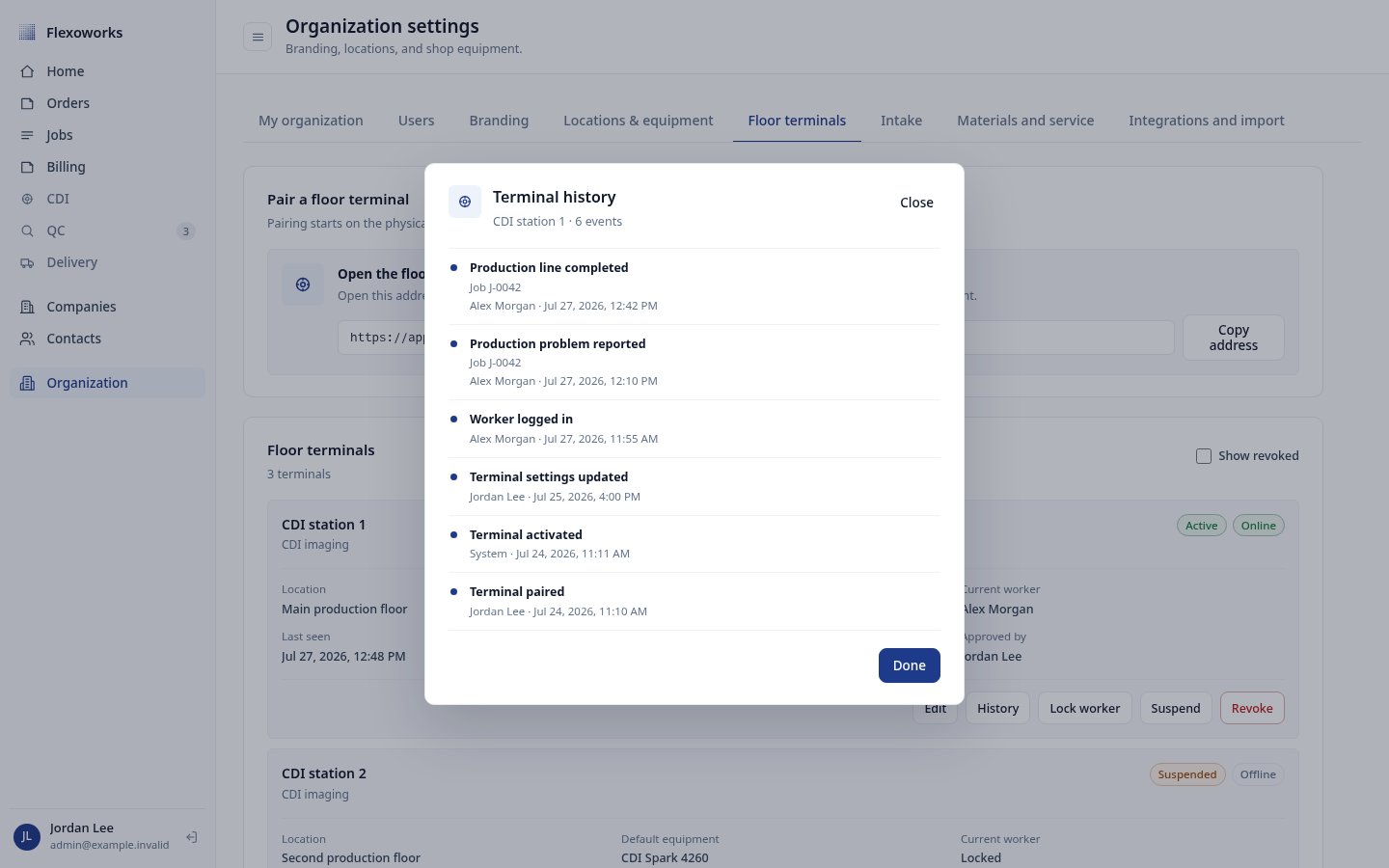 The terminal history can include:
* pairing and activation;
* setting changes;
* remote worker locks;
* suspension, resume, and revocation;
* worker login and worker lock;
* production-line completion and undo;
* production problem reports;
* terminal or organization PIN-entry lockouts.
Production events include the related job number when available. Employee PIN
enable, reset, and disable actions are organization-level audit events and
should not be expected in one specific terminal's history.
## Lock the current worker
Select **Lock worker** when a worker left the terminal unlocked or when a shift
changes. Confirm the action.
The terminal history can include:
* pairing and activation;
* setting changes;
* remote worker locks;
* suspension, resume, and revocation;
* worker login and worker lock;
* production-line completion and undo;
* production problem reports;
* terminal or organization PIN-entry lockouts.
Production events include the related job number when available. Employee PIN
enable, reset, and disable actions are organization-level audit events and
should not be expected in one specific terminal's history.
## Lock the current worker
Select **Lock worker** when a worker left the terminal unlocked or when a shift
changes. Confirm the action.
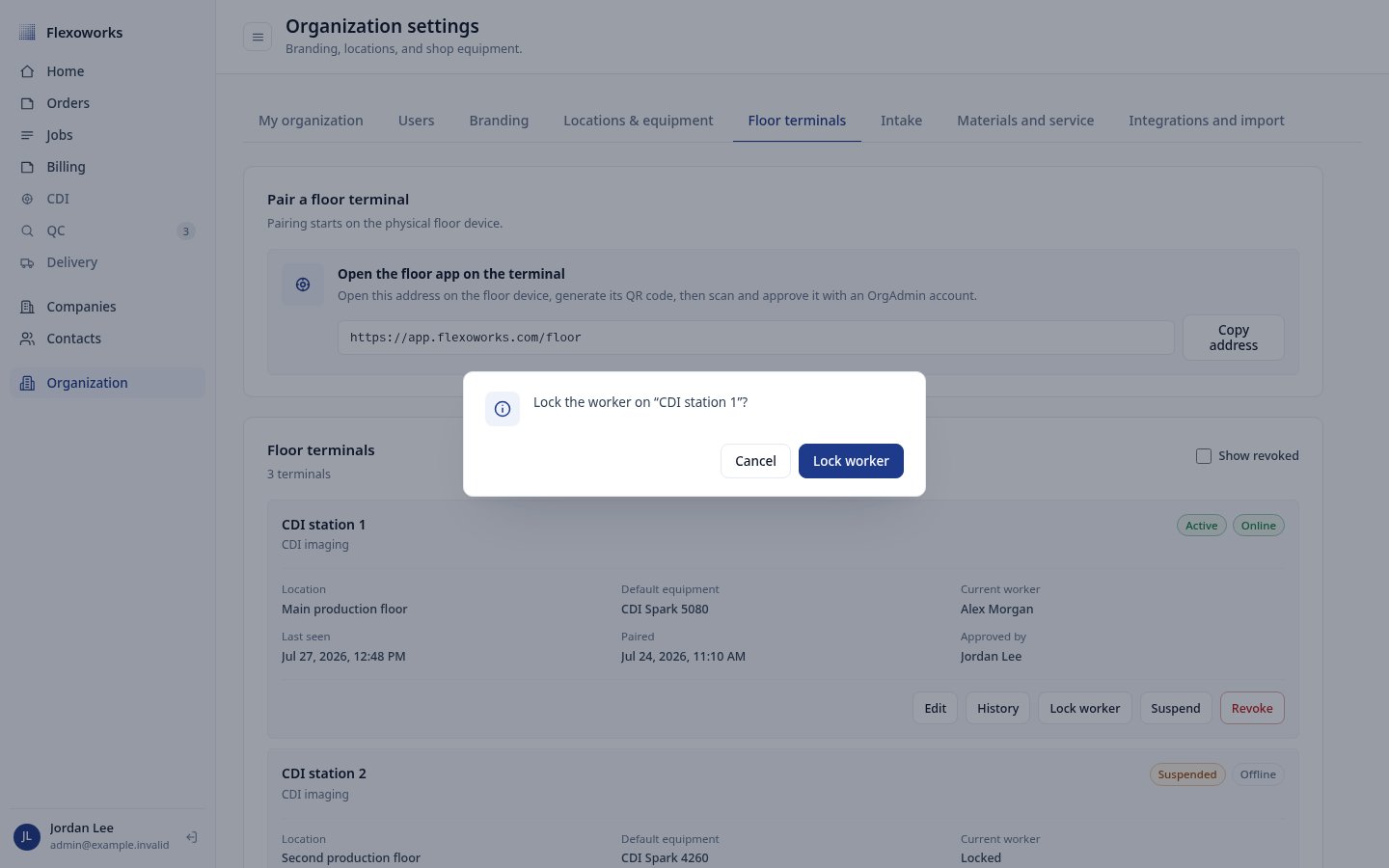 Locking:
* clears the current worker session;
* leaves the terminal active and paired;
* returns the device to PIN entry on its next check-in;
* does not disable the employee's PIN on other terminals.
The action appears only while an active terminal has a current worker.
## Suspend and resume a terminal
Use **Suspend** for a temporary device pause, such as maintenance or a security
review. Confirm the action before it is applied.
Locking:
* clears the current worker session;
* leaves the terminal active and paired;
* returns the device to PIN entry on its next check-in;
* does not disable the employee's PIN on other terminals.
The action appears only while an active terminal has a current worker.
## Suspend and resume a terminal
Use **Suspend** for a temporary device pause, such as maintenance or a security
review. Confirm the action before it is applied.
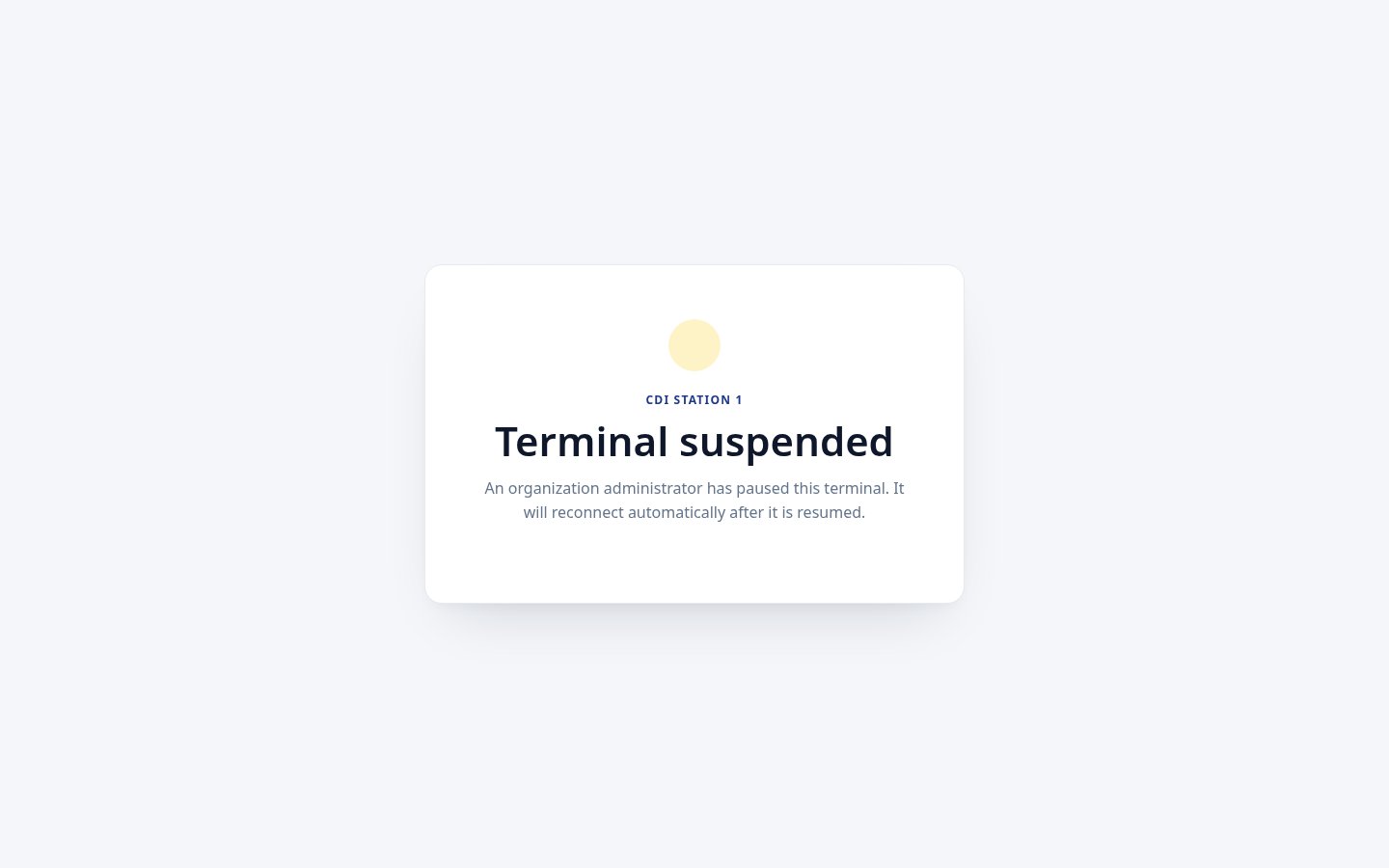
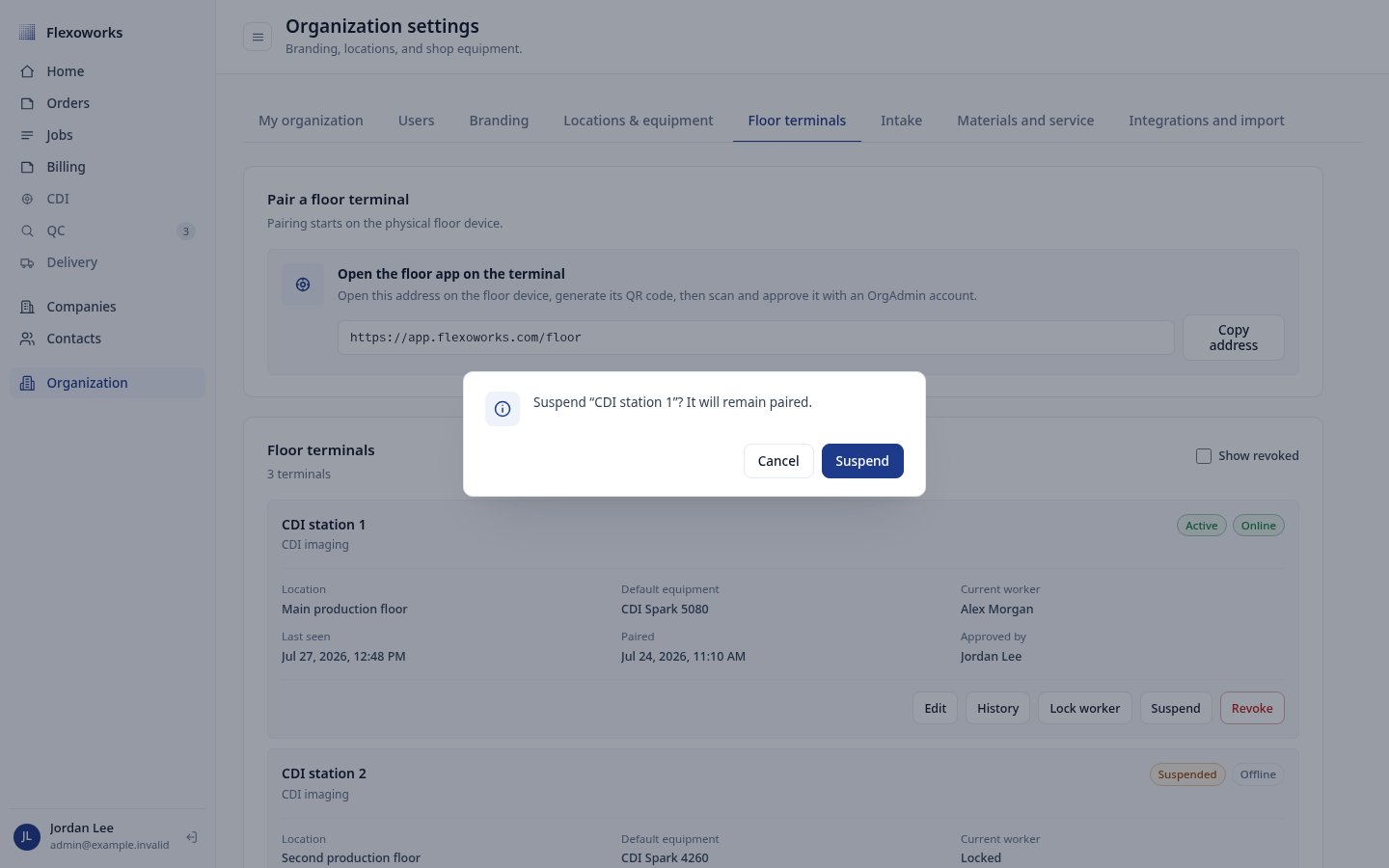 Suspension clears the worker and short terminal session, but preserves the
durable pairing. The production device shows that an organization
administrator paused it.
Suspension clears the worker and short terminal session, but preserves the
durable pairing. The production device shows that an organization
administrator paused it.
 Select **Resume** on the terminal card when it may be used again. A connected
device checks automatically and returns to its PIN screen without a new QR
code. Suspension and resume are both retained in terminal history.
## Revoke a terminal
Revocation permanently invalidates the browser's current terminal enrollment.
Use it when a device is retired, lost, replaced, reimaged, or no longer
trusted. It is not the same as temporary suspension.
Select **Show revoked** to include earlier revoked devices in the list.
Select **Resume** on the terminal card when it may be used again. A connected
device checks automatically and returns to its PIN screen without a new QR
code. Suspension and resume are both retained in terminal history.
## Revoke a terminal
Revocation permanently invalidates the browser's current terminal enrollment.
Use it when a device is retired, lost, replaced, reimaged, or no longer
trusted. It is not the same as temporary suspension.
Select **Show revoked** to include earlier revoked devices in the list.
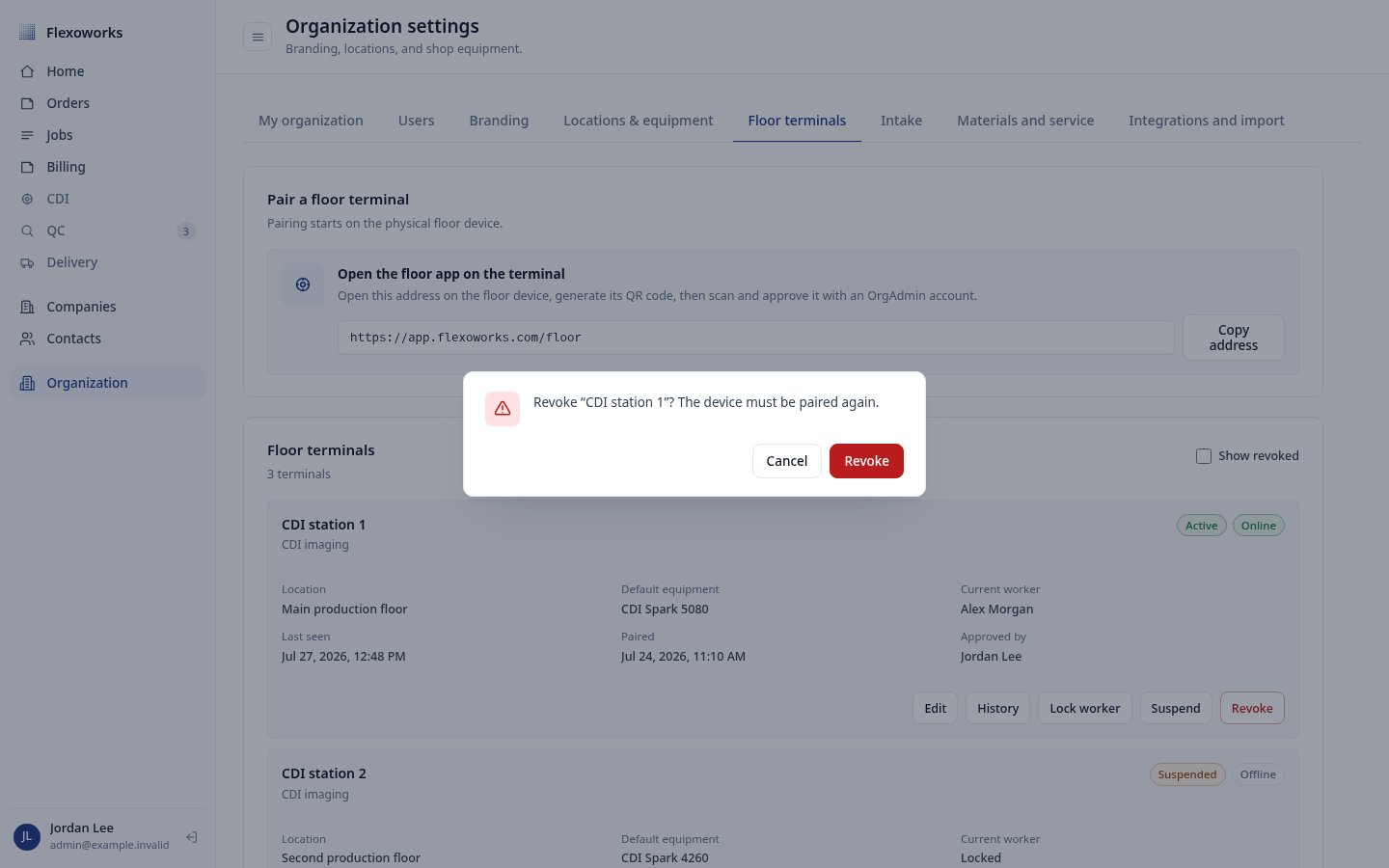
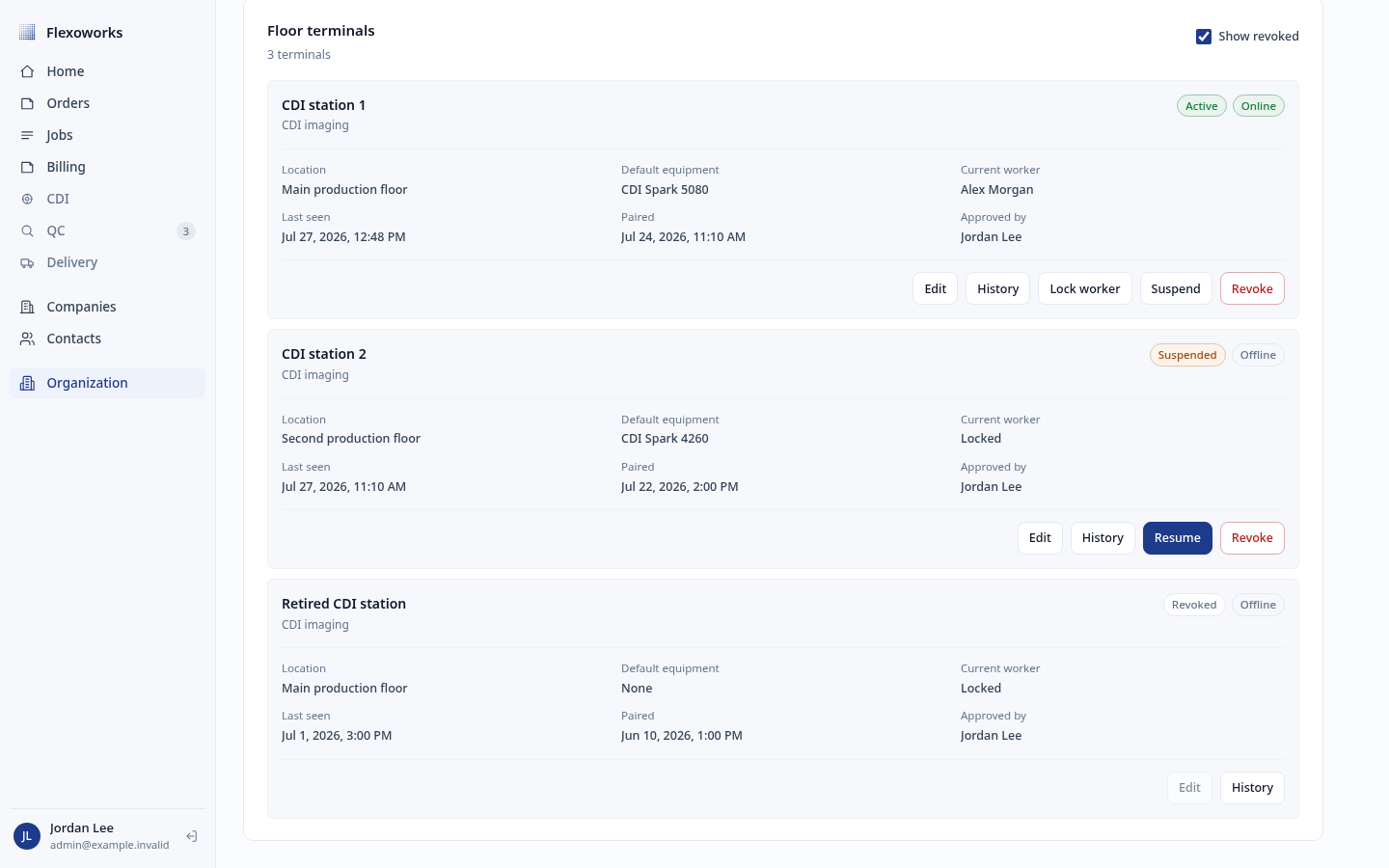 Select **Revoke** and confirm the destructive action.
 Revocation:
* clears the current worker;
* invalidates the terminal session and enrollment;
* cannot be resumed;
* keeps the terminal and history available under **Show revoked**.
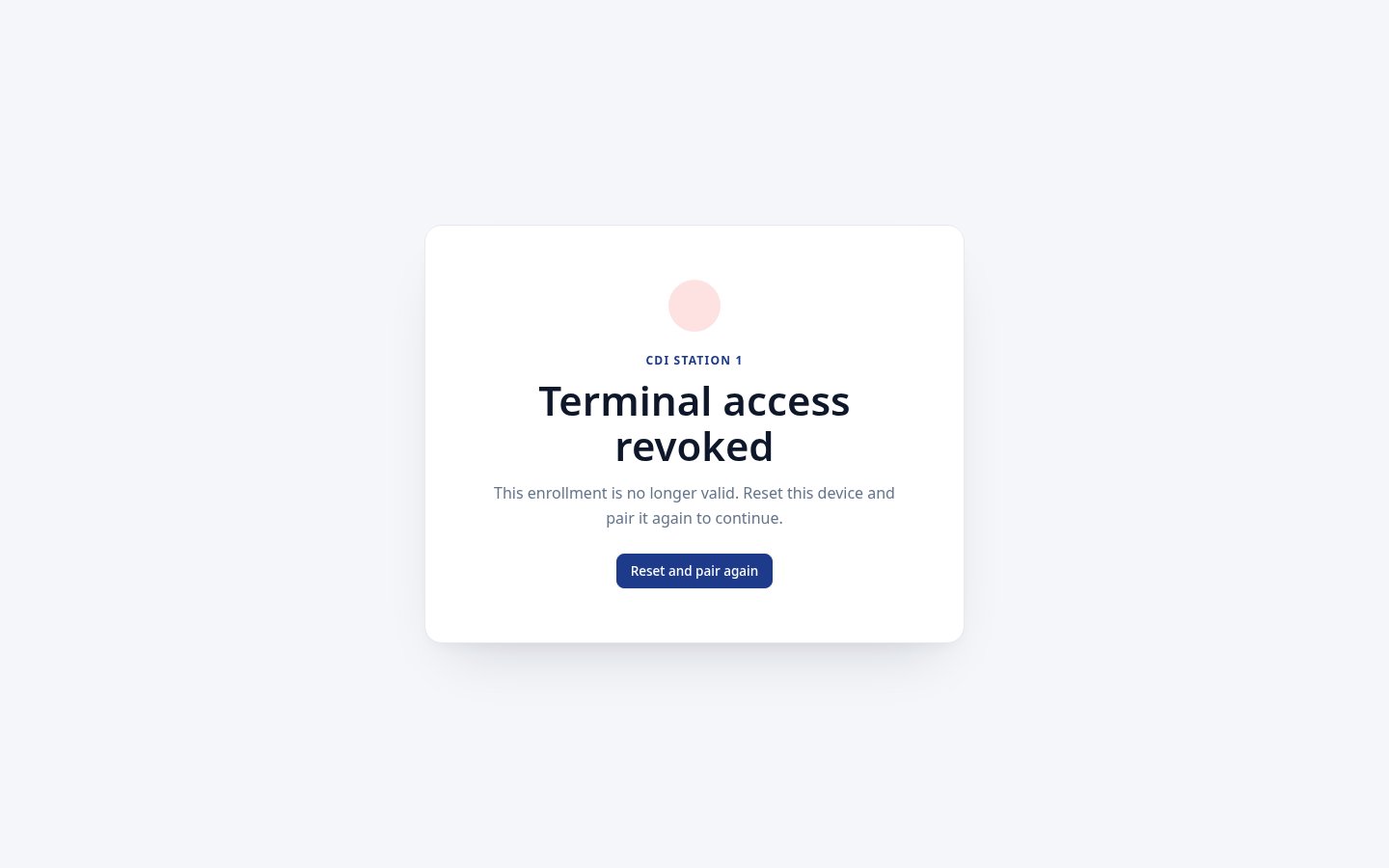
The physical device displays **Terminal access revoked**. Select **Reset and
pair again** on that device only when it should be enrolled as a new terminal.
Revocation:
* clears the current worker;
* invalidates the terminal session and enrollment;
* cannot be resumed;
* keeps the terminal and history available under **Show revoked**.
The physical device displays **Terminal access revoked**. Select **Reset and
pair again** on that device only when it should be enrolled as a new terminal.
 ## Manage employee floor PINs
Open **Organization → Users**, open a team member's action menu, and select
**Manage floor access**. The dialog shows:
* whether floor access is enabled;
* when it was last used;
* the last terminal used;
* any current user-level temporary lock.
An active team member with enabled floor access can use any paired terminal in
the organization. Terminal PIN access is not limited by the employee's role,
function, or assigned location.
From this dialog, an administrator can:
* **Enable floor access** by entering and confirming a unique four-digit PIN.
* **Reset PIN** by replacing it with another unique four-digit PIN.
* **Disable floor access** while leaving normal full-app login unchanged.
* **Unlock** a user-level temporary PIN lock without changing the PIN.
Flexoworks never displays an existing PIN. Resetting or disabling one
immediately ends that employee's active floor sessions on every terminal.
## Manage employee floor PINs
Open **Organization → Users**, open a team member's action menu, and select
**Manage floor access**. The dialog shows:
* whether floor access is enabled;
* when it was last used;
* the last terminal used;
* any current user-level temporary lock.
An active team member with enabled floor access can use any paired terminal in
the organization. Terminal PIN access is not limited by the employee's role,
function, or assigned location.
From this dialog, an administrator can:
* **Enable floor access** by entering and confirming a unique four-digit PIN.
* **Reset PIN** by replacing it with another unique four-digit PIN.
* **Disable floor access** while leaving normal full-app login unchanged.
* **Unlock** a user-level temporary PIN lock without changing the PIN.
Flexoworks never displays an existing PIN. Resetting or disabling one
immediately ends that employee's active floor sessions on every terminal.
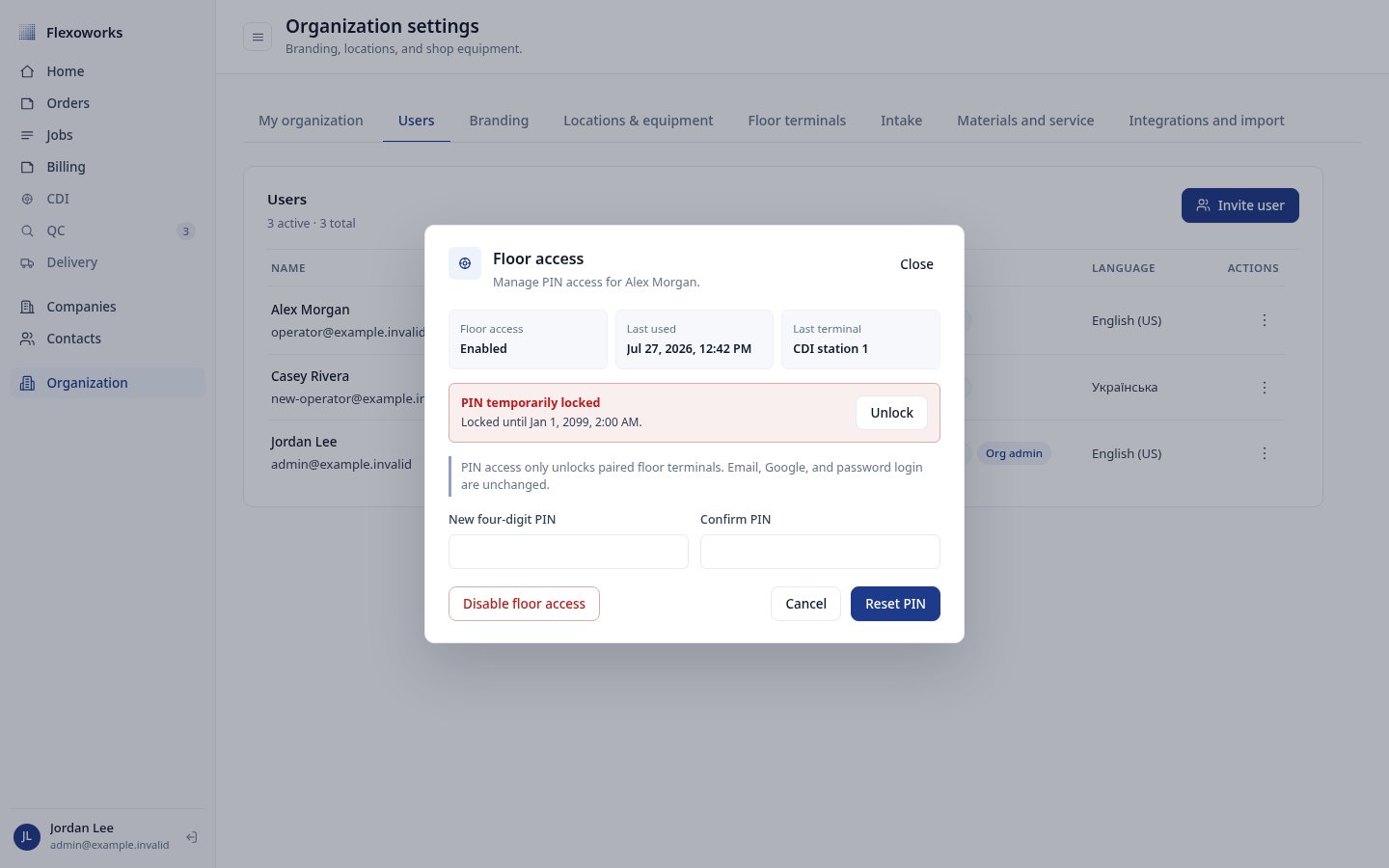 **Unlock** clears only the selected employee's user-level PIN lock. If a
terminal keypad shows a general **Too many attempts** countdown, wait for the
displayed time before trying again. Terminal-wide and organization-wide
protections expire automatically and are not cleared by the employee Unlock
action.
Disabling floor access is narrower than suspending a user. Disabling the PIN
blocks only floor-terminal login. Suspending the user from the Users tab blocks
both floor access and normal Flexoworks authentication, including existing
full-app sessions.
## Keep a production device paired
For a durable installation:
* use a managed, persistent browser profile;
* allow cookies and site data for the Flexoworks app address;
* do not clear browsing data when the browser closes;
* always use the same Flexoworks hostname;
* let the device reconnect after power or network outages before changing its
administration state.
Ordinary short-session expiry, application updates, browser restarts, device
restarts, and recoverable network errors do not require re-pairing.
## Related guides
* [Set up a new floor terminal](/guides/floor-terminal-setup)
* [Floor terminal overview](/guides/floor-terminal-overview)
**Unlock** clears only the selected employee's user-level PIN lock. If a
terminal keypad shows a general **Too many attempts** countdown, wait for the
displayed time before trying again. Terminal-wide and organization-wide
protections expire automatically and are not cleared by the employee Unlock
action.
Disabling floor access is narrower than suspending a user. Disabling the PIN
blocks only floor-terminal login. Suspending the user from the Users tab blocks
both floor access and normal Flexoworks authentication, including existing
full-app sessions.
## Keep a production device paired
For a durable installation:
* use a managed, persistent browser profile;
* allow cookies and site data for the Flexoworks app address;
* do not clear browsing data when the browser closes;
* always use the same Flexoworks hostname;
* let the device reconnect after power or network outages before changing its
administration state.
Ordinary short-session expiry, application updates, browser restarts, device
restarts, and recoverable network errors do not require re-pairing.
## Related guides
* [Set up a new floor terminal](/guides/floor-terminal-setup)
* [Floor terminal overview](/guides/floor-terminal-overview)