> ## Documentation Index
> Fetch the complete documentation index at: https://docs.flexoworks.com/llms.txt
> Use this file to discover all available pages before exploring further.
# Plate inventory: receive, split, move, and use
> Track plate material by size and location, find available stock, record splits and use, and understand material warnings on jobs.
**Inventory** tracks the physical plate material your organization has on hand.
It is deliberately lightweight: there is no booking or reservation step. Each
physical plate has a material, size, location, and activity history, while the
main list combines matching plates into practical stock groups.
A **material** is the reusable definition, such as a plate grade or thickness.
A **plate in inventory** is a physical piece of that material at a particular
size and location. Define the material first, then receive one or more
physical plates into stock.
## Create a plate material
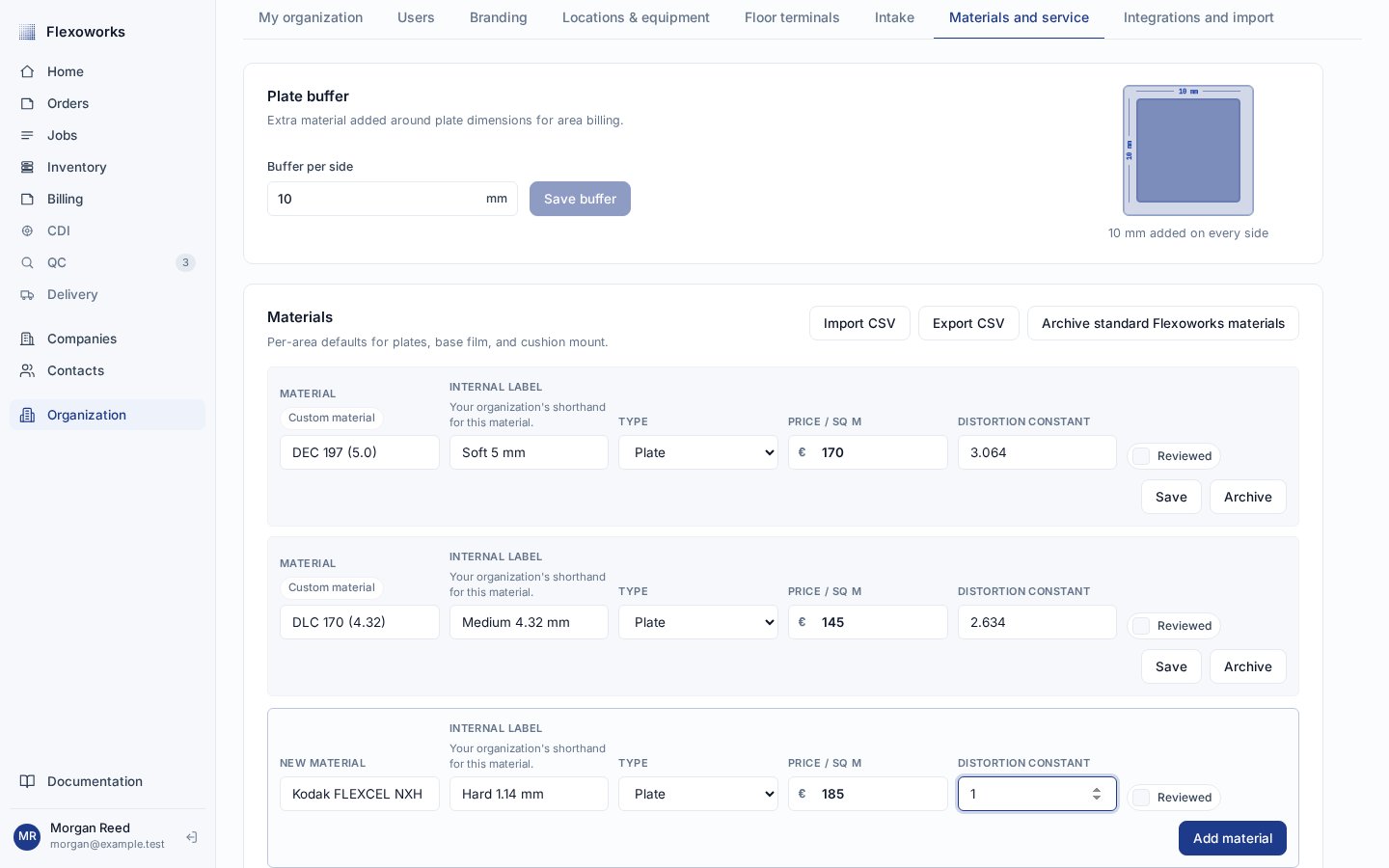
Organization administrators can create a material in **Organization settings
→ Materials and service**. In **New material**:
1. Enter the supplier or formal material name.
2. Optionally add an **Internal label**, such as `Soft 5 mm`. This is your
organization's shorthand and appears under the formal name in Inventory.
3. Choose the type **Plate** and complete the relevant price, distortion, and
review fields.
4. Select **Add material**.
Only active, non-archived materials of type **Plate** appear in the material
lookup when receiving new stock or in the material column filter. Archiving a
material prevents new receipts but does not erase the identity or history of
plates already recorded against it. Existing stock for an archived material
can still appear when it matches the current Inventory view.
 The unit used for new plate dimensions comes from **My organization → Billing
defaults → Plate dimension unit**. It is shown in the receipt form and cannot
be changed for an individual receipt.
## Receive plates in one or many sizes
Open **Inventory** in the left navigation and select **Receive plates**. Then:
Search the material lookup by its formal name or Internal label, then choose
the location where the stock is physically stored.
Enter **Width** and **Height** in the organization's unit. After a material
is selected, the form suggests sizes that were received recently or
frequently for that material. Select a suggestion to fill both dimensions.
Add between 1 and 500 equal-sized plates in one receipt. An optional batch
reference and notes can preserve supplier or handling context.
Select **Receive plates**. Flexoworks creates one physical record per plate,
then presents equal records as one grouped row in the list.
The unit used for new plate dimensions comes from **My organization → Billing
defaults → Plate dimension unit**. It is shown in the receipt form and cannot
be changed for an individual receipt.
## Receive plates in one or many sizes
Open **Inventory** in the left navigation and select **Receive plates**. Then:
Search the material lookup by its formal name or Internal label, then choose
the location where the stock is physically stored.
Enter **Width** and **Height** in the organization's unit. After a material
is selected, the form suggests sizes that were received recently or
frequently for that material. Select a suggestion to fill both dimensions.
Add between 1 and 500 equal-sized plates in one receipt. An optional batch
reference and notes can preserve supplier or handling context.
Select **Receive plates**. Flexoworks creates one physical record per plate,
then presents equal records as one grouped row in the list.
 A material does **not** have one fixed sheet size. Size belongs to each physical
plate record, so the same material can arrive as 500 × 700 mm, 700 × 1,000 mm,
or any other positive size. The suggested sizes come from receipt history; they
are not a restriction and are not based on production consumption.
## Read the grouped inventory list
One Inventory row represents plates with the same:
* material;
* physical size;
* dimension unit; and
* current location.
Width and height are rotation-independent for grouping. For example, 500 × 700
mm and 700 × 500 mm at the same location appear in one row. Individual plate
IDs are intentionally hidden.
A material does **not** have one fixed sheet size. Size belongs to each physical
plate record, so the same material can arrive as 500 × 700 mm, 700 × 1,000 mm,
or any other positive size. The suggested sizes come from receipt history; they
are not a restriction and are not based on production consumption.
## Read the grouped inventory list
One Inventory row represents plates with the same:
* material;
* physical size;
* dimension unit; and
* current location.
Width and height are rotation-independent for grouping. For example, 500 × 700
mm and 700 × 500 mm at the same location appear in one row. Individual plate
IDs are intentionally hidden.
 The columns have these meanings:
| Column | Meaning |
| ------------ | -------------------------------------------------------------------------------------------------------------------------------------- |
| **Plate** | Formal material name and optional Internal label. |
| **Size** | Rotation-independent dimensions in the stored unit. |
| **Location** | Current physical storage or production location. |
| **Area** | Area of one plate at this size. **Available area** in the summary is the total area of all available plates matching the current view. |
| **Quantity** | Number of physical records represented after applying the current search and status filters. |
| **Status** | Counts of **Available**, **Split**, and **Used** records represented by the row. |
| **Updated** | Most recent change among the records in the group. |
Groups are always sorted by **Updated**, newest first. There is no separate
sort control. Pagination starts after grouping and shows up to 50 groups per
page.
## Find the stock you need
Use the global search for a material name, Internal label, location, batch
reference, stock note, or—in views that include used stock—the associated job
name. Search is case-insensitive; internal physical IDs are neither displayed
nor searchable.
The **Plate**, **Location**, and **Status** columns contain their own filters.
Active filters appear as removable pills above the table. Search, filters, and
page are stored in the URL, so a filtered view can be bookmarked or shared.
The columns have these meanings:
| Column | Meaning |
| ------------ | -------------------------------------------------------------------------------------------------------------------------------------- |
| **Plate** | Formal material name and optional Internal label. |
| **Size** | Rotation-independent dimensions in the stored unit. |
| **Location** | Current physical storage or production location. |
| **Area** | Area of one plate at this size. **Available area** in the summary is the total area of all available plates matching the current view. |
| **Quantity** | Number of physical records represented after applying the current search and status filters. |
| **Status** | Counts of **Available**, **Split**, and **Used** records represented by the row. |
| **Updated** | Most recent change among the records in the group. |
Groups are always sorted by **Updated**, newest first. There is no separate
sort control. Pagination starts after grouping and shows up to 50 groups per
page.
## Find the stock you need
Use the global search for a material name, Internal label, location, batch
reference, stock note, or—in views that include used stock—the associated job
name. Search is case-insensitive; internal physical IDs are neither displayed
nor searchable.
The **Plate**, **Location**, and **Status** columns contain their own filters.
Active filters appear as removable pills above the table. Search, filters, and
page are stored in the URL, so a filtered view can be bookmarked or shared.
 In the example, the global search narrows the result while the material,
location, and default status filters remain visible as pills.
By default, the URL contains the statuses **Available** and **Split**. **Used**
records are therefore hidden. Open the **Status** filter and choose **Used**
when you need to audit consumed stock; clear **Available** and **Split** to see
used records alone, or choose **Select all** to include every status.
You can also select grouped rows for bulk actions. The selection survives
searching, filtering, and paging; the bulk bar tells you when selected plates
are outside the current view.
## Split one plate
Splitting represents one real straight cut through one available plate:
Select the three-dot menu on the stock group and choose **Split one plate**.
The action uses one available physical plate from that group.
Choose **Split the width** or **Split the height**. Enter the first piece's
length along that axis; it must be greater than zero and smaller than the
source dimension.
The preview calculates both child pieces. Confirm the split only when the
displayed sizes match the physical cut.
In the example, the global search narrows the result while the material,
location, and default status filters remain visible as pills.
By default, the URL contains the statuses **Available** and **Split**. **Used**
records are therefore hidden. Open the **Status** filter and choose **Used**
when you need to audit consumed stock; clear **Available** and **Split** to see
used records alone, or choose **Select all** to include every status.
You can also select grouped rows for bulk actions. The selection survives
searching, filtering, and paging; the bulk bar tells you when selected plates
are outside the current view.
## Split one plate
Splitting represents one real straight cut through one available plate:
Select the three-dot menu on the stock group and choose **Split one plate**.
The action uses one available physical plate from that group.
Choose **Split the width** or **Split the height**. Enter the first piece's
length along that axis; it must be greater than zero and smaller than the
source dimension.
The preview calculates both child pieces. Confirm the split only when the
displayed sizes match the physical cut.
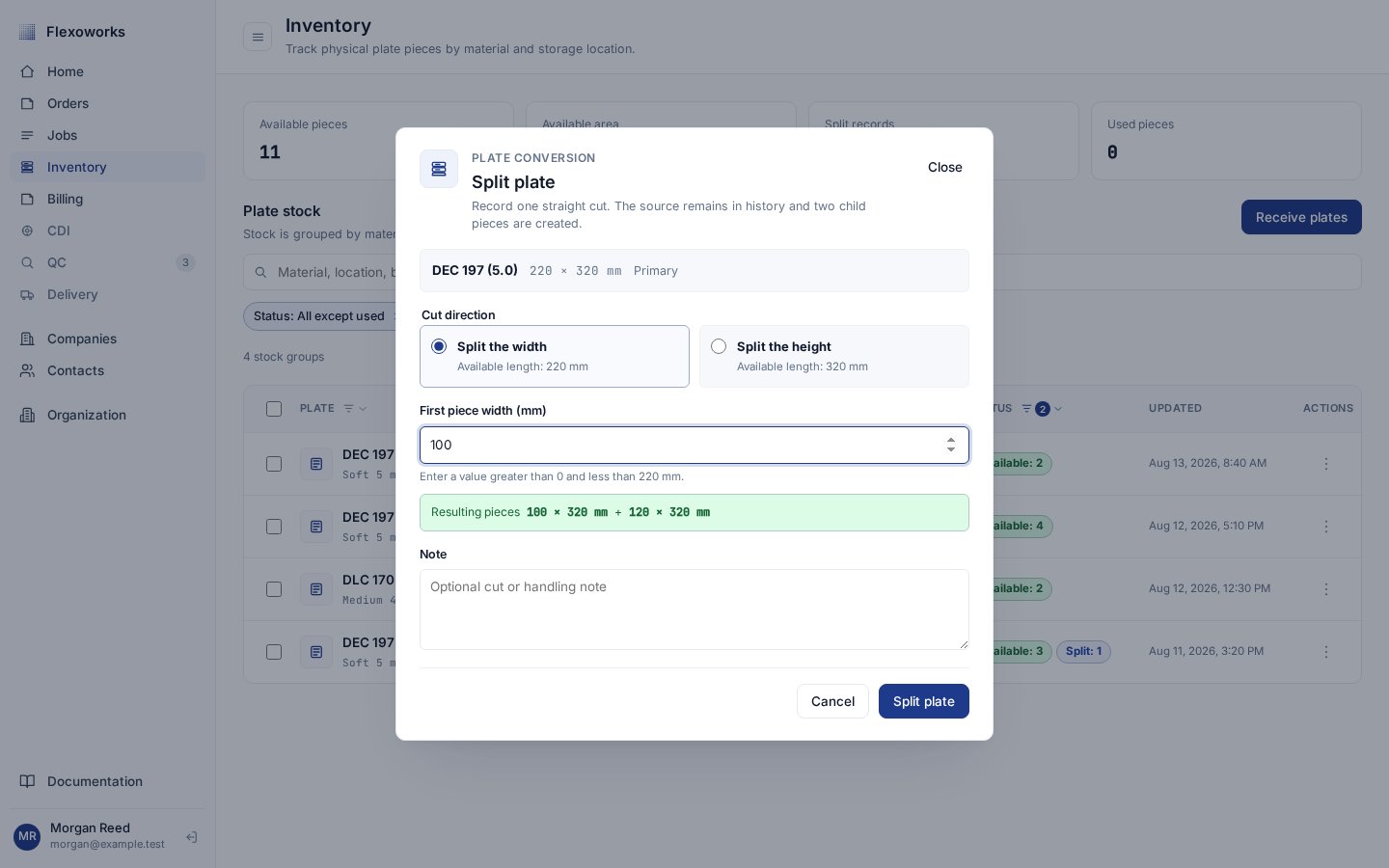 After confirmation, the source becomes **Split** and remains in history. Two
new child plates become **Available** at the same location, with the same
material, unit, batch reference, and stock notes. The source can no longer be
moved, split, or used. The split dialog models one straight cut, not two
arbitrary free-form rectangles.
## Move several plates or record use in bulk
Select the checkbox for one or more groups to show **Move selected** and **Mark
selected used**. In either dialog, choose the exact quantity to take from each
selected group; a group can be set to zero. One bulk action can change up to
200 plates.
A bulk move sends every chosen plate to one destination. A bulk use action
attaches every chosen plate to one compatible production line. Both operations
are atomic: if any chosen plate cannot be changed, none of them are changed.
Select a non-interactive part of any row to open **Group activity** on the
right. The drawer combines the **Received**, **Transferred**, **Split**, and
**Marked used** events for the records currently in that group, including the
actor, time, movement, production context, and notes.
## When a plate is considered used
A plate becomes **Used** only after someone explicitly selects **Mark one plate
used** or **Mark selected used** and confirms a compatible Plate production
line. Completing CDI work or changing the job stage does not automatically
consume inventory. Recording use also does not change the job or CDI stage.
The production line is compatible only when it:
* belongs to an unarchived job and still needs plate quantity;
* uses the same plate material;
* is at the same location as the inventory plate; and
* fits inside the physical stock, including the effective Plate buffer.
After confirmation, the source becomes **Split** and remains in history. Two
new child plates become **Available** at the same location, with the same
material, unit, batch reference, and stock notes. The source can no longer be
moved, split, or used. The split dialog models one straight cut, not two
arbitrary free-form rectangles.
## Move several plates or record use in bulk
Select the checkbox for one or more groups to show **Move selected** and **Mark
selected used**. In either dialog, choose the exact quantity to take from each
selected group; a group can be set to zero. One bulk action can change up to
200 plates.
A bulk move sends every chosen plate to one destination. A bulk use action
attaches every chosen plate to one compatible production line. Both operations
are atomic: if any chosen plate cannot be changed, none of them are changed.
Select a non-interactive part of any row to open **Group activity** on the
right. The drawer combines the **Received**, **Transferred**, **Split**, and
**Marked used** events for the records currently in that group, including the
actor, time, movement, production context, and notes.
## When a plate is considered used
A plate becomes **Used** only after someone explicitly selects **Mark one plate
used** or **Mark selected used** and confirms a compatible Plate production
line. Completing CDI work or changing the job stage does not automatically
consume inventory. Recording use also does not change the job or CDI stage.
The production line is compatible only when it:
* belongs to an unarchived job and still needs plate quantity;
* uses the same plate material;
* is at the same location as the inventory plate; and
* fits inside the physical stock, including the effective Plate buffer.
 A 90-degree rotation is allowed when checking the fit. After confirmation,
Flexoworks links the physical plate to the production line and records the
person, time, and activity. The plate no longer counts as available, cannot be
used again, and is hidden by the default status filter, but it remains
available for audit.
Inventory consumption is currently explicit. Manager approval, transfer to
Imaging, CDI completion, and job-stage transitions do not mark a plate used on
their own.
## What a job shows when material is unavailable
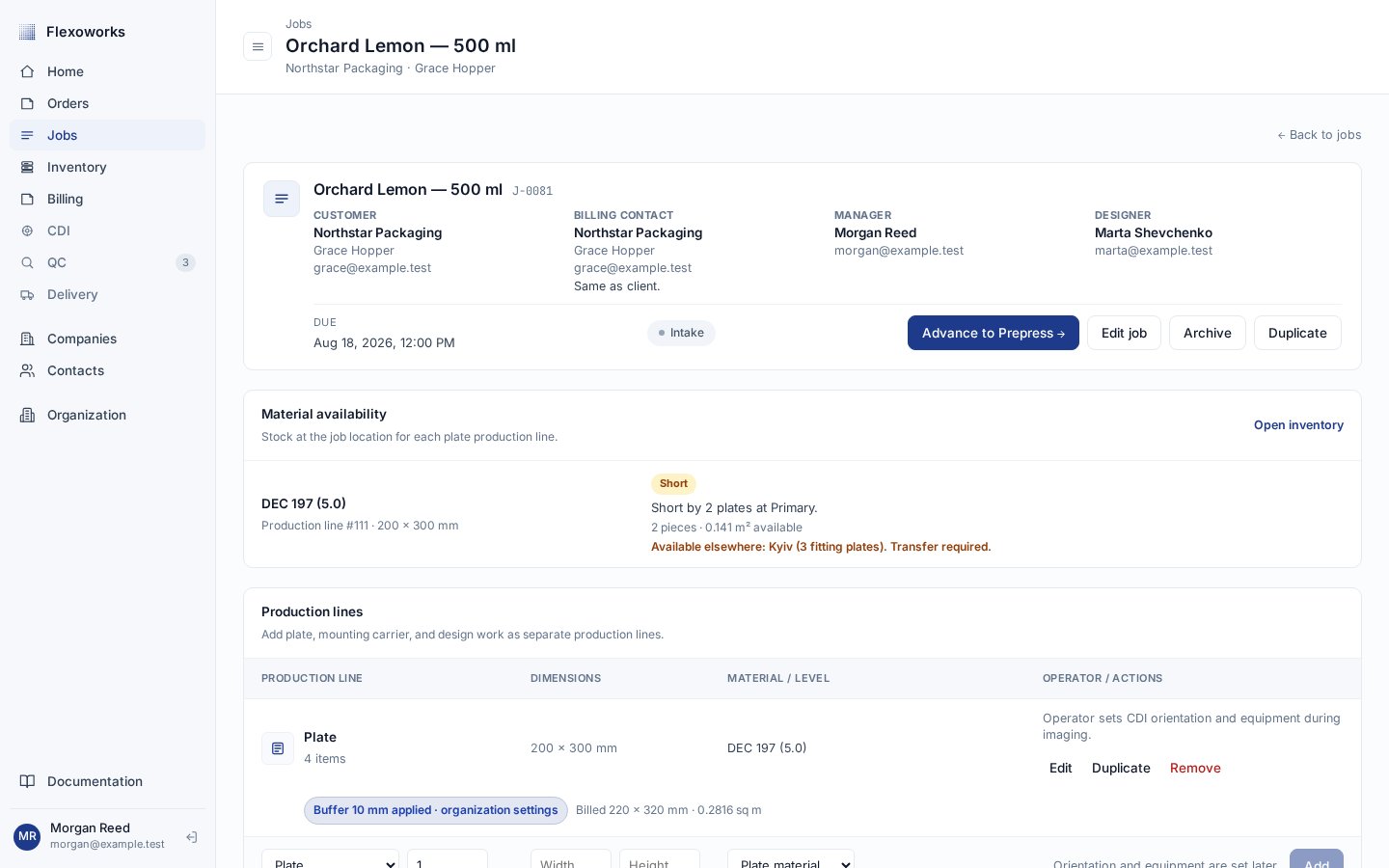
Job details include a **Material availability** card for every Plate production
line. It checks **Available** stock of the selected material at the job's
location. A plate counts only when its dimensions can contain the production
line's size plus its effective buffer; a 90-degree rotation is allowed.
A 90-degree rotation is allowed when checking the fit. After confirmation,
Flexoworks links the physical plate to the production line and records the
person, time, and activity. The plate no longer counts as available, cannot be
used again, and is hidden by the default status filter, but it remains
available for audit.
Inventory consumption is currently explicit. Manager approval, transfer to
Imaging, CDI completion, and job-stage transitions do not mark a plate used on
their own.
## What a job shows when material is unavailable
Job details include a **Material availability** card for every Plate production
line. It checks **Available** stock of the selected material at the job's
location. A plate counts only when its dimensions can contain the production
line's size plus its effective buffer; a 90-degree rotation is allowed.
 | Status | What it means |
| ------------------- | ----------------------------------------------------------------------- |
| **Missing details** | The production line is missing a material or valid dimensions. |
| **Material used** | Use has been recorded for all required plate quantity. |
| **In stock** | Enough fitting available plates exist at the job location. |
| **Short** | Some fitting local plates exist, but fewer than the remaining quantity. |
| **Out of stock** | No fitting available plate exists at the job location. |
The same physical plate is never counted twice across the job's production
lines. If fitting stock exists elsewhere, the card names those locations and
shows **Transfer required**. A local area total can be greater than zero while
the status is still **Out of stock** when every local plate is too small.
Availability is advisory. It does not reserve stock, book a plate, block the
job, or change its stage. Use **Open inventory** to move suitable stock to the
job location or receive additional plates.
See how Plate quantity, dimensions, material, and buffer define the job's
inventory requirement.
Understand why recording material use and moving the whole job are separate
actions.
| Status | What it means |
| ------------------- | ----------------------------------------------------------------------- |
| **Missing details** | The production line is missing a material or valid dimensions. |
| **Material used** | Use has been recorded for all required plate quantity. |
| **In stock** | Enough fitting available plates exist at the job location. |
| **Short** | Some fitting local plates exist, but fewer than the remaining quantity. |
| **Out of stock** | No fitting available plate exists at the job location. |
The same physical plate is never counted twice across the job's production
lines. If fitting stock exists elsewhere, the card names those locations and
shows **Transfer required**. A local area total can be greater than zero while
the status is still **Out of stock** when every local plate is too small.
Availability is advisory. It does not reserve stock, book a plate, block the
job, or change its stage. Use **Open inventory** to move suitable stock to the
job location or receive additional plates.
See how Plate quantity, dimensions, material, and buffer define the job's
inventory requirement.
Understand why recording material use and moving the whole job are separate
actions.