> ## Documentation Index
> Fetch the complete documentation index at: https://docs.flexoworks.com/llms.txt
> Use this file to discover all available pages before exploring further.
# How to log in
> Sign in to Flexoworks with an email code, your password, or Google.
You can log in to Flexoworks in three ways: with a one-time code sent to your
email, with your Flexoworks password, or with Google. Use the email address
associated with your active Flexoworks account. If you do not have an account,
ask your organization administrator to create one.
## Open the login page
Open [Flexoworks](https://app.flexoworks.com/) or the Flexoworks address provided
by your organization. If you received an invitation, you can also select
**Open Flexoworks** in that email.
Use the language selector at the bottom of the login page to choose **English (US)**
or **Українська**. This article shows the English interface; see the
[Ukrainian version](/uk/guides/log-in) for Ukrainian instructions and screenshots.
The email address shown in the screenshots is an example. Enter your own address.
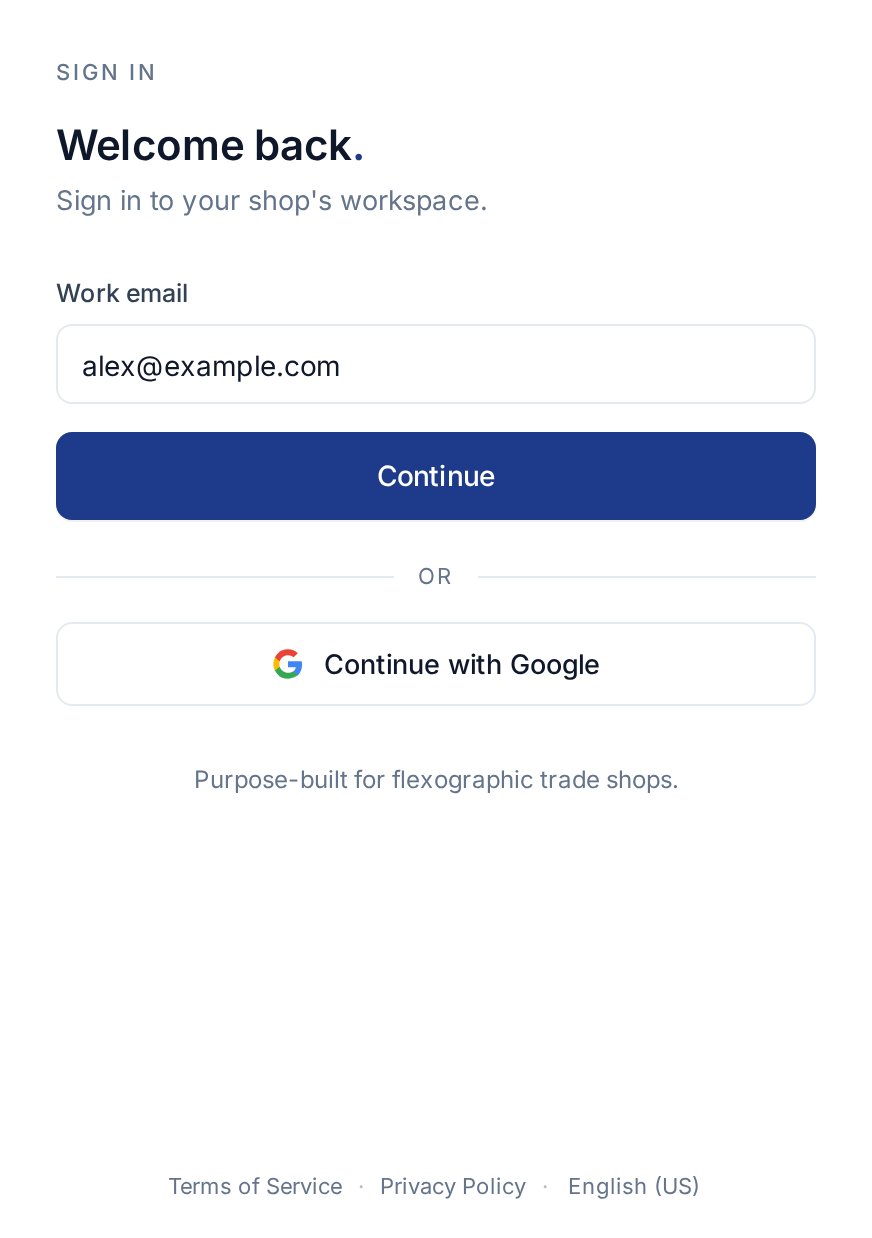 | Method | What you need | Where to start |
| ---------- | --------------------------------------------------------------- | ---------------------------------------------------------------------------------------- |
| Email code | Access to your account's email inbox | Enter **Work email**, then select **Continue**. |
| Password | Your Flexoworks password | Enter **Work email**, select **Continue**, then select **Log in with password instead**. |
| Google | A Google account with the same email as your Flexoworks account | Select **Continue with Google**. |
## Log in with an email code
1. Enter your account's email address in **Work email**.
2. Select **Continue**. The **Check your email** screen opens.
3. Open your inbox and find the sign-in code email. It contains a **six-digit
code** that expires after **5 minutes**.
4. Return to Flexoworks and type or paste the code into **Verification code**.
Flexoworks checks it automatically when all six digits are entered. The
**Verify and sign in** button also submits a complete code.
5. After the code is accepted, your workspace opens, or you return to the page
you were trying to access.
| Method | What you need | Where to start |
| ---------- | --------------------------------------------------------------- | ---------------------------------------------------------------------------------------- |
| Email code | Access to your account's email inbox | Enter **Work email**, then select **Continue**. |
| Password | Your Flexoworks password | Enter **Work email**, select **Continue**, then select **Log in with password instead**. |
| Google | A Google account with the same email as your Flexoworks account | Select **Continue with Google**. |
## Log in with an email code
1. Enter your account's email address in **Work email**.
2. Select **Continue**. The **Check your email** screen opens.
3. Open your inbox and find the sign-in code email. It contains a **six-digit
code** that expires after **5 minutes**.
4. Return to Flexoworks and type or paste the code into **Verification code**.
Flexoworks checks it automatically when all six digits are entered. The
**Verify and sign in** button also submits a complete code.
5. After the code is accepted, your workspace opens, or you return to the page
you were trying to access.
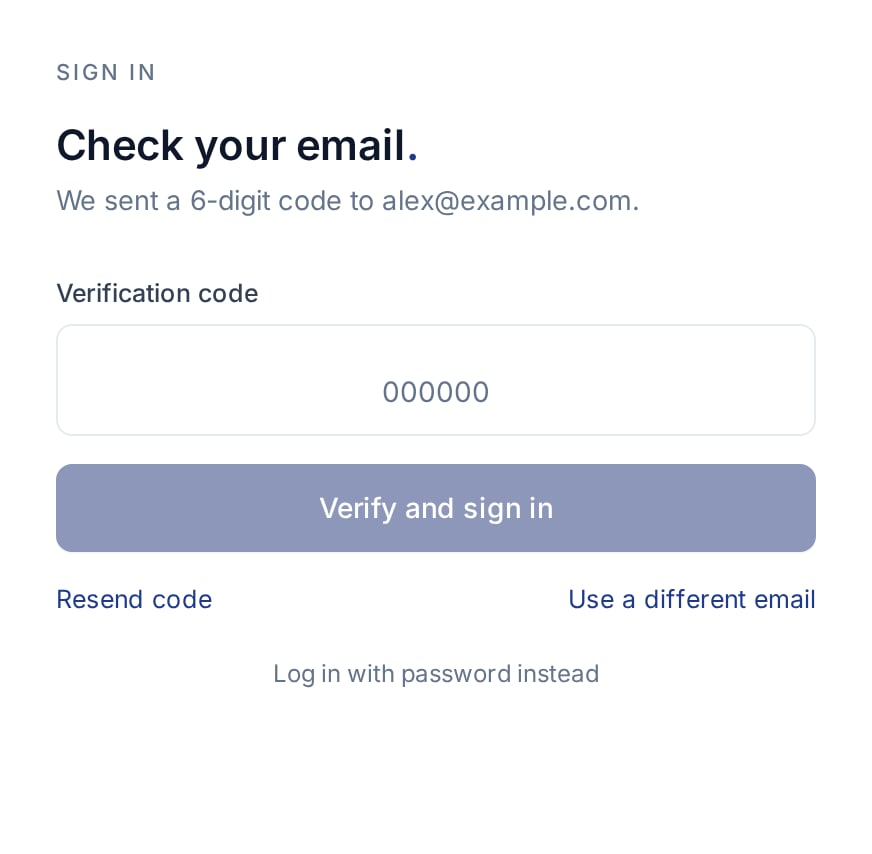 You do not need a password for this method. Each code can be used only once.
When a new code is sent, it replaces the previous one, so use the latest email.
### Resend the code or correct your email
* Wait for the **30-second countdown** to finish, then select **Resend code**.
* If the address is wrong, select **Use a different email**, correct it, and
select **Continue** again.
* If you have already switched to the password screen, select **Use code
instead** to return to code entry. This does not send a new code; use
**Resend code** if you need one.
## Log in with a password
1. On the initial login page, enter your account's email in **Work email** and
select **Continue**.
2. On **Check your email**, select **Log in with password instead** beneath
the resend and email links. You can select it immediately without entering
the email code.
3. On **Enter your password**, check that the displayed email address is correct.
4. Enter your **Flexoworks password** in **Password** and select **Sign in**.
5. After your password is accepted, your workspace or the page you requested opens.
You do not need a password for this method. Each code can be used only once.
When a new code is sent, it replaces the previous one, so use the latest email.
### Resend the code or correct your email
* Wait for the **30-second countdown** to finish, then select **Resend code**.
* If the address is wrong, select **Use a different email**, correct it, and
select **Continue** again.
* If you have already switched to the password screen, select **Use code
instead** to return to code entry. This does not send a new code; use
**Resend code** if you need one.
## Log in with a password
1. On the initial login page, enter your account's email in **Work email** and
select **Continue**.
2. On **Check your email**, select **Log in with password instead** beneath
the resend and email links. You can select it immediately without entering
the email code.
3. On **Enter your password**, check that the displayed email address is correct.
4. Enter your **Flexoworks password** in **Password** and select **Sign in**.
5. After your password is accepted, your workspace or the page you requested opens.
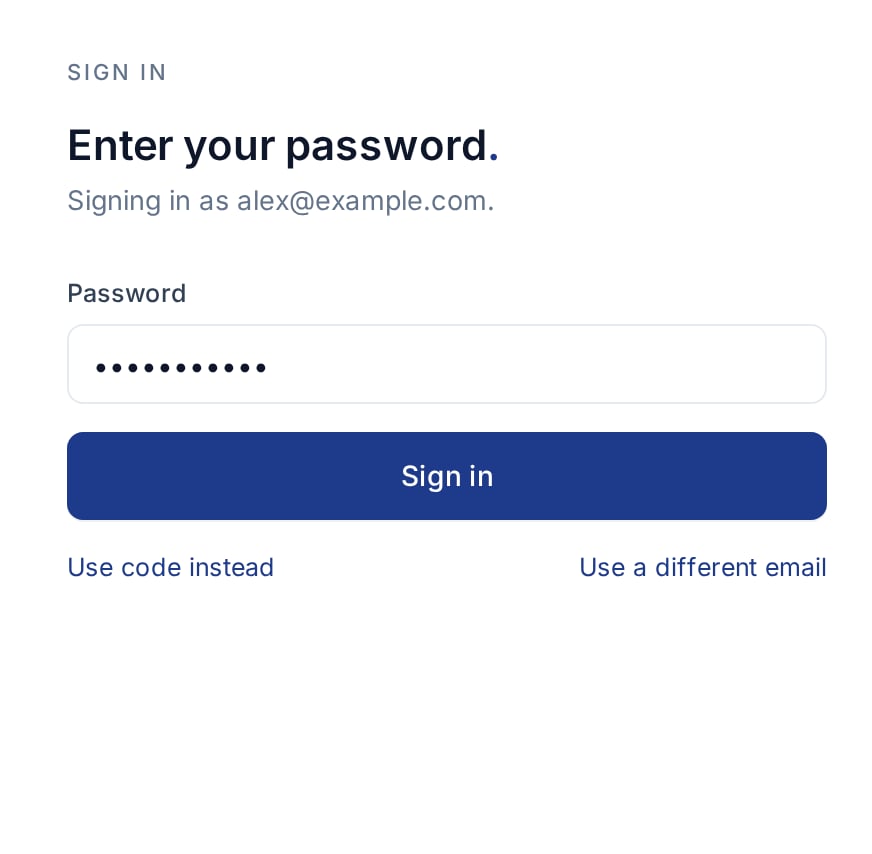 If you do not know your password, select **Use code instead** and log in with
the code sent to your email. To change the account email used for this login,
select **Use a different email**.
## Log in with Google
1. On the initial login page, select **Continue with Google**. You do not need
to fill in **Work email** first. If you are on the code or password screen,
select **Use a different email** to return to this page.
2. In the Google window, choose the Google account whose email matches your
Flexoworks account. If it is not listed, use Google's option to sign in to
another account.
3. Complete any sign-in, verification, or permission prompts that Google shows.
4. After Google confirms your identity and Flexoworks accepts your account,
your workspace or the page you requested opens.
If you do not know your password, select **Use code instead** and log in with
the code sent to your email. To change the account email used for this login,
select **Use a different email**.
## Log in with Google
1. On the initial login page, select **Continue with Google**. You do not need
to fill in **Work email** first. If you are on the code or password screen,
select **Use a different email** to return to this page.
2. In the Google window, choose the Google account whose email matches your
Flexoworks account. If it is not listed, use Google's option to sign in to
another account.
3. Complete any sign-in, verification, or permission prompts that Google shows.
4. After Google confirms your identity and Flexoworks accepts your account,
your workspace or the page you requested opens.
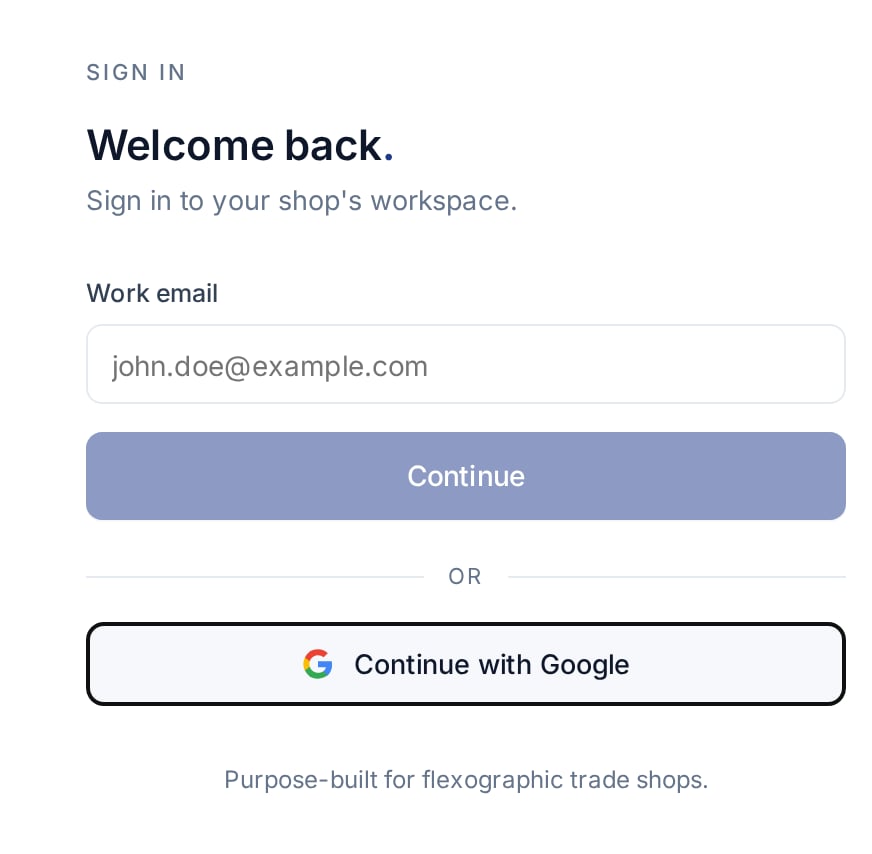 Google's window may look different depending on your browser, Google language,
and signed-in accounts. Google login uses an existing Flexoworks account; it
does not create one. Enter your Google password only in Google's sign-in window.
## Having trouble logging in?
| Problem | What to do |
| ----------------------------------------------- | ------------------------------------------------------------------------------------------------------------------------------------------------------------------------------------------------------------------------------------------------------------------------------------------------------------------------------------------------------------------- |
| No code email arrives | Check the address shown on screen and your spam or junk folder. Wait for the countdown, then select **Resend code**. If you have made several requests, wait before retrying; requests are limited. If it still does not arrive, ask your administrator to confirm your account email and access. The code-entry screen can appear even when no email is delivered. |
| **Invalid or expired code** | Use the newest code within 5 minutes. An already-used code will not work. After five incorrect attempts, that code is no longer usable; request a new one. |
| **Incorrect email or password** | Check the displayed email, keyboard language, and Caps Lock. Try **Use code instead** if you do not know your password. |
| The Google window does not open | Allow pop-ups for Flexoworks, then select **Continue with Google** again. If you closed the Google window, retry and finish its prompts. |
| **No Flexoworks account for this Google email** | Choose the Google account with your Flexoworks email. If the email is correct, ask your administrator to confirm that the account exists and is active. |
| **Google Sign-In is not configured** | Use an email code or password and report the message to your administrator. |
| None of the methods work | Ask your organization administrator to check your access. Suspended accounts cannot log in with any of these methods. |
Using a shared production terminal with a four-digit PIN? See
[Floor terminal overview](/guides/floor-terminal-overview) for that workflow.
Google's window may look different depending on your browser, Google language,
and signed-in accounts. Google login uses an existing Flexoworks account; it
does not create one. Enter your Google password only in Google's sign-in window.
## Having trouble logging in?
| Problem | What to do |
| ----------------------------------------------- | ------------------------------------------------------------------------------------------------------------------------------------------------------------------------------------------------------------------------------------------------------------------------------------------------------------------------------------------------------------------- |
| No code email arrives | Check the address shown on screen and your spam or junk folder. Wait for the countdown, then select **Resend code**. If you have made several requests, wait before retrying; requests are limited. If it still does not arrive, ask your administrator to confirm your account email and access. The code-entry screen can appear even when no email is delivered. |
| **Invalid or expired code** | Use the newest code within 5 minutes. An already-used code will not work. After five incorrect attempts, that code is no longer usable; request a new one. |
| **Incorrect email or password** | Check the displayed email, keyboard language, and Caps Lock. Try **Use code instead** if you do not know your password. |
| The Google window does not open | Allow pop-ups for Flexoworks, then select **Continue with Google** again. If you closed the Google window, retry and finish its prompts. |
| **No Flexoworks account for this Google email** | Choose the Google account with your Flexoworks email. If the email is correct, ask your administrator to confirm that the account exists and is active. |
| **Google Sign-In is not configured** | Use an email code or password and report the message to your administrator. |
| None of the methods work | Ask your organization administrator to check your access. Suspended accounts cannot log in with any of these methods. |
Using a shared production terminal with a four-digit PIN? See
[Floor terminal overview](/guides/floor-terminal-overview) for that workflow.