> ## Documentation Index
> Fetch the complete documentation index at: https://docs.flexoworks.com/llms.txt
> Use this file to discover all available pages before exploring further.
# Orders and jobs: from intake to production
> Understand Orders, Jobs, production lines, identifiers, and the reviewed conversion from customer request to production work.
Flexoworks uses an **Order** to capture incoming work and a **Job** to run that
work through production. They are linked concepts, but they are not the same
record.
An **Order** answers “what did the customer request?” A **Job** answers “what
exactly are we producing, where, and who owns it?”
## The model at a glance
| Concept | What it represents | Where it belongs |
| ------------------- | ----------------------------------------------------------------------------------------------------------------- | ------------------------------------ |
| **Order** | An intake record with the customer's request, source files, contact details, and requested specifications | **Orders** |
| **Job** | A production container with its own files, assignments, location, stage, production lines, comments, and activity | **Jobs** |
| **Production line** | One defined unit of work inside a Job: **Plate**, **Mounting carrier**, or **Design** | A Job's **Production lines** section |
The normal relationship is:
**one Order → one or more Jobs → production lines inside each Job**
Converting an Order can create several Jobs when one customer request contains
separate products, designs, file groups, due dates, or production requirements.
A Job can also be created directly, so not every Job has a source Order.
Review submitted customer requests and manually entered intake work.
Plan and follow the work that the production team will perform.
## Read O and J identifiers correctly
Flexoworks gives the two record types different prefixes:
* `O-0042` is **Order 42**. Its direct address ends in `/orders/42`.
* `J-0042` is **Job 42**. Its direct address ends in `/jobs/42`.
The numeric parts can match by coincidence. `O-0042` and `J-0042` are still
different records and are not necessarily related. Use the **Created jobs** and
**Source order** links to confirm the real relationship; never infer it from the
number.
## Understand the intake queue
The **Orders** page is an intake queue, not a production schedule. Its default
**Active** view contains work that is ready for the team to review.
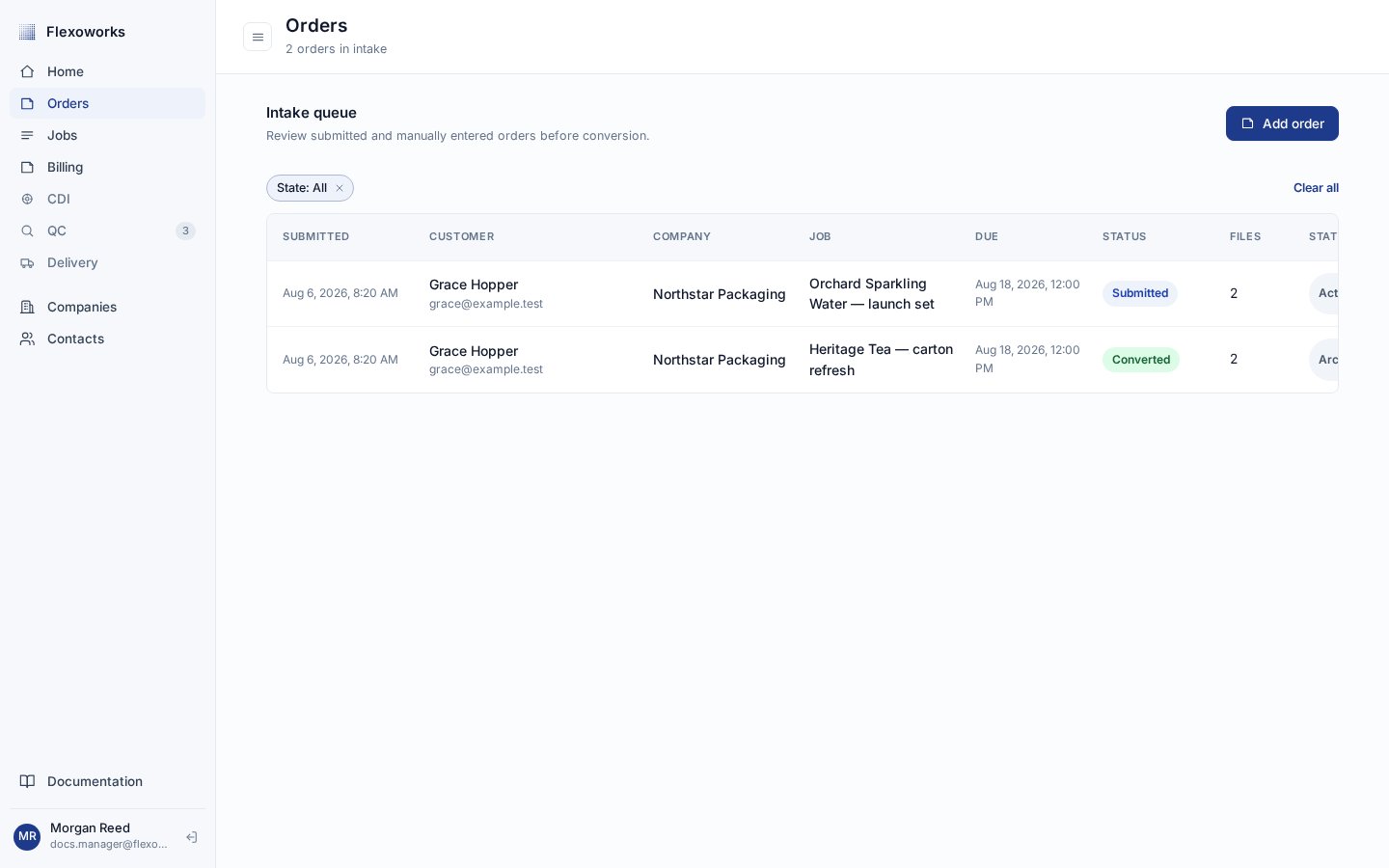 An Order can have these statuses:
| Status | Meaning |
| ------------- | ----------------------------------------------------------------------------------------------------------------- |
| **Draft** | A customer has started the intake form but has not submitted it. Drafts do not appear in the team's Orders queue. |
| **Submitted** | The request is in the active intake queue and can be reviewed, supplemented with files, and converted. |
| **Converted** | The reviewed Job or Jobs have been created. The Order remains as the source record. |
| **Cancelled** | The intake record was closed without conversion. |
The **Archived** state filter contains Converted and Cancelled Orders. Choose
**All** when you need active and archived intake records together. An Order
created inside Flexoworks with **Add order** enters the queue as **Submitted**
immediately; **Draft** belongs to an unfinished customer intake session.
## What stays on an Order
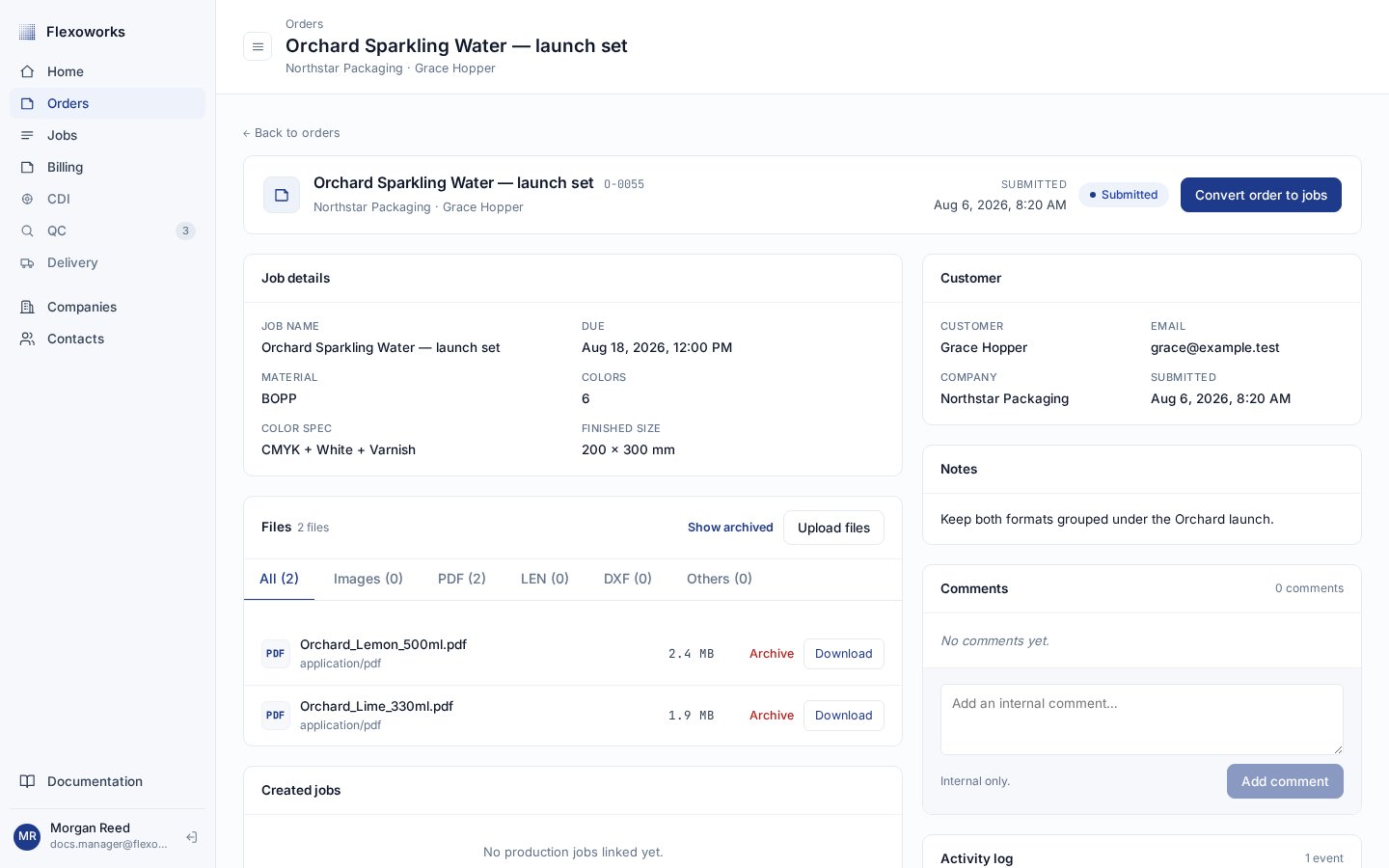
Open a Submitted Order to check the requested Job name and due date, customer,
material, colors, finished size, notes, and source files. Team members can add
files and internal comments while the Order is still Submitted.
An Order can have these statuses:
| Status | Meaning |
| ------------- | ----------------------------------------------------------------------------------------------------------------- |
| **Draft** | A customer has started the intake form but has not submitted it. Drafts do not appear in the team's Orders queue. |
| **Submitted** | The request is in the active intake queue and can be reviewed, supplemented with files, and converted. |
| **Converted** | The reviewed Job or Jobs have been created. The Order remains as the source record. |
| **Cancelled** | The intake record was closed without conversion. |
The **Archived** state filter contains Converted and Cancelled Orders. Choose
**All** when you need active and archived intake records together. An Order
created inside Flexoworks with **Add order** enters the queue as **Submitted**
immediately; **Draft** belongs to an unfinished customer intake session.
## What stays on an Order
Open a Submitted Order to check the requested Job name and due date, customer,
material, colors, finished size, notes, and source files. Team members can add
files and internal comments while the Order is still Submitted.
 An Order does not move through Intake, Prepress, Imaging, Washout, QC, and
Shipped. Those are **Job stages**. It also does not own the production lines
that operators complete. Keeping intake and production separate preserves the
original request even when the production plan changes.
## When to create a Job directly
Use **Jobs → New job** when the work is already understood as one production
unit and you do not need a separate intake record. For example, a repeat job
agreed with an existing customer may be ready to schedule immediately.
In the **Add prepress job** form, review the customer and contact, optional
billing payer, location, manager, optional designer, Job name, due date, notes,
and artwork files. The due date and initial files can be left blank and added
later. The new Job receives a `J-` identifier and starts at **Intake**. Add its
production lines from the Job details page.
Create an Order first when the request still needs triage, may need to split
into several Jobs, or should retain a clear customer-intake trail. Create a
Job directly when the production unit is already known.
## Convert one Order into production Jobs
Only a **Submitted** Order can be converted. Open it and select **Convert order
to jobs**.
### 1. Review the proposed Job drafts
Flexoworks reads the intake details, active source files, customer context, and
available production data, then prepares editable drafts. A suggestion is a
starting point, not an approval: nothing is created until you select **Create
jobs**.
An Order does not move through Intake, Prepress, Imaging, Washout, QC, and
Shipped. Those are **Job stages**. It also does not own the production lines
that operators complete. Keeping intake and production separate preserves the
original request even when the production plan changes.
## When to create a Job directly
Use **Jobs → New job** when the work is already understood as one production
unit and you do not need a separate intake record. For example, a repeat job
agreed with an existing customer may be ready to schedule immediately.
In the **Add prepress job** form, review the customer and contact, optional
billing payer, location, manager, optional designer, Job name, due date, notes,
and artwork files. The due date and initial files can be left blank and added
later. The new Job receives a `J-` identifier and starts at **Intake**. Add its
production lines from the Job details page.
Create an Order first when the request still needs triage, may need to split
into several Jobs, or should retain a clear customer-intake trail. Create a
Job directly when the production unit is already known.
## Convert one Order into production Jobs
Only a **Submitted** Order can be converted. Open it and select **Convert order
to jobs**.
### 1. Review the proposed Job drafts
Flexoworks reads the intake details, active source files, customer context, and
available production data, then prepares editable drafts. A suggestion is a
starting point, not an approval: nothing is created until you select **Create
jobs**.
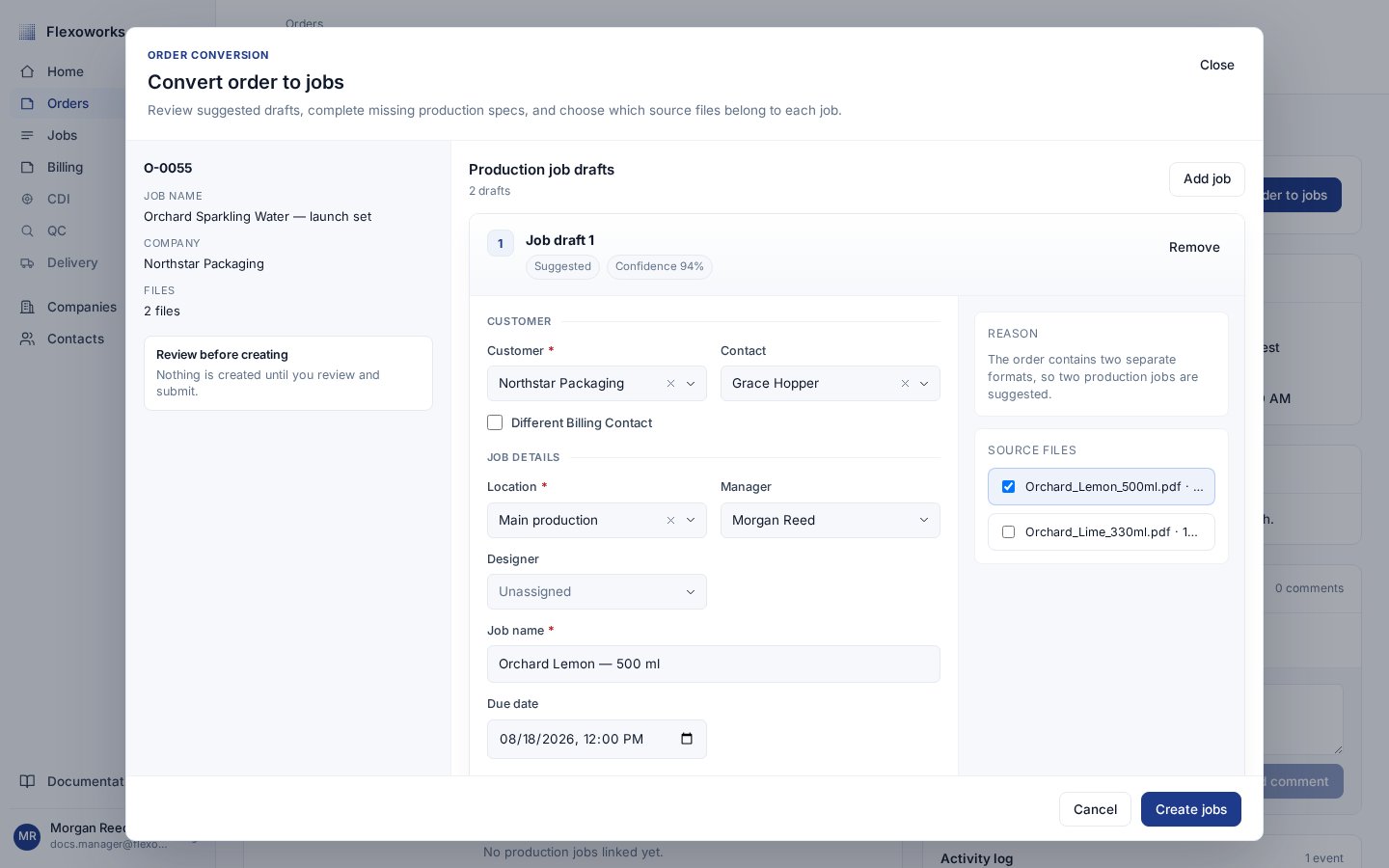 For each draft, review or choose:
* customer and contact;
* a different billing company or contact, when applicable;
* production location, manager, and optional designer;
* Job name, optional due date, and notes;
* which active **Source files** belong to this Job;
* at least one **Production line**.
Use **Add job** when the Order needs another production Job. Remove an
unnecessary draft or change its file group and production lines before
submitting. Every draft is editable, including drafts marked **Suggested** or
**Fallback**.
Conversion is a one-time operation. Build and review every Job needed from the
Order before selecting **Create jobs**.
### 2. Know exactly what conversion creates
Conversion does not rename the Order into a Job. It creates new production
records from the drafts you approved:
* reviewed Job fields become the customer, payer, location, assignments, name,
due date, and notes of each new Job;
* selected active Order files are **copied** into each Job, not moved away from
the Order;
* the reviewed production lines are created inside their respective Jobs;
* each Job starts at **Intake** and receives its own `J-` identifier;
* each Job stores a **Source order** link back to the original `O-` record.
If the Order has active files, each Job draft must select at least one of them.
The same source file can be selected for more than one Job, giving each Job its
own copy. Archived Order files are not available for conversion. If a manually
entered Order has no active files, its Jobs can be created without a copied
source file.
The original Order files, intake details, comments, and activity stay on the
Order. Comments are not copied into the Jobs. Order-specific fields can inform
the suggestions, but the values and production lines in the reviewed drafts are
what define the new Jobs.
### 3. Follow the links in both directions
After successful conversion, the Order changes to **Converted** and its
**Created jobs** section lists every new Job. The original request remains
available for reference.
For each draft, review or choose:
* customer and contact;
* a different billing company or contact, when applicable;
* production location, manager, and optional designer;
* Job name, optional due date, and notes;
* which active **Source files** belong to this Job;
* at least one **Production line**.
Use **Add job** when the Order needs another production Job. Remove an
unnecessary draft or change its file group and production lines before
submitting. Every draft is editable, including drafts marked **Suggested** or
**Fallback**.
Conversion is a one-time operation. Build and review every Job needed from the
Order before selecting **Create jobs**.
### 2. Know exactly what conversion creates
Conversion does not rename the Order into a Job. It creates new production
records from the drafts you approved:
* reviewed Job fields become the customer, payer, location, assignments, name,
due date, and notes of each new Job;
* selected active Order files are **copied** into each Job, not moved away from
the Order;
* the reviewed production lines are created inside their respective Jobs;
* each Job starts at **Intake** and receives its own `J-` identifier;
* each Job stores a **Source order** link back to the original `O-` record.
If the Order has active files, each Job draft must select at least one of them.
The same source file can be selected for more than one Job, giving each Job its
own copy. Archived Order files are not available for conversion. If a manually
entered Order has no active files, its Jobs can be created without a copied
source file.
The original Order files, intake details, comments, and activity stay on the
Order. Comments are not copied into the Jobs. Order-specific fields can inform
the suggestions, but the values and production lines in the reviewed drafts are
what define the new Jobs.
### 3. Follow the links in both directions
After successful conversion, the Order changes to **Converted** and its
**Created jobs** section lists every new Job. The original request remains
available for reference.
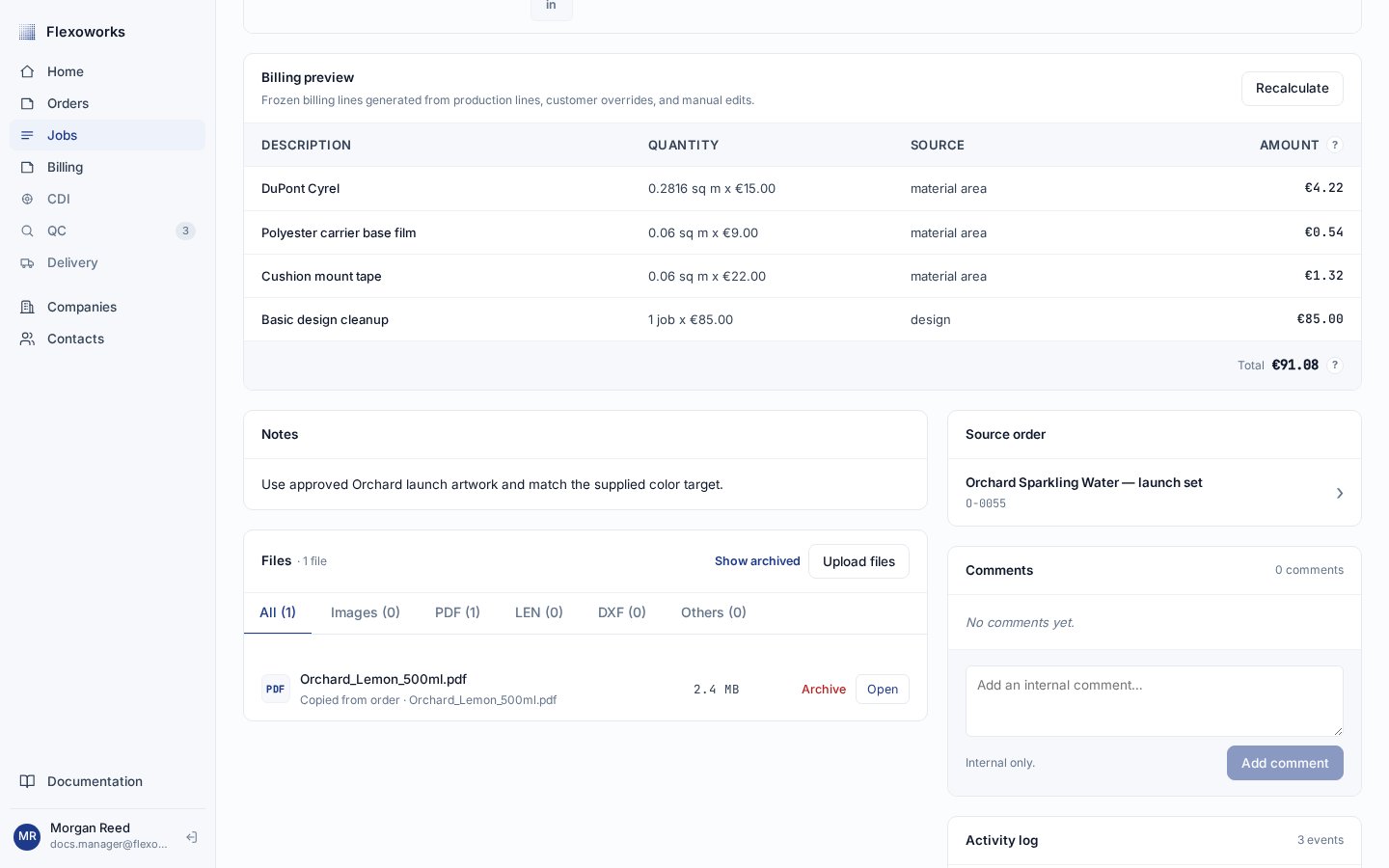
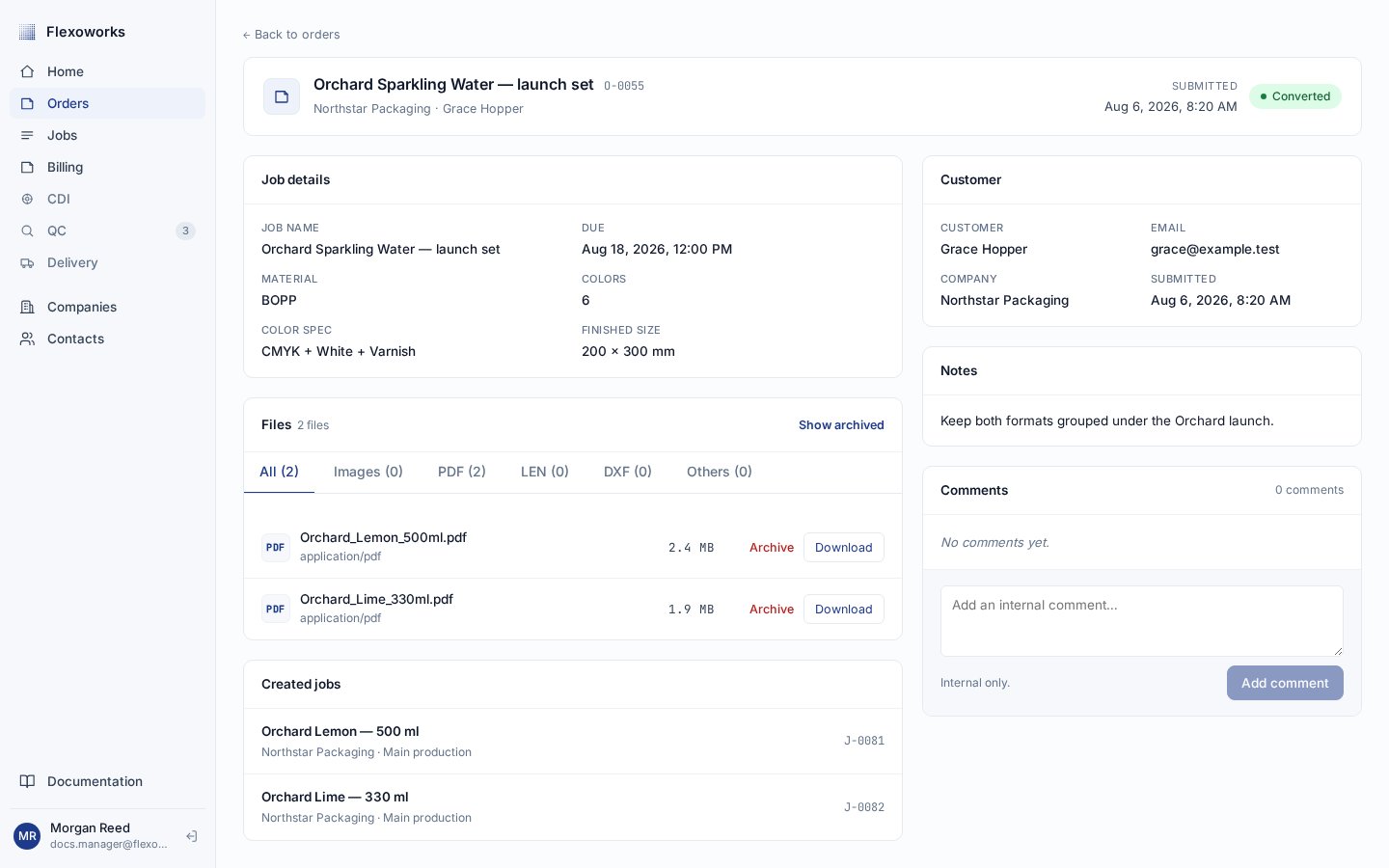 Open any converted Job and look for **Source order**. Copied files also show
**Copied from order** beneath the filename, so the team can trace production
material back to its intake source.
Open any converted Job and look for **Source order**. Copied files also show
**Copied from order** beneath the filename, so the team can trace production
material back to its intake source.
 ## Choose the right record
| If you need to… | Work in… |
| --------------------------------------------------------- | ---------------------------- |
| review what a customer sent | **Orders** |
| keep a request together before deciding how to produce it | **Orders** |
| split one request into separate production units | **Convert order to jobs** |
| assign people, location, and production stage | **Jobs** |
| define plate, mounting carrier, or design work | a Job's **Production lines** |
| start known production work without intake | **Jobs → New job** |
## Continue the workflow
Define **Plate**, **Mounting carrier**, and **Design** work inside a Job.
Follow a Job from Intake through Prepress and production to Shipped.
## Choose the right record
| If you need to… | Work in… |
| --------------------------------------------------------- | ---------------------------- |
| review what a customer sent | **Orders** |
| keep a request together before deciding how to produce it | **Orders** |
| split one request into separate production units | **Convert order to jobs** |
| assign people, location, and production stage | **Jobs** |
| define plate, mounting carrier, or design work | a Job's **Production lines** |
| start known production work without intake | **Jobs → New job** |
## Continue the workflow
Define **Plate**, **Mounting carrier**, and **Design** work inside a Job.
Follow a Job from Intake through Prepress and production to Shipped.