

A job stays in Prepress while it is being reviewed. Approval moves it to
Imaging and releases the individual plates to CDI. Terminal completion
advances individually tracked work through imaging and washout.
Find work that needs action
All product links below require you to sign in.Home
See up to five jobs in Needs my action and open a job by selecting its row.
Assigned to me
Open pending reviews and change requests that require your action. The personal scope appears as a removable filter pill.
All pending reviews
Managers can see every Prepress job waiting for a decision in the organization.
Active jobs
Search the complete active job list when you already know the customer, job name, or number.
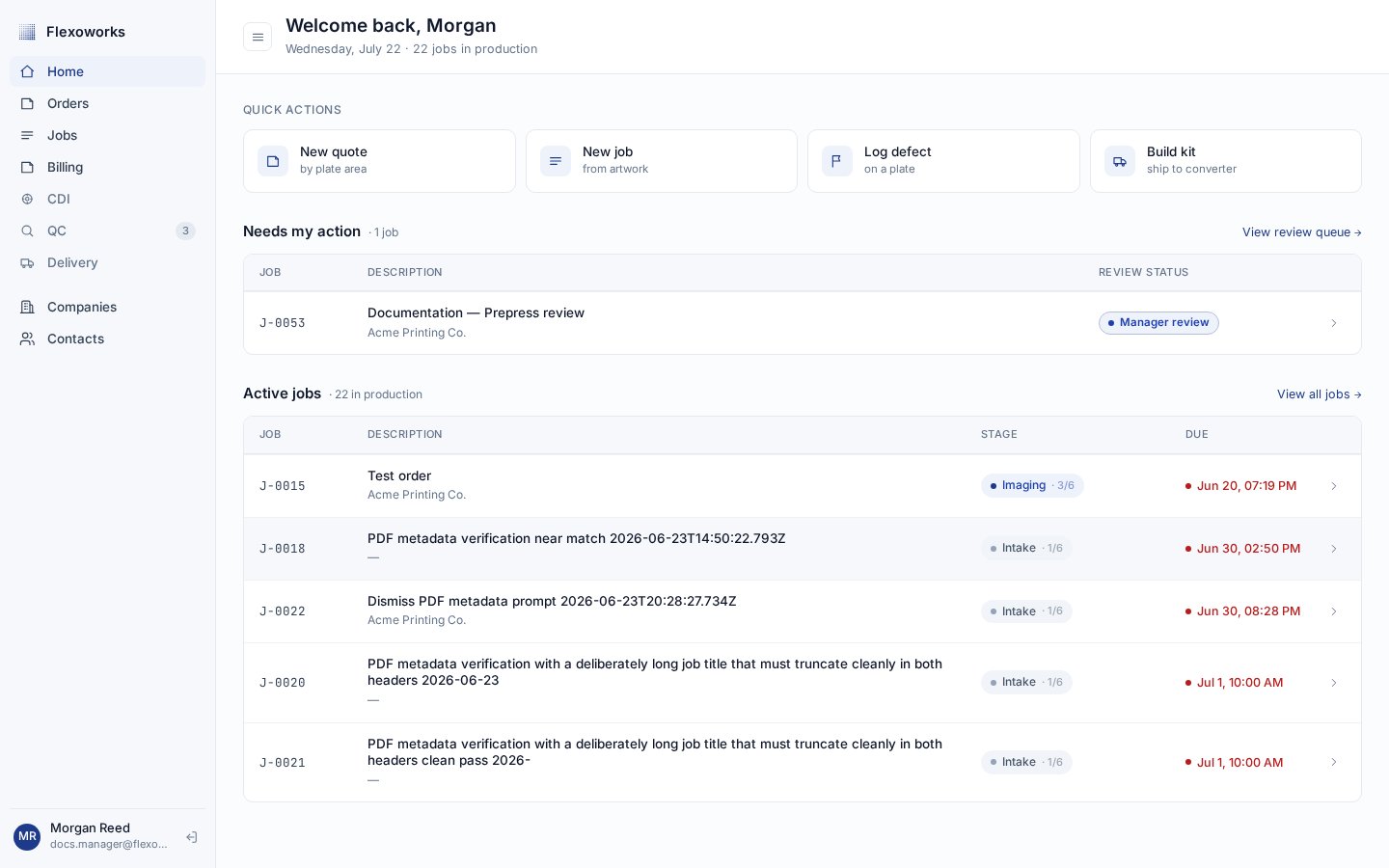
The Needs my action section on Home opens each job directly.
- Intake
- Prepress · In progress
- Prepress · Manager review
- Prepress · Changes requested
- Imaging, Washout, QC, and Shipped
statuses parameter contains the workflow values.
Flexoworks removes duplicates and saves them in lifecycle order, so a refreshed,
bookmarked, or shared URL opens the same view. To see all pending manager
reviews, select only Prepress · Manager review or use the All pending
reviews link above.
The personal link from Home continues to work for managers and designers. On
the Jobs page, its Assigned to me scope appears only as a removable applied
filter pill instead of a separate Action queue selector. You can combine that
scope with any Stage selection.
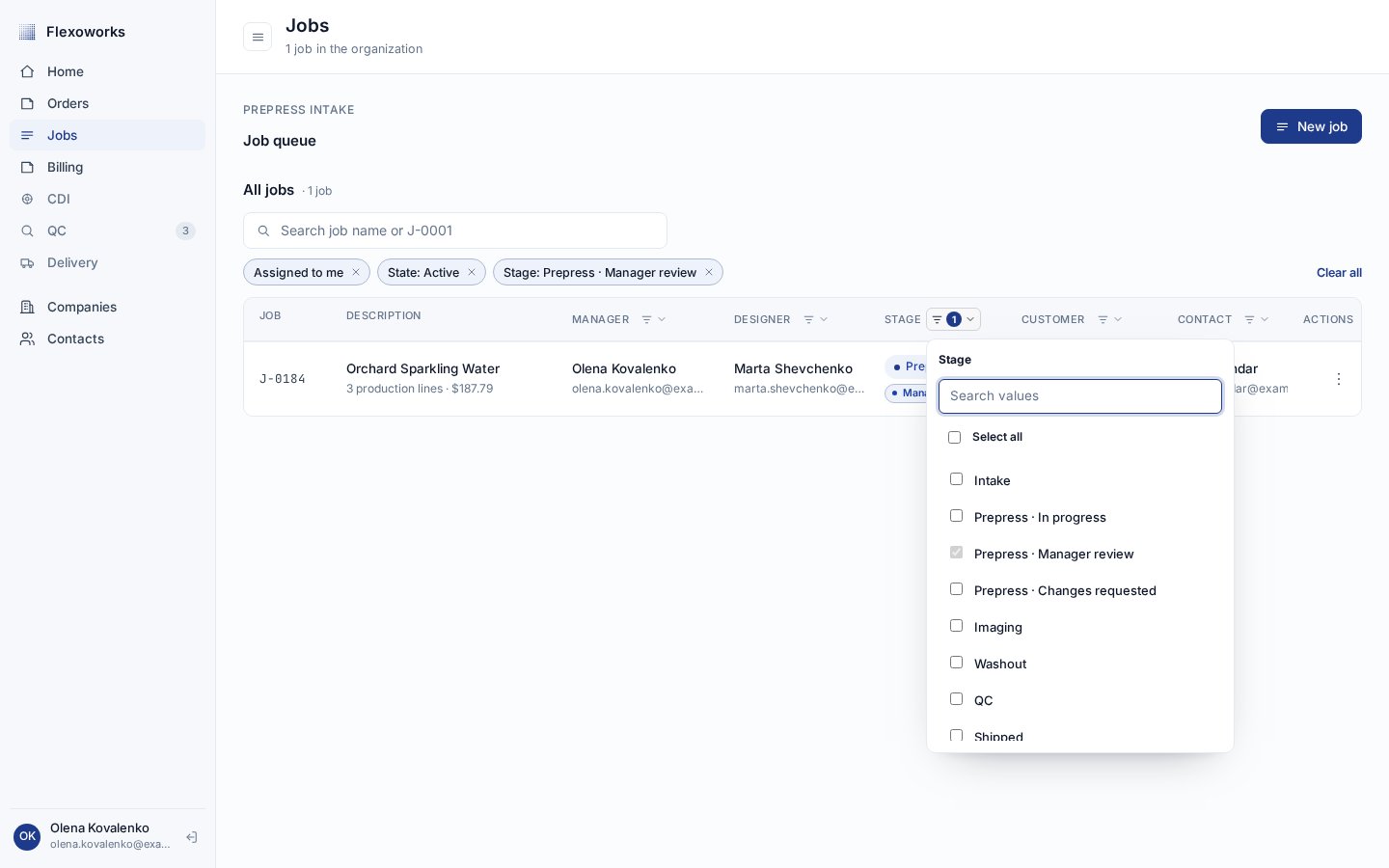
The Stage filter keeps the three Prepress states distinct and shows the personal scope as a removable pill.
J-0042 uses https://app.flexoworks.com/jobs/42.
Review uploaded production files
Upload LEN/LENX and DXF files from the job’s Files section. Review production files opens an editable proposal before any production lines change. You can review immediately or reopen pending files later, while the job is in Intake or Prepress. LEN files propose plate specifications. Each DXF proposes one apron for its printing colour, even when several plate pieces appear inside the drawing. DXF apron dimensions come from the unique enclosing rectangular outline and round to whole millimetres. Choose the base and cushion materials, confirm the quantity, and create a new apron line or select an existing apron to update. There is no polymer-thickness adjustment to the extracted apron dimensions. If the drawing cannot be measured reliably, the review explains why and leaves the dimensions blank for manual entry. File metadata remains available after applying. Duplicate uploads are excluded to prevent counting the same file twice.1. Mark the job ready for review
An active Designer or Manager can start the handoff. Open a job in Prepress and find the Prepress handoff panel immediately below the job header and above Production lines.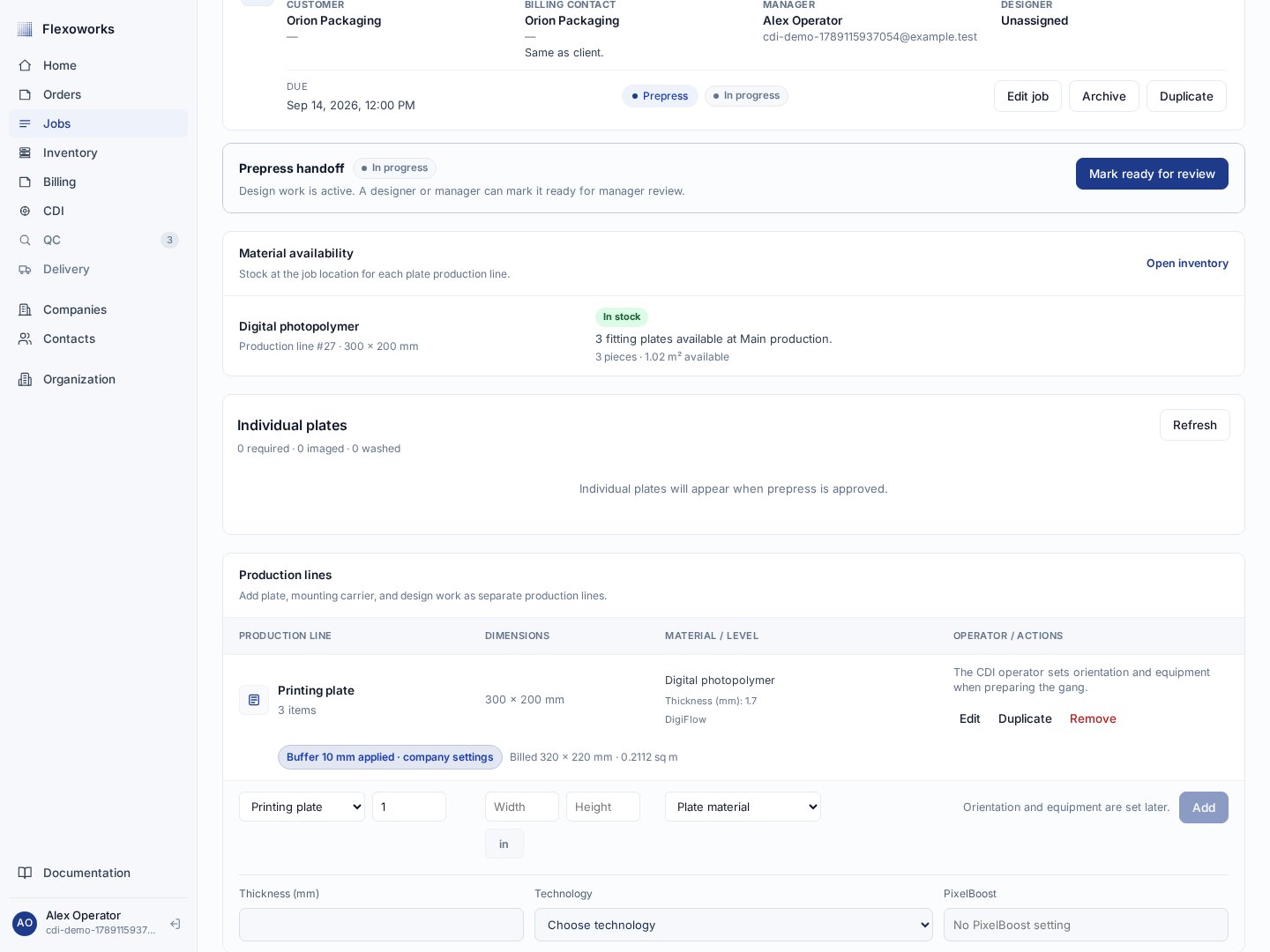
The handoff panel shows the current review state and available action.
- A snapshot of the current production summary.
- Confirmation that design work is complete and ready for production.
- Confirmation that production quantities and dimensions were checked.
- An optional note describing exceptions or special handling.
- An optional email copy to the manager.
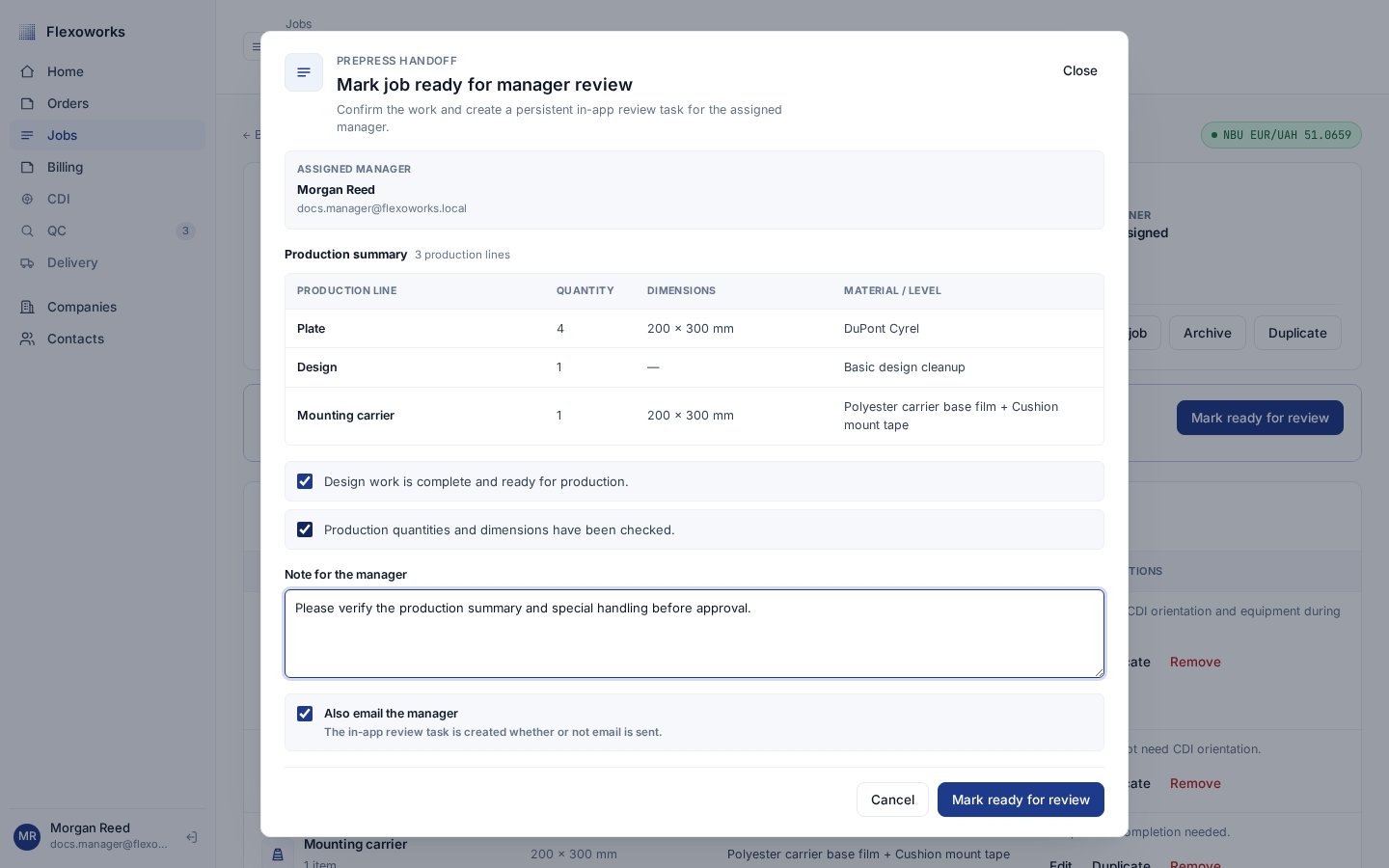
The handoff form keeps confirmations, the production summary, and the manager note together.
2. Review the submitted snapshot
The assigned manager receives the personal task, and any active manager can make the decision. Open the job from Needs my action, the Assigned to me link or applied-filter pill, the Prepress · Manager review Stage filter, or the direct job URL. The review panel identifies the submitter and recipient and shows the current attempt’s recorded checks, note, production snapshot, and warnings. It also indicates how many earlier attempts are retained.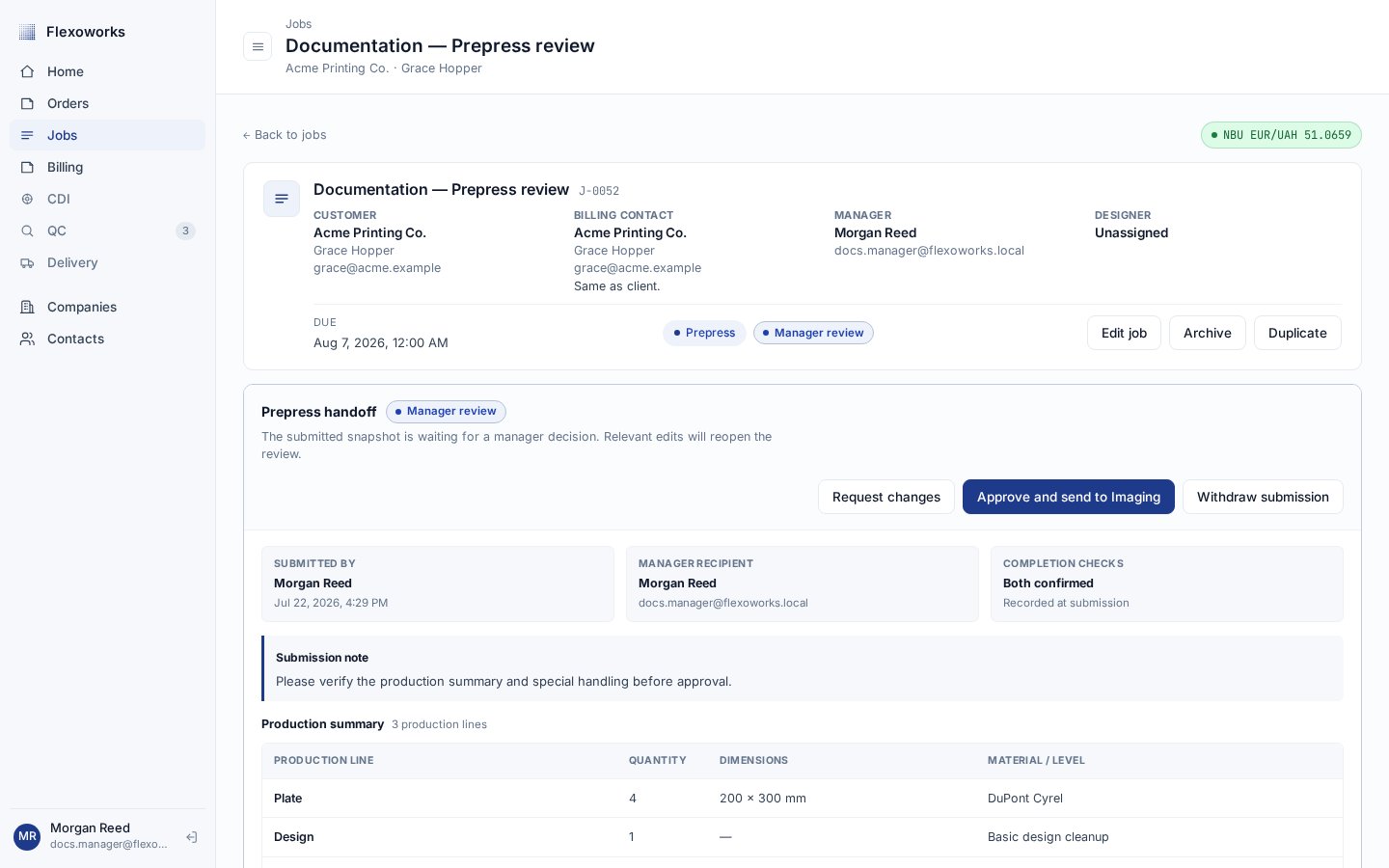
A pending review gives the manager Request changes and Approve actions.
3. Request and resolve changes
Select Request changes when the job is not ready. Feedback is required and should describe the exact correction. The email copy is selected by default and can be cleared. When sent, the localized message to the original submitter includes the feedback and a direct job link.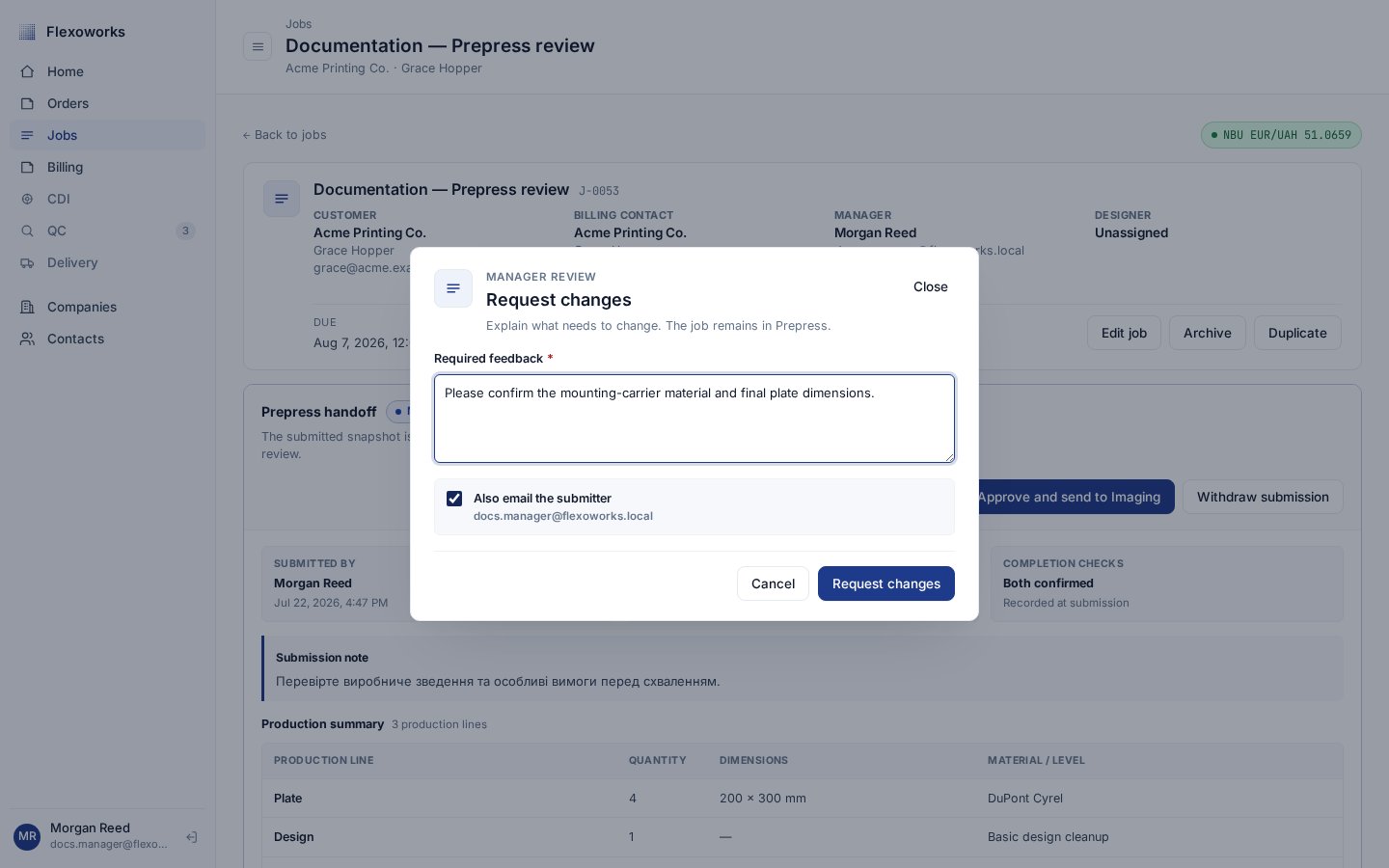
Required feedback is stored with the review decision.
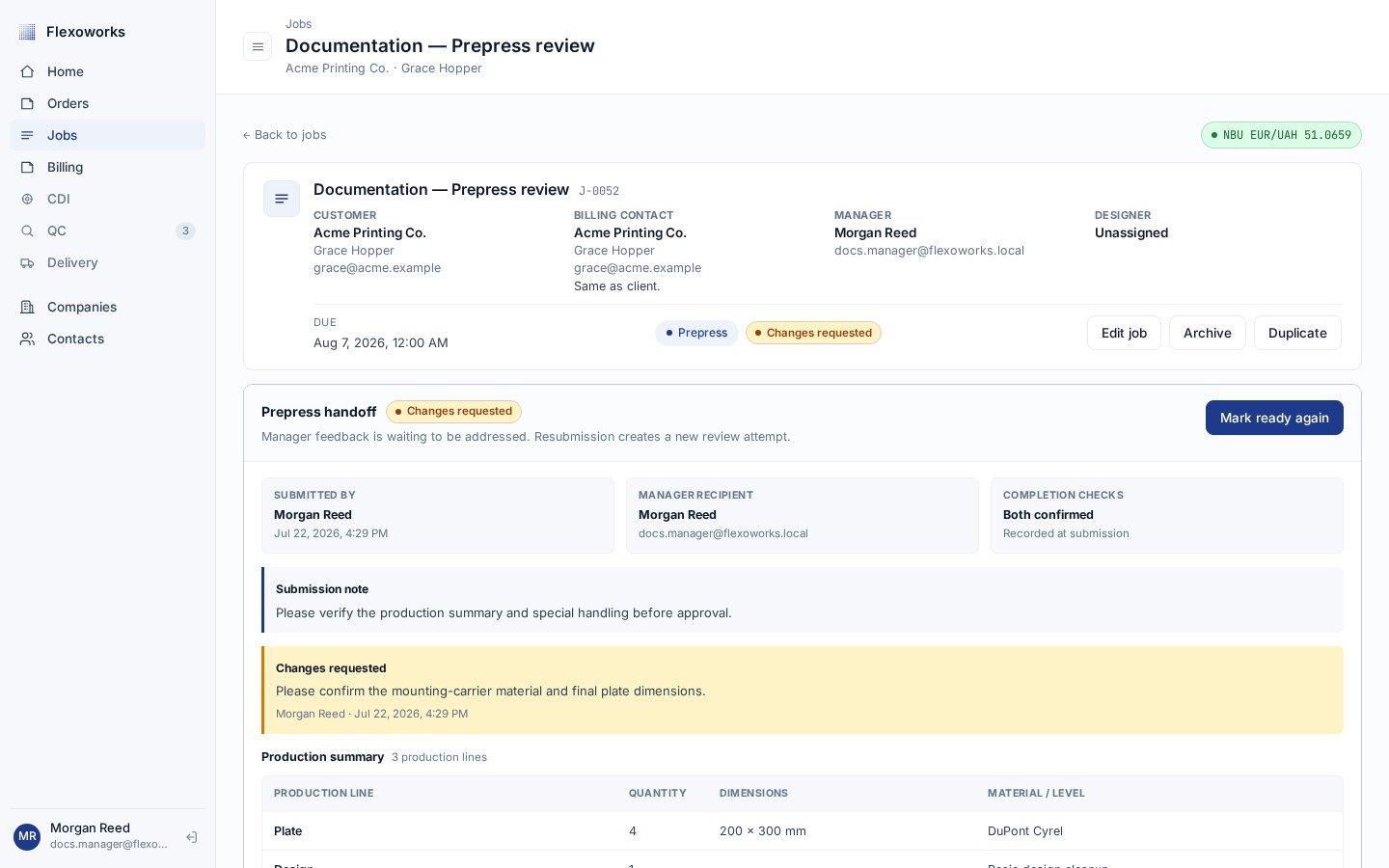
Requested changes return the job to the submitter without losing the earlier attempt.
4. Approve into Imaging
When the submitted snapshot is correct, select Approve and send to Imaging and confirm the decision.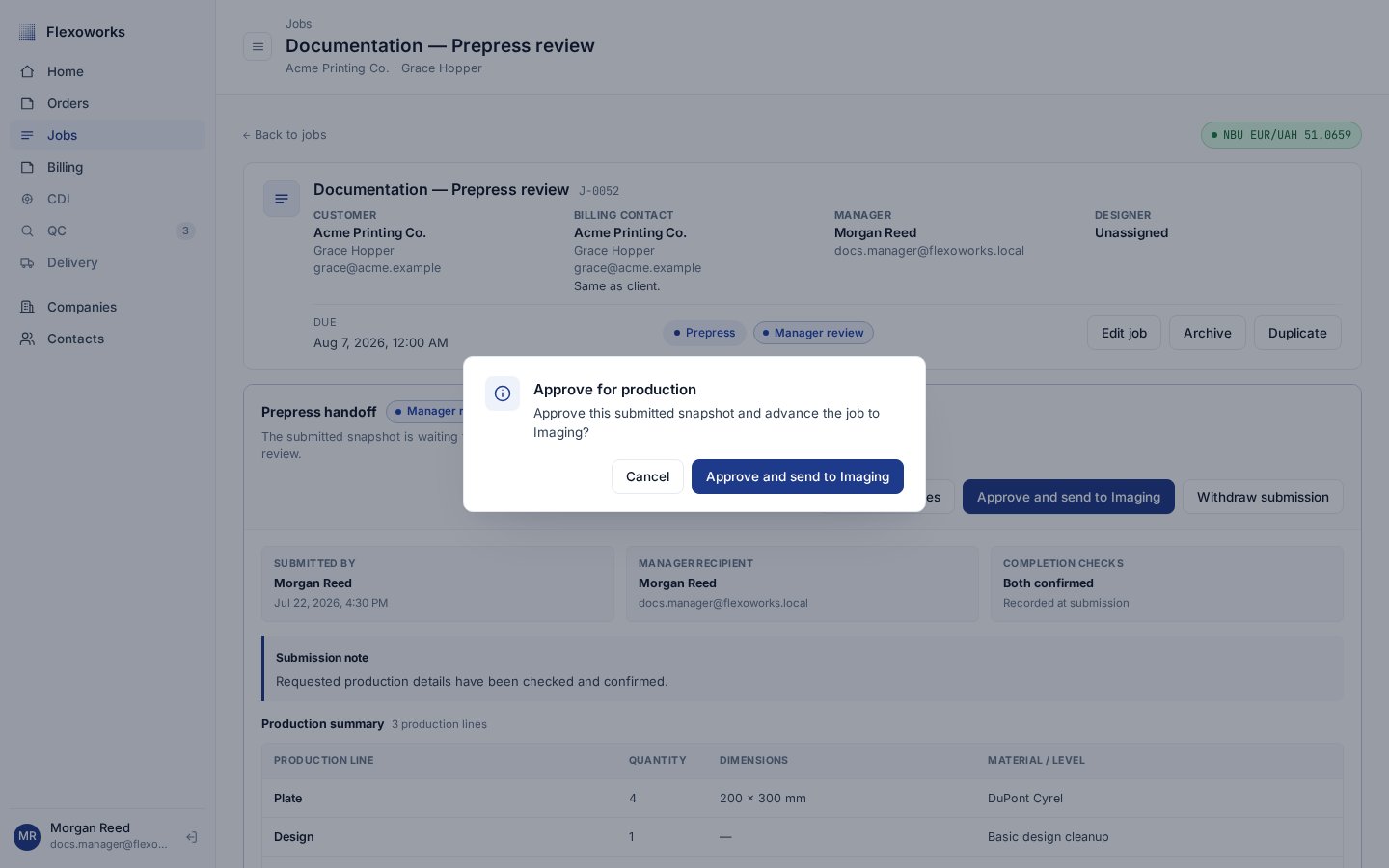
Approval confirms the destination before changing the production stage.
Changes that reopen a pending review
A review waiting for a manager decision is automatically reopened if someone changes information that could make its snapshot inaccurate. This includes the customer, contact, location, manager, designer, job name, due date, notes, production-line data, and new file uploads. Submit a fresh review after checking the updated job. Billing-payer-only or other billing-only edits and internal comments do not reopen the review. Archiving a job cancels a review that is waiting for a manager decision.Audit trail
Every handoff action is audit-recorded. The Activity log shows the event and time, while the current review panel identifies the submitter and deciding manager. Find the Activity log in the lower-right area of the job page, below Comments and Source order when a source order exists. It shows the newest entries first; select Load more when older entries are available. The audit trail records when a review is:- Submitted or resubmitted.
- Withdrawn by its submitter.
- Returned with requested changes.
- Approved into Imaging.
- Reopened because relevant job content changed.
- Cancelled because the job was archived.
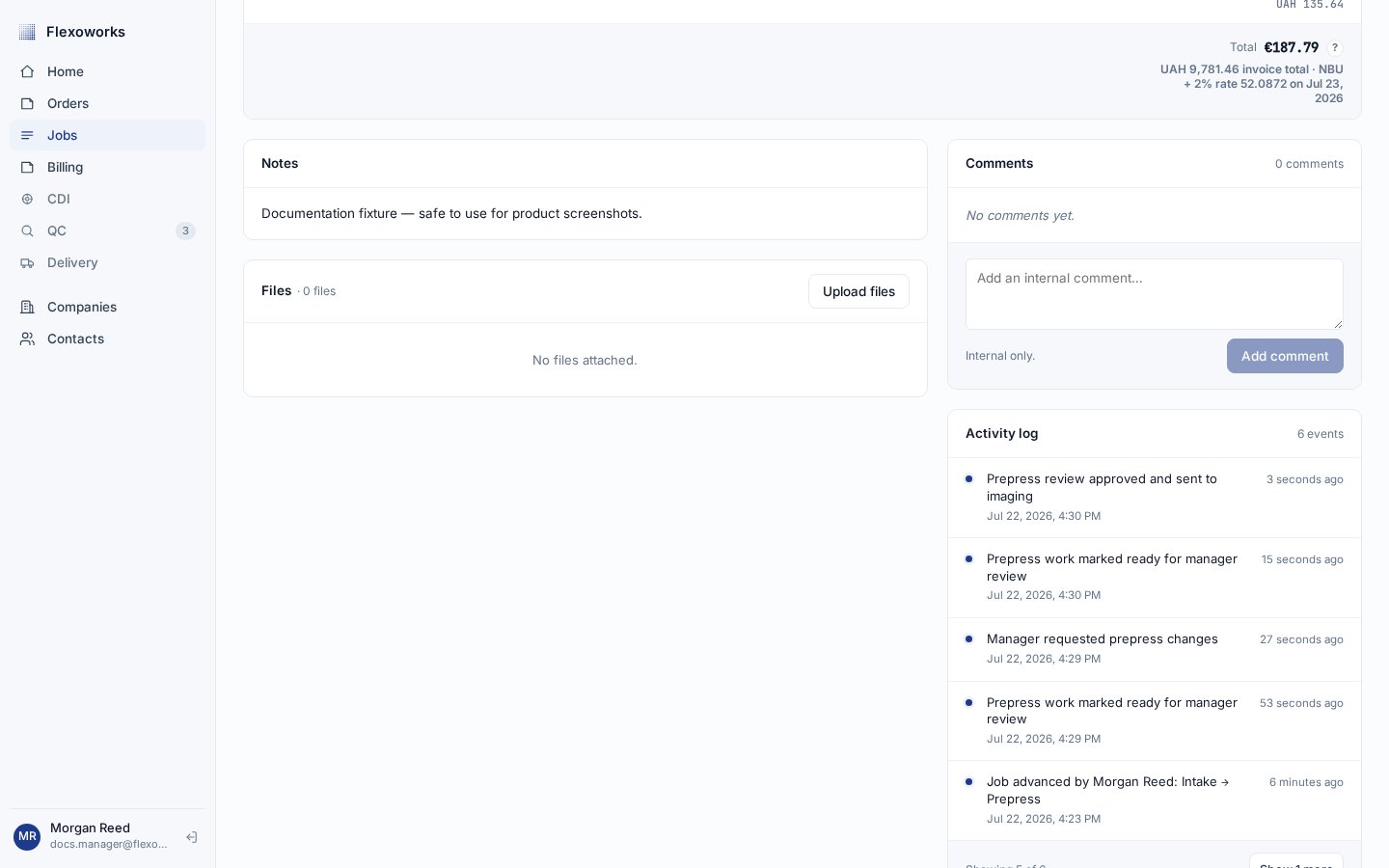
The Activity log keeps the complete sequence of review actions alongside the job.