Sign in with your PIN
The locked screen shows the terminal name and location. Enter your four-digit PIN on the touch keypad, a physical keyboard, or a USB number pad. Flexoworks checks the PIN automatically after the fourth digit.
Each worker unlocks the paired terminal with a personal four-digit PIN.
- the terminal name and location;
- CDI queue and Last 24 hours navigation;
- the current connection state and worker name;
- Full app for normal Flexoworks login;
- Lock / switch for ending only the current worker session.
Work from the CDI queue
The CDI queue contains active, non-archived jobs that:- are in Imaging;
- belong to the terminal’s configured location; and
- have at least one incomplete plate production line.

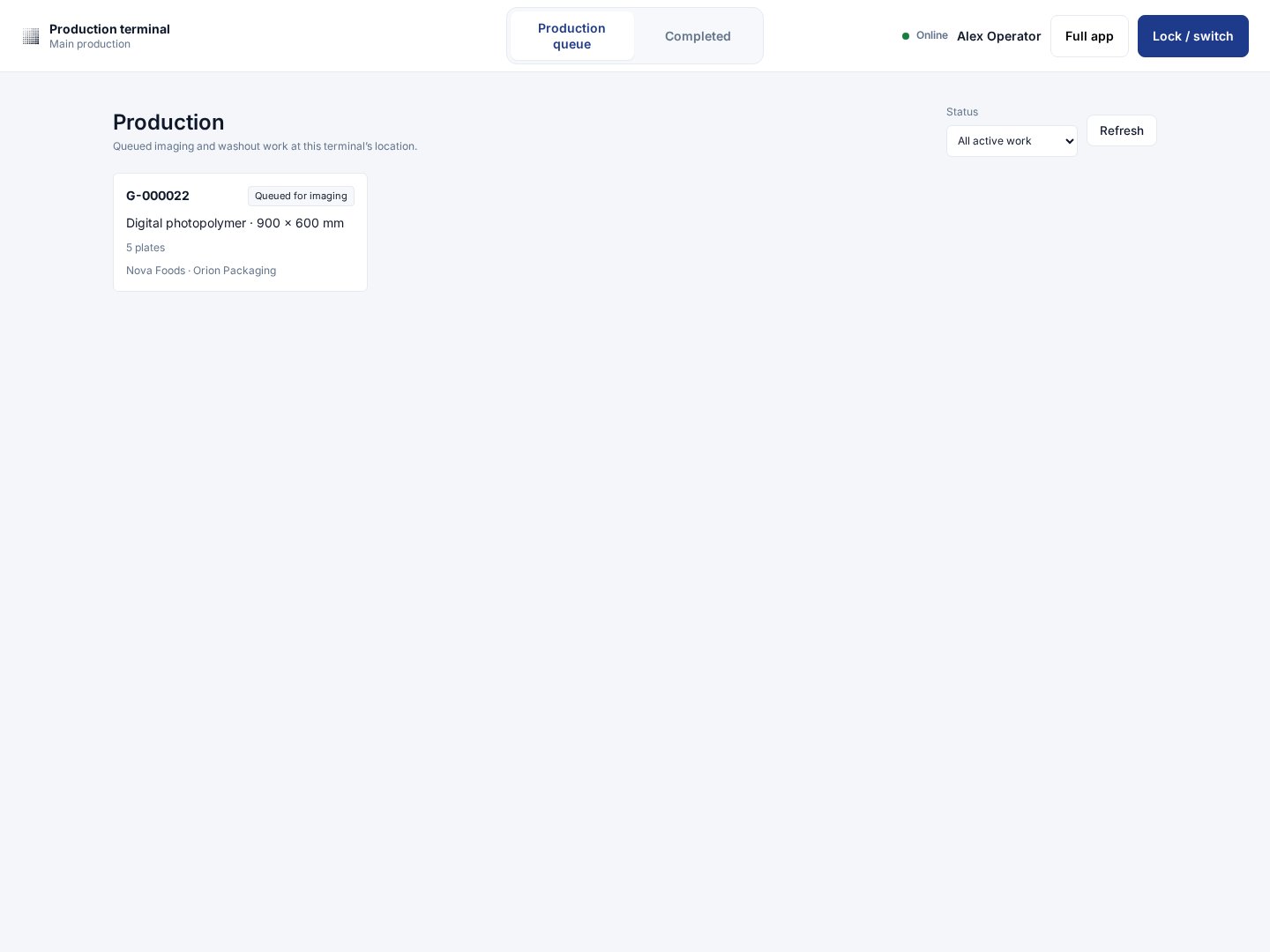
The CDI queue shows eligible jobs at this terminal's location, with the most recently updated first.

Search the queue by job name or formatted job number.
Review a job
Select Open job to see the focused production view. It includes:- job number, name, customer, location, and due date;
- production instructions from the job notes;
- every plate production line, including completed lines;
- attached job files and their extracted PDF metadata.

The job view keeps instructions, plate production lines, and files together.
Complete an entire production line
For an incomplete line:- Confirm its dimensions, quantity, material, and line notes.
- Choose CDI 0° or CDI 90° clockwise.
- Confirm the equipment. The terminal’s default equipment is selected first when available; you can choose any equipment at the same location.
- Select Mark entire line complete.
- Confirm that the entire displayed quantity is complete.

A second confirmation prevents an accidental whole-line completion.

A completed line shows who completed it, where, how, and when.
Undo a recent completion
Undo completion is available for two minutes only to the original worker on the original terminal. It returns the line to incomplete without erasing the audit history. After two minutes, ask an organization administrator to open the job in the full application. The administrator can correct the equipment or orientation, or mark the line incomplete, and must record a reason.Open files and inspect metadata
Every attached job file appears in the floor view. Select Open file to open a temporary, secured download. Expand PDF metadata to inspect available production information:- dimensions and page count;
- creator, producer, created date, and modified date;
- inks and layers;
- PDF, PDF Native, and FlexRip versions.

Workers can inspect extracted PDF metadata without changing the source file.
Report a production problem
Select Report a problem on the job, describe what is blocking production, and submit the note. Flexoworks creates an internal job comment attributed to the current worker for the office team.
A problem report sends a clear internal note to the office team.
Review the last 24 hours
Open Last 24 hours to see up to 100 current completions recorded from this terminal during the previous 24 hours. Each row shows the job, line details, orientation, equipment, worker, and completion time.
Recent work shows current completions from this terminal during the previous 24 hours.
Connection, offline work, and automatic locking
The header reports Online, Offline, or Reconnecting. A temporary network or server problem does not remove the terminal’s pairing. Flexoworks reconnects and renews the short terminal session automatically.
The offline banner keeps the saved pairing visible while write actions are unavailable.