

The UI calls this section Production lines, not “plate lines,” because it
contains Printing plate, Mounting carrier, and Design work. A production
line can represent several identical units of work or physical items through
Quantity.
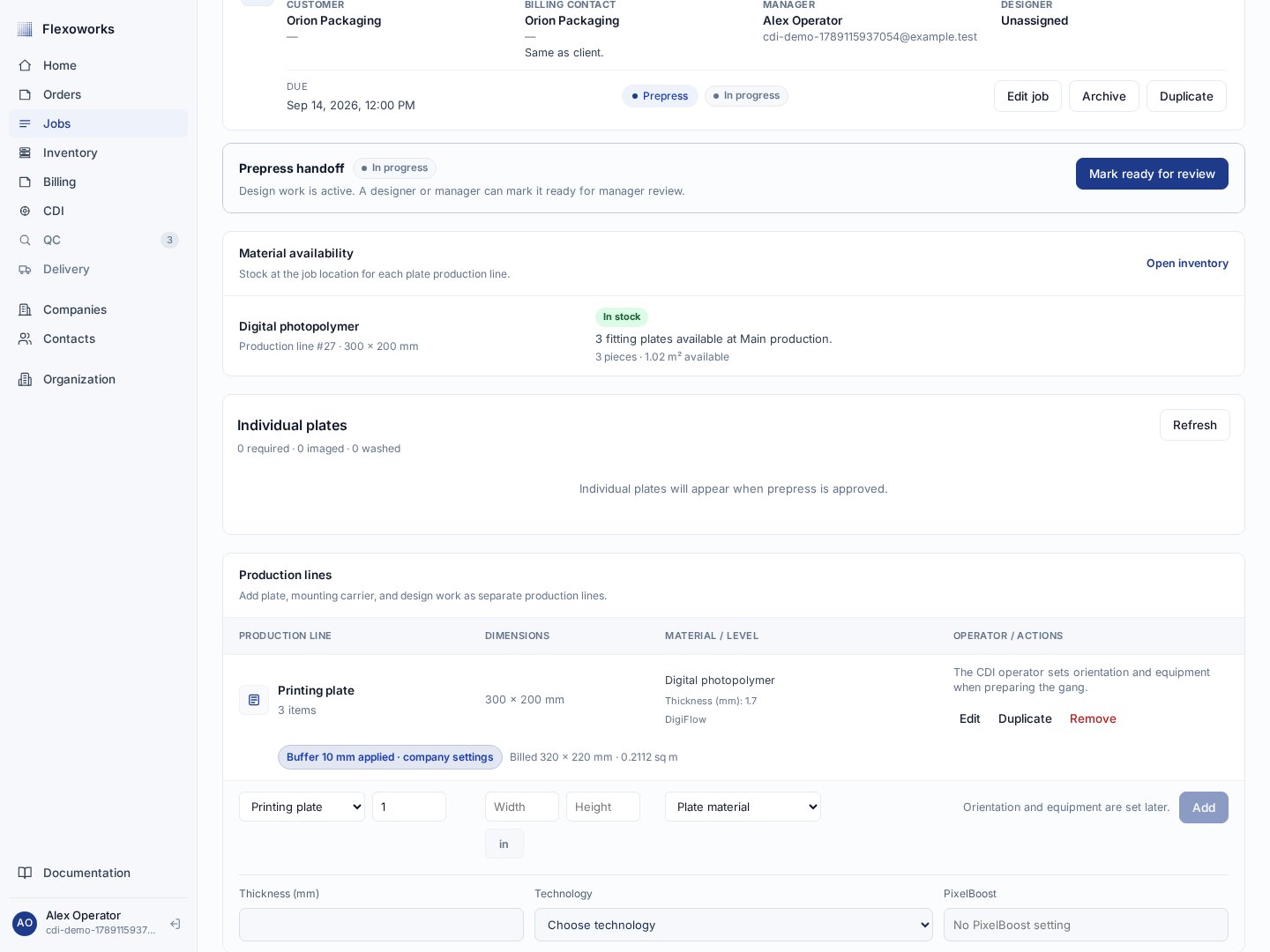
Production lines sit on the job below the Prepress handoff and keep work specifications separate from the job itself.
Decide what belongs on one line
Use one line for plates with the same production specifications. Quantity counts the required separations, each of which has its own LEN identity. For example, four 200 × 300 mm plates with the same material, thickness, technology, PixelBoost code, and buffer can remain on one line. Split lines when their kind, dimensions, material, process specifications, buffer, mounting materials, or design level differ. You do not need separate lines merely because plates will use different gangs, orientations, equipment, or completion times: CDI tracks each plate individually after release.A line with Quantity
4 can send two plates on one gang and two on another.
Both gangs keep their own production progress while the required quantity
and billing remain attached to the original line.Add each kind with the right fields
Open an active job in Intake or Prepress, find Production lines, and use the empty row at the bottom. Choose the kind, enter its fields, and select Add.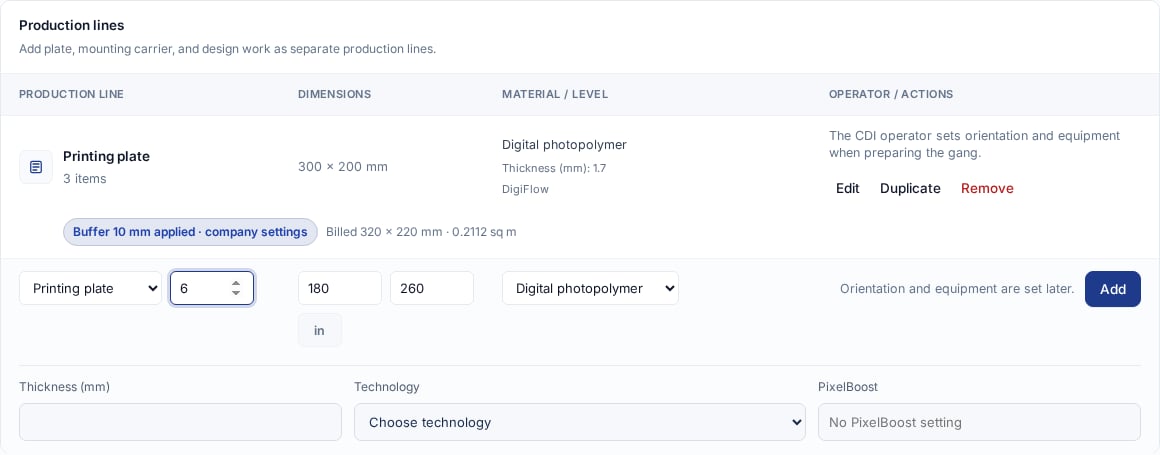
A new printing plate line records its quantity, artwork size, and material; orientation and equipment are chosen later during gang preparation in CDI.
For a line added directly on the job, the physical dimension unit appears
beside Width and Height and follows the organization’s configured
dimension unit. Positive dimensions and the required material fields must be
present before Add is enabled. A converted line can retain a dimension unit
explicitly supplied by the order.
Complete dimensions brought in from an order
An order can be converted when a printing plate or mounting carrier size is not yet known. The resulting job shows No plate dimensions for that line. This is a deliberate unknown value, not a zero-size plate. During Intake or Prepress, use Edit to enter Width and Height. For LEN files, use Review LEN data to check the extracted dimensions and process settings and create or update the appropriate production line. Missing details appear as warnings in the Prepress handoff. They do not block a submission for manager review, but the team should resolve them before approval: a plate without dimensions, a LEN identity, or the required process specifications cannot be arranged in CDI.Understand Plate buffer
Buffer is extra material on every side of the artwork. It increases the physical footprint and billed area of the printing plate. The original Width and Height continue to describe the artwork. For 200 × 300 mm artwork with a 10 mm Buffer:billed size = (200 + 2 × 10) × (300 + 2 × 10) = 220 × 320 mm
The billed area is then multiplied by Quantity. The buffer applies only to
Printing plate lines, not Mounting carrier or Design lines.
After a line is saved, select Edit to set a line-specific Buffer. Leave
it inherited to use the selected Billing company setting. When there is no
separate billing company, Flexoworks uses the customer company setting, then
falls back to the organization setting. The saved line shows the effective
value and its source—line override, company settings, or organization
settings—as well as the billed size and area.
Edit, duplicate, or remove a line
Every saved line has three early-stage actions:- Edit corrects that line in place.
- Duplicate starts a copy, which is useful when most fields are the same but one meaningful detail differs.
- Remove deletes the line from the job.
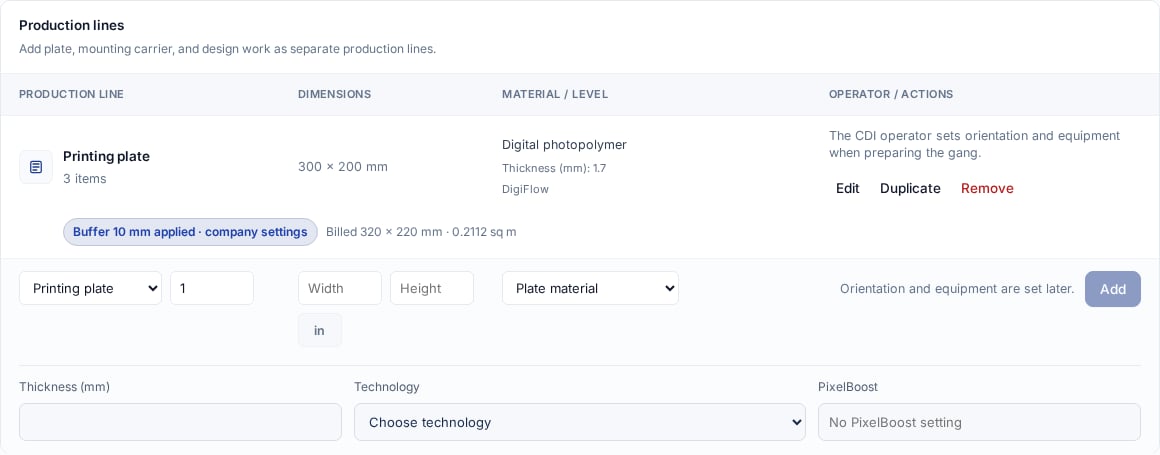
Use Edit for corrections, Duplicate to split similar work efficiently, and Remove only when the work is no longer part of the job.
Track each plate through CDI and the terminal
Manager approval creates one tracked plate per required unit. In the job’s Individual plates card, inspect each separation’s current status, gang, orientation, and replacement history. The CDI operator arranges these plates on physical inventory sheets and records the Esko queue handoff. The terminal team finishes imaging and washout for each gang.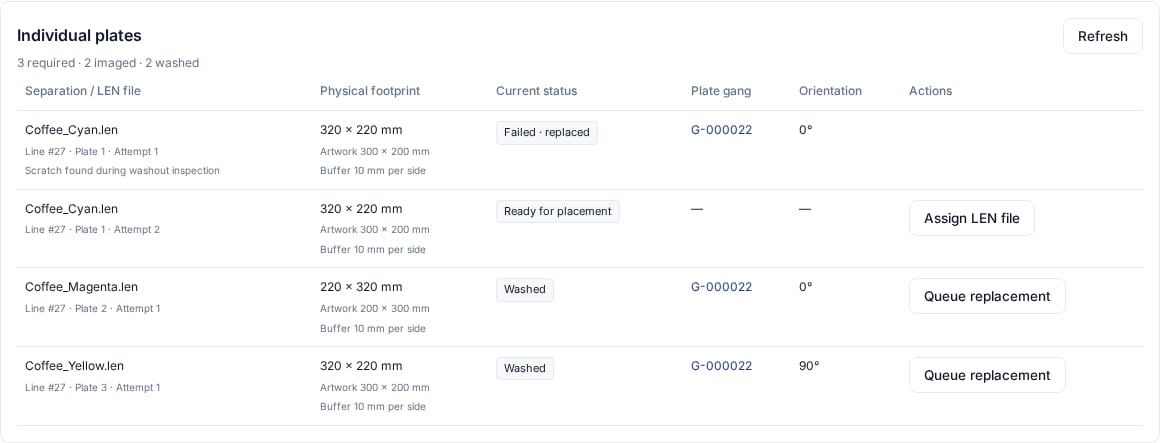
Individual plates can have separate gangs and attempts while retaining one required production quantity.
Keep production lines and billing lines distinct
The job deliberately shows two separate sections:
A printing plate line normally generates a material-area row. A Mounting carrier can
generate one row for Base film and another for Cushion mount. A Design
line generates a row from its Design level. Configured service rates can
add further rows.
“Frozen” means the billing rows are stored rather than being an invisible live
formula. Line changes during Intake or Prepress regenerate the relevant rows;
Recalculate refreshes them from the current pricing configuration. If the
work specification is correct but the commercial amount needs an exception,
use a billing-row override instead of falsifying the production line.
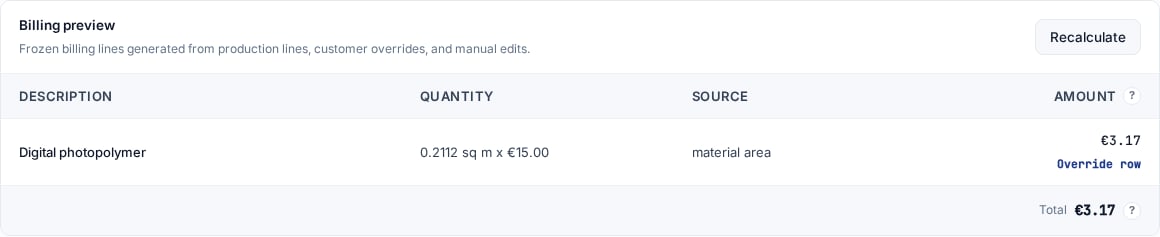
Billing preview turns production facts into explicit priced rows while remaining a separate part of the job.
Check the lines before handoff
Before marking Prepress ready for review, confirm that:- Quantity groups only identical work;
- each required plate has the correct LEN separation identity;
- every physical line has the correct Width, Height, and materials;
- every Design line has the correct Design level;
- each Plate uses the intended effective Buffer;
- Billing preview reflects the work the customer should be charged for.
Orders and jobs
See how converting an incoming order creates production jobs.
Job stages and transitions
Follow the job from Intake through Shipped.
Prepress review
Submit the checked production snapshot for manager approval.
Production-floor terminal
Finish imaging and washout for whole gangs after the CDI handoff.
Plate inventory
Track the physical material required by Plate production lines.