

A team member with the Org admin role must approve a new terminal.
Pairing starts on the physical production device, not in
Organization settings.
Before you start
Prepare the following:- A production device with internet access and a persistent browser profile.
- An administrator’s phone with a camera.
- An active Flexoworks account with the Org admin role.
- At least one location in Organization → Locations & equipment.
- CDI equipment at that location for gang preparation in the full application. The terminal default equipment selection is optional.
1. Open the floor app on the production device
In the full Flexoworks application, open Organization → Floor terminals. The setup card contains the floor app address. Select Copy address, then open that exact address on the production device.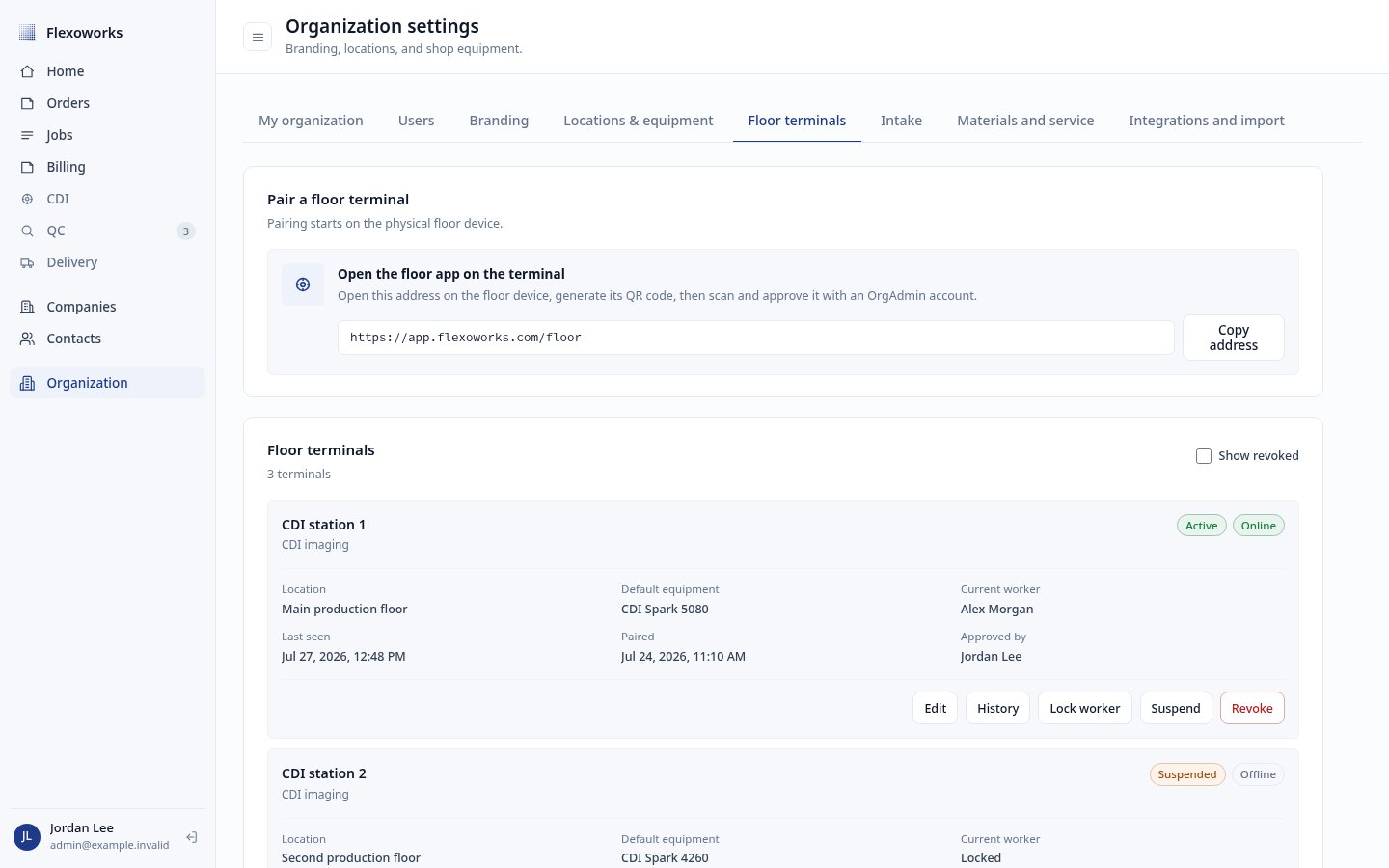
Organization administrators can copy the floor app address from the Floor terminals tab.
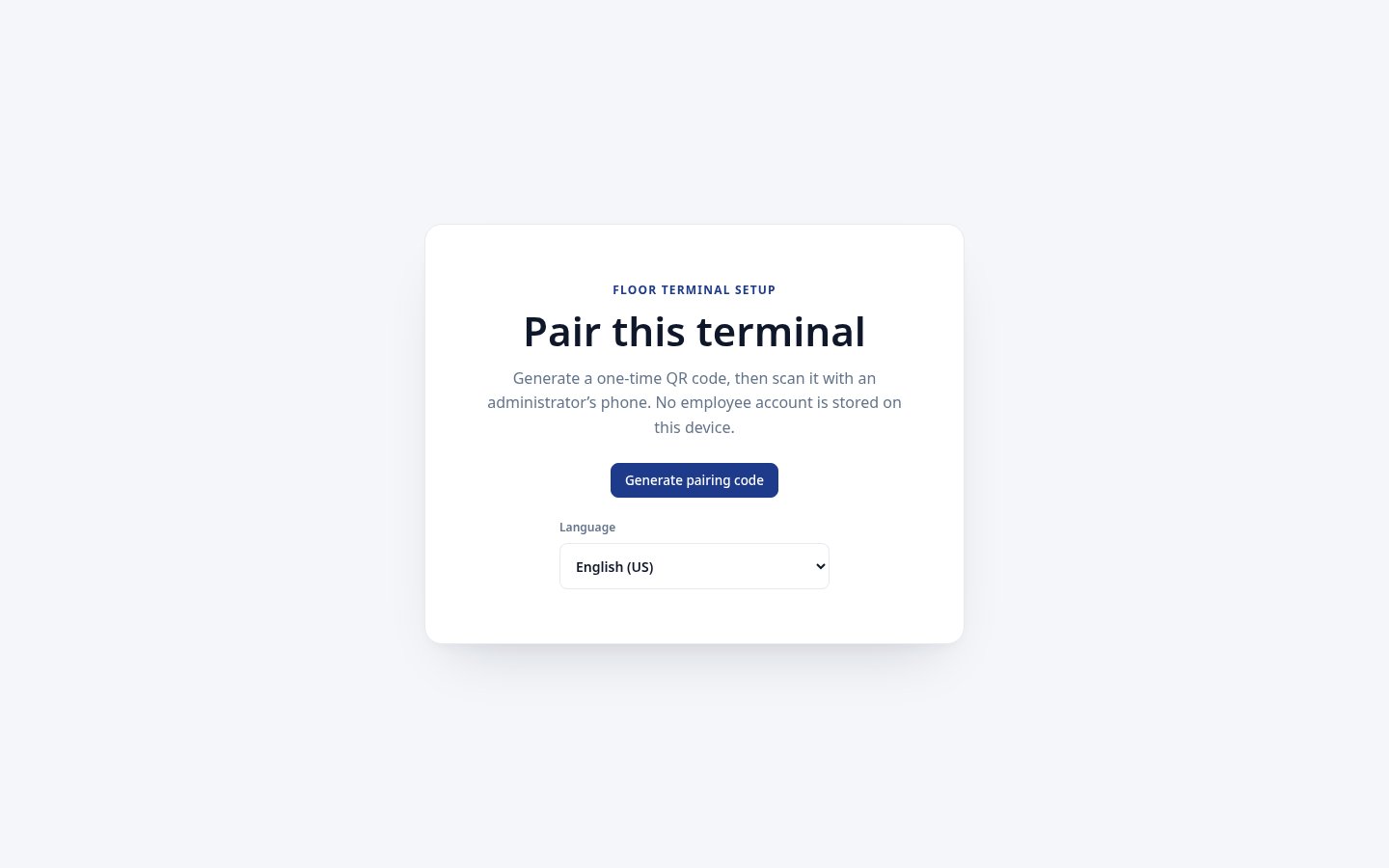
Choose the terminal language before starting pairing.
2. Generate the one-time pairing code
Select Generate pairing code. The terminal shows:- A one-time QR code for the administrator’s phone.
- A six-digit comparison code.
- A waiting indicator while the terminal checks for approval.
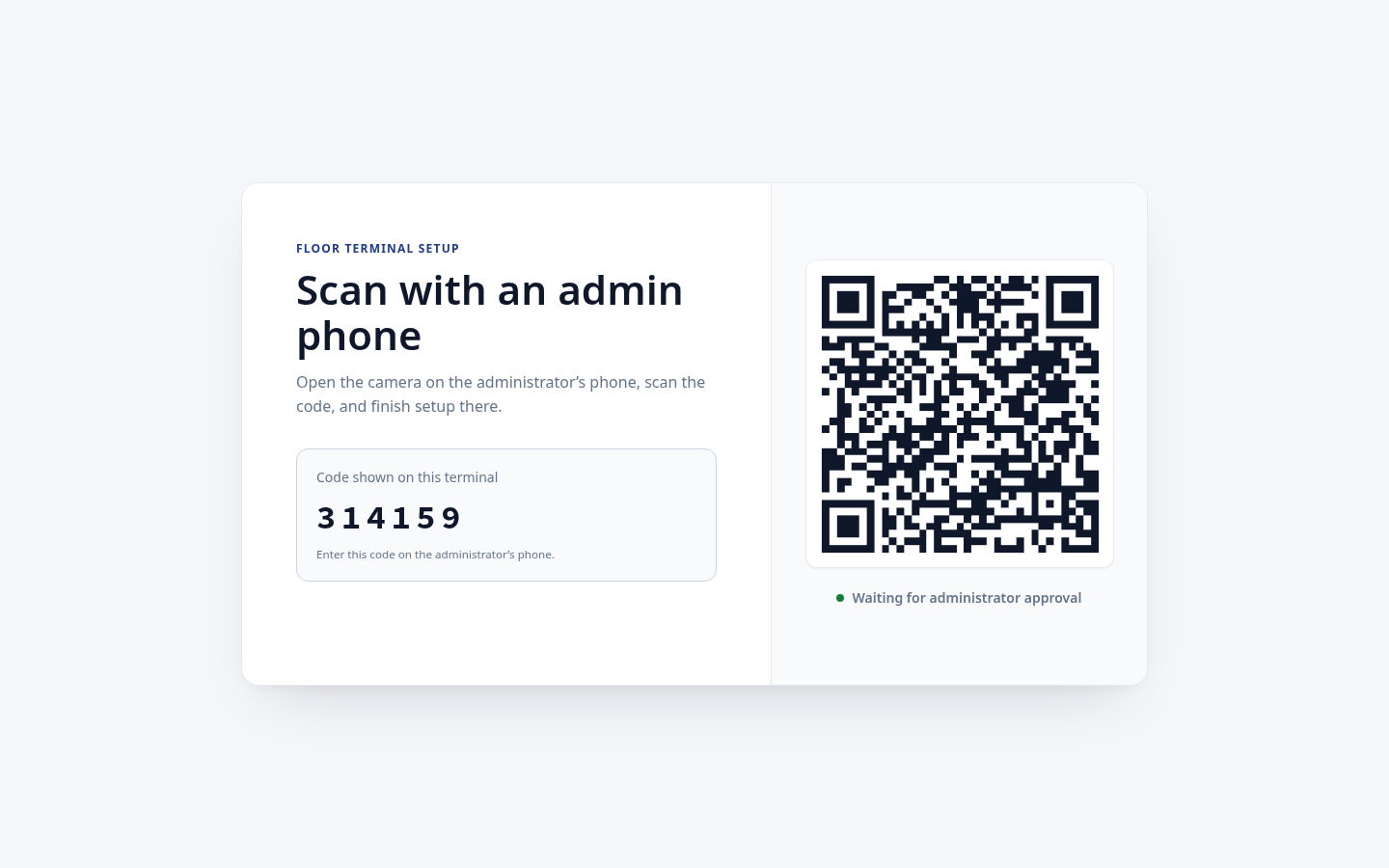
The terminal displays a QR code and a separate six-digit comparison code.
3. Scan and confirm on the administrator’s phone
Open the phone’s camera and scan the QR code. If the administrator is not already signed in, Flexoworks opens the normal login screen and returns to the approval page after login. Only a user with the Org admin role can approve the request. On the approval page, enter the six-digit code exactly as it appears on the production device. This comparison prevents a different terminal from being approved by mistake.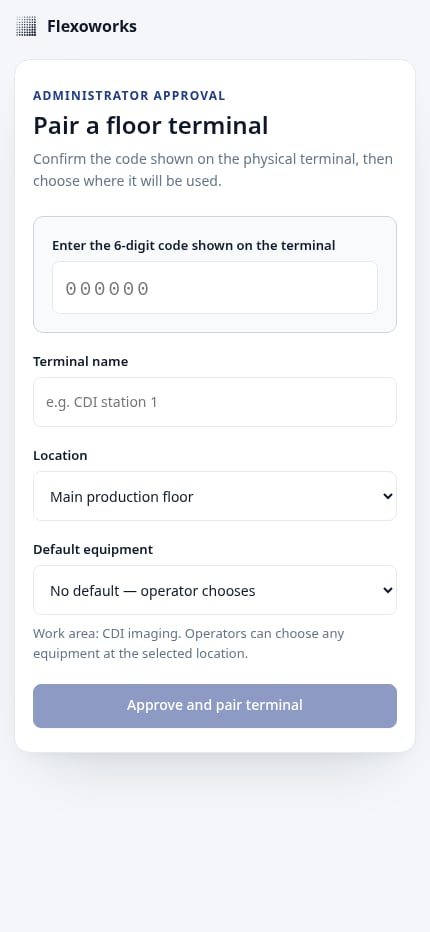
Enter the six-digit code shown on the physical terminal.
- Enter a short, recognizable terminal name, such as CDI station 1. Names can contain up to 80 characters and must be unique among terminals that have not been revoked.
- Choose the location where the device will be used.
- Optionally choose default equipment at that location.
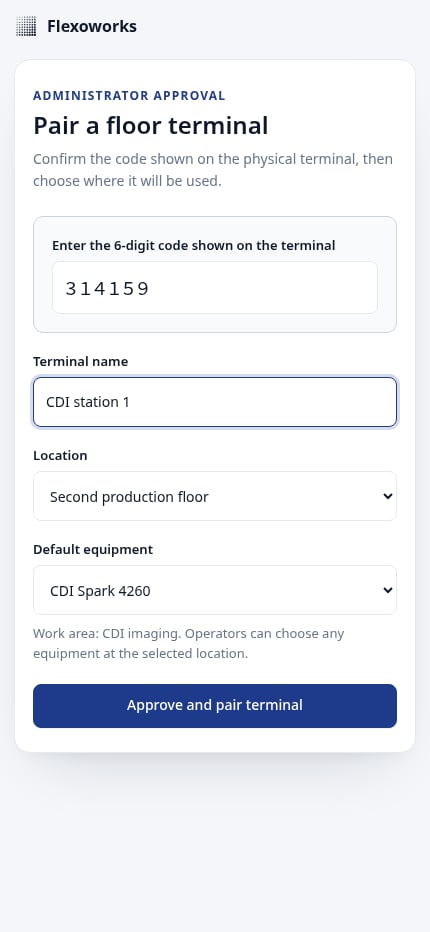
Choose the terminal location and optional default equipment.
4. Let the terminal activate
Keep the floor page open and online. The terminal checks for approval automatically and activates without a camera or a full employee login on the production device.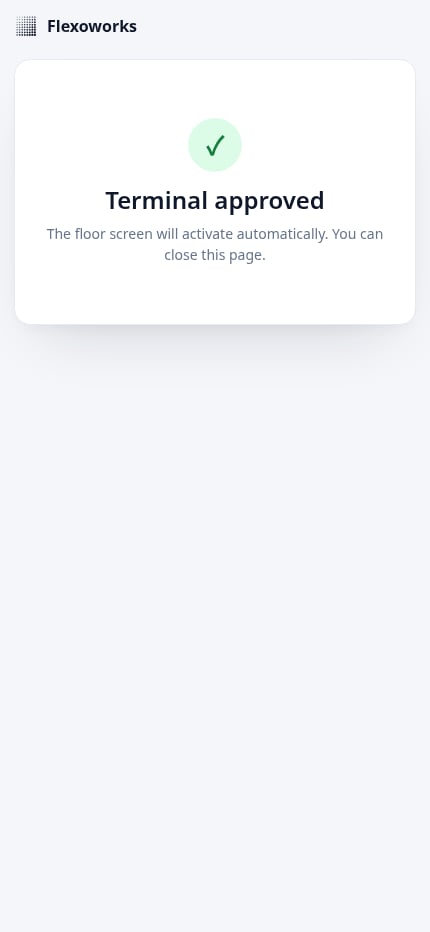
The administrator can close the phone page after approval.
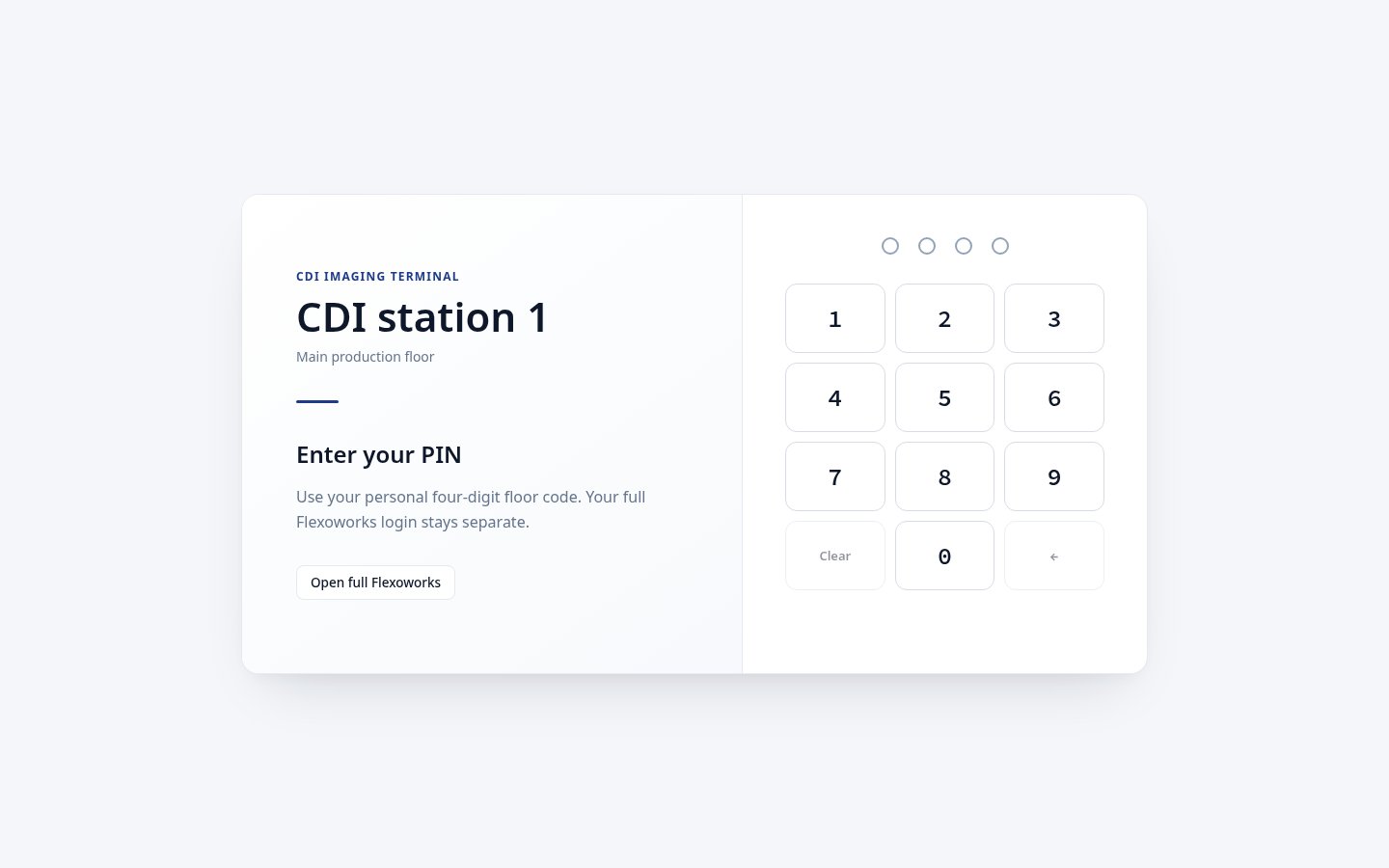
A paired terminal is ready for a worker's personal PIN.
5. Enable a worker’s PIN
PIN access belongs to a person, not to one terminal. Any active team member with floor access enabled can unlock any paired terminal in the same organization. Open Organization → Users. The Floor access column shows whether each team member’s access is enabled.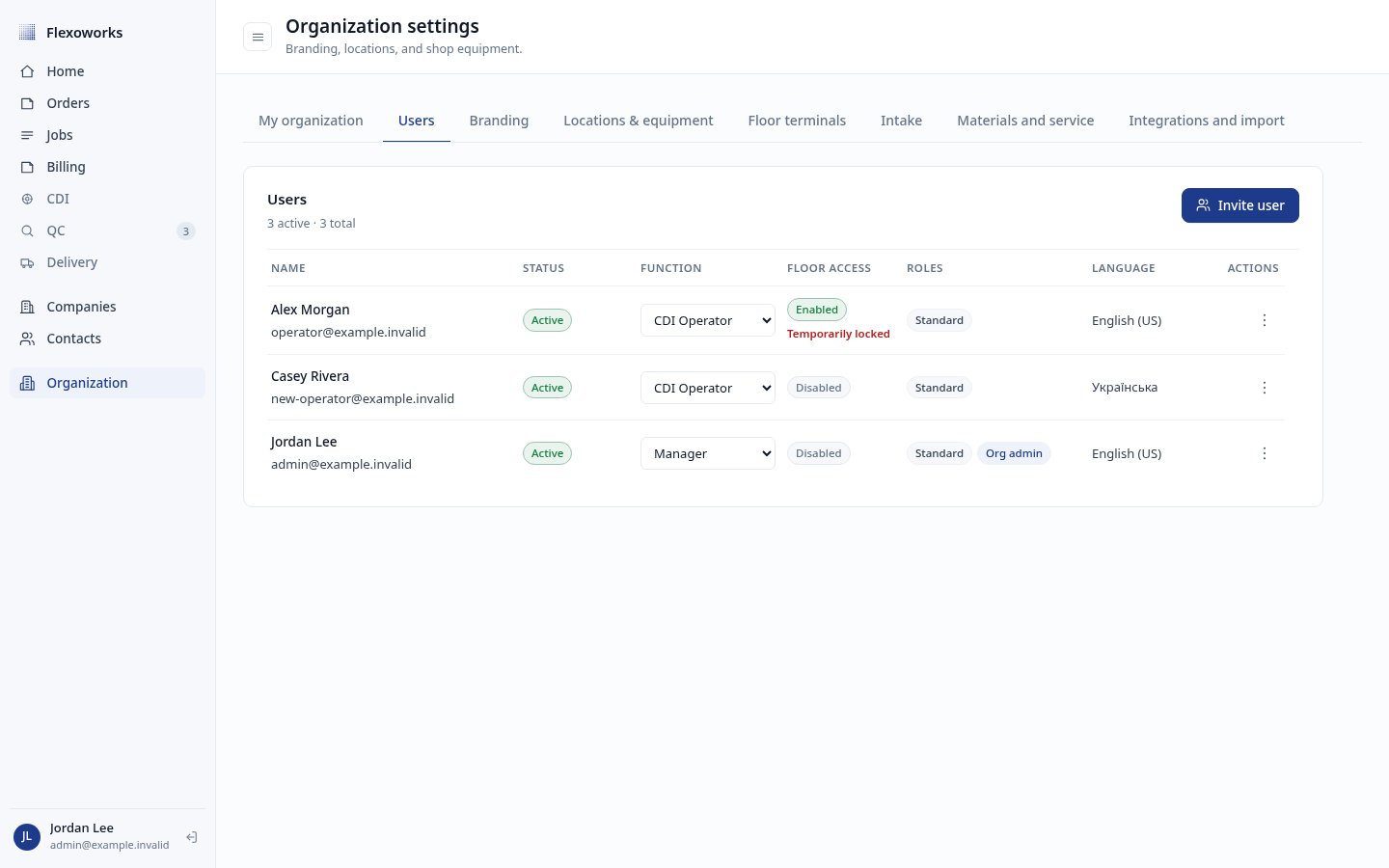
The Users tab shows floor-access status for every team member.
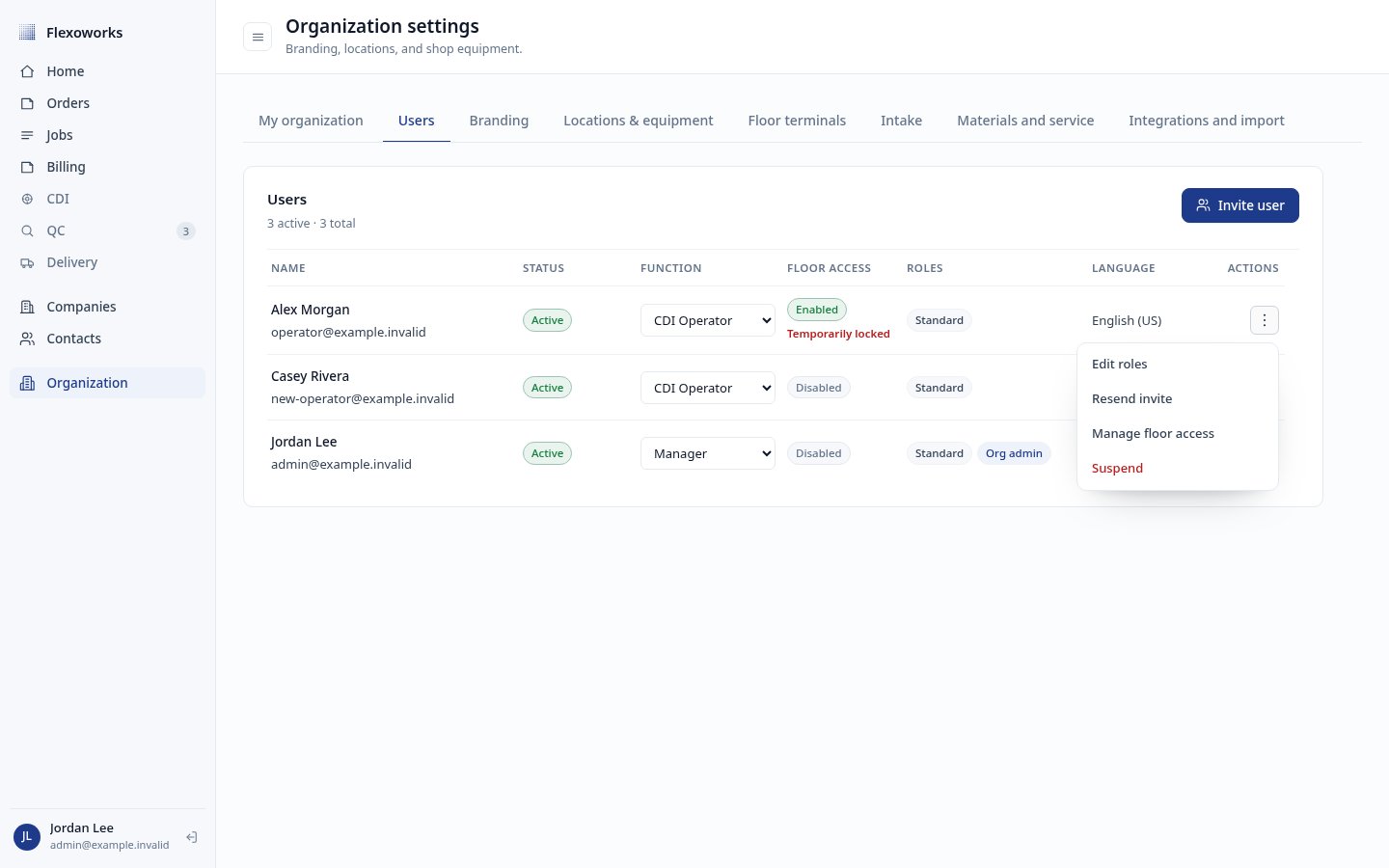
Manage floor access is available from the user's action menu.
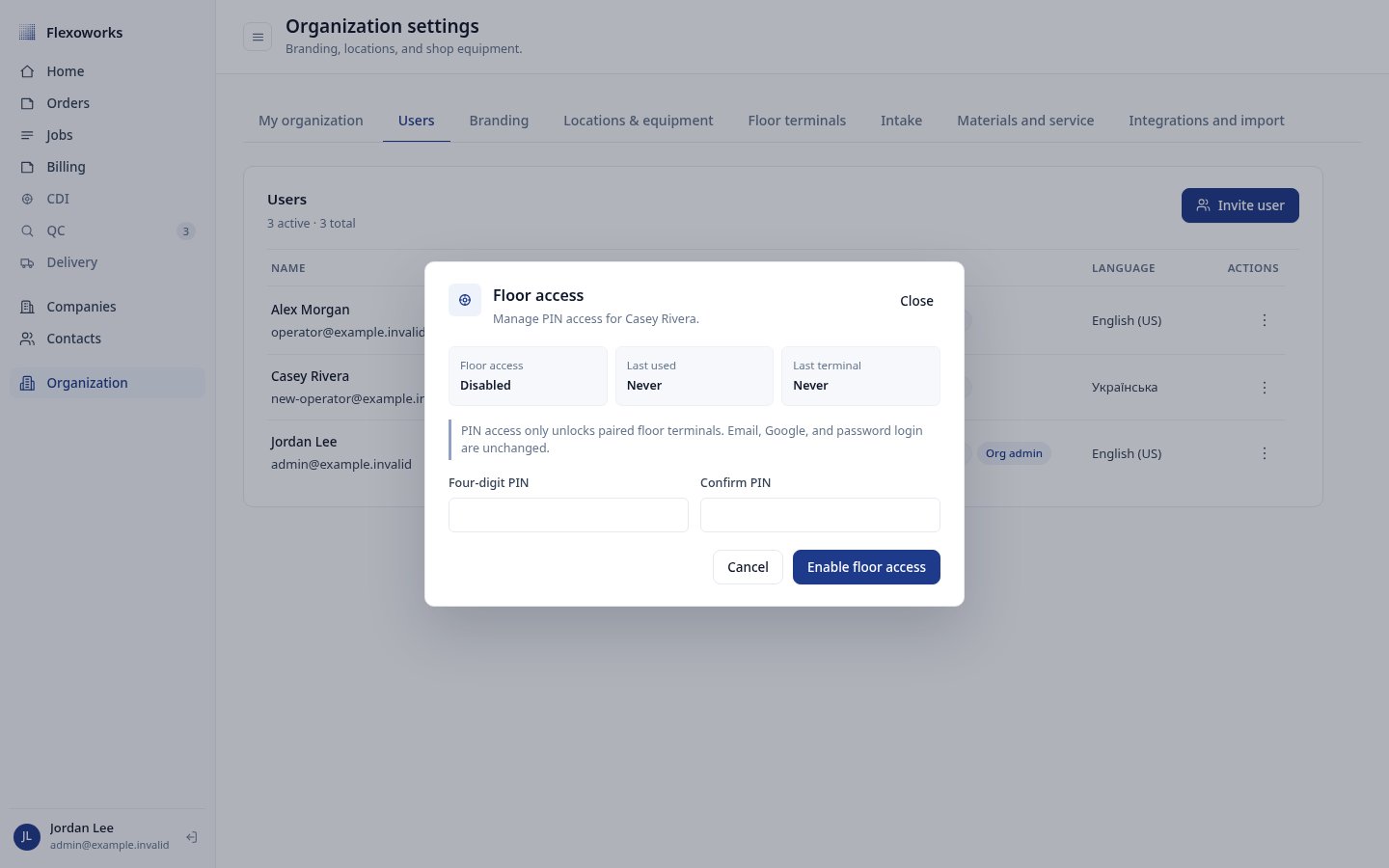
Set and confirm a unique four-digit PIN for the worker.
Troubleshoot pairing
The QR code expired
Return to the production device and select Generate new code. Scan and approve the replacement within 10 minutes.The comparison code does not match
Read the six digits directly from the physical device. After repeated failed comparisons, generate a fresh pairing instead of continuing to guess.The administrator approved the request, but the device did not activate
Reconnect the device and leave the floor page open. If the 10-minute activation window has passed, open Organization → Floor terminals, revoke the Pending activation entry, and start again with a new QR code.The terminal returned to the unpaired screen
Check whether the browser uses a private profile, clears data on exit, or opened a different Flexoworks hostname. Use the exact floor address shown in Organization settings and pair the persistent browser profile again.Next steps
- Read the floor terminal overview to learn what workers can do on the CDI floor screen.
- Read Manage floor terminals and employee PIN access for monitoring, editing, suspension, revocation, and PIN recovery.